/What%20is%20Production%20run%20in%20apache%20OFBiz_2.webp)
/Order%20Return.webp)
A Complete Guide to Order Return Workflow in HotWax Accelerator


HotWax Accelerator is an open-source enhancement built on Apache OFBiz by HotWax Systems. It modernises the standard OFBiz experience by replacing the legacy user interface with a clean, intuitive, and responsive design, while adding powerful capabilities through integrations such as Apache Solr for fast search and faceted navigation, and Apache NiFi for seamless data flows and real-time synchronisation.
These improvements make complex order, inventory, and fulfillment processes more accessible and efficient for business users. The HotWax Accelerator is well-suited for all kinds of operations that require deep customisation as per the unique processes of each business.This guide walks through the complete Quote to Cash workflow in HotWax Accelerator — from creating sales quotes and orders, through fulfillment and shipping, to handling returns — demonstrating how the platform supports end-to-end sales operations with minimal friction.
To learn how the sales return cycle works in HotWax Accelerator, click here.
Before diving into the steps, here are the core elements of the Quote to Cash workflow in HotWax Accelerator:
With these concepts in mind, let’s explore the workflows step by step, starting with creating sales orders either via quotes or directly.
HotWax Accelerator provides two flexible ways to create a sales order, accommodating different sales processes:
Both methods lead to the same robust order fulfillment mechanism. We’ll first walk through creating an order via a sales quote (the more structured approach), followed by the direct sales order method.
Let’s begin with the sales quote workflow.
A Sales Quote in HotWax Accelerator is a formal proposal that outlines products, quantities, pricing, shipping methods, and payment terms for a customer. It is particularly useful in B2B scenarios or when negotiation is involved, allowing customers to review, accept, or request changes before committing.
Once approved (by both internal teams and the customer), the quote can be seamlessly converted into a binding sales order, with all details carried forward automatically. This ensures consistency, reduces re-entry errors, and speeds up the order fulfillment process.
Let’s walk through the complete workflow for creating and converting a sales quote into a sales order.
Step 1: Access the Create Menu
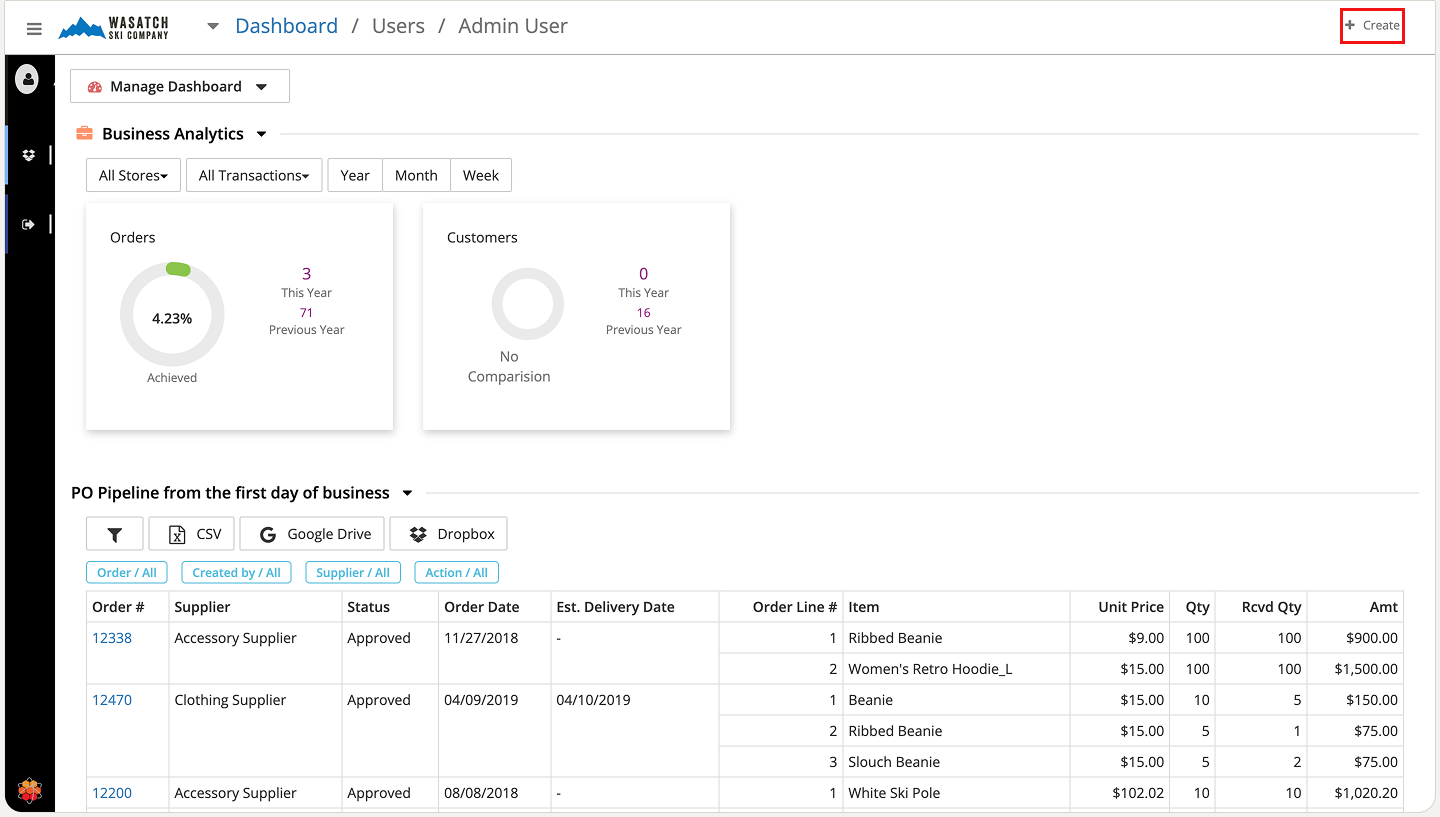
Open HotWax Accelerator and view the main dashboard. In the upper-right corner, click Create.
Step 2: Select Sales Quote
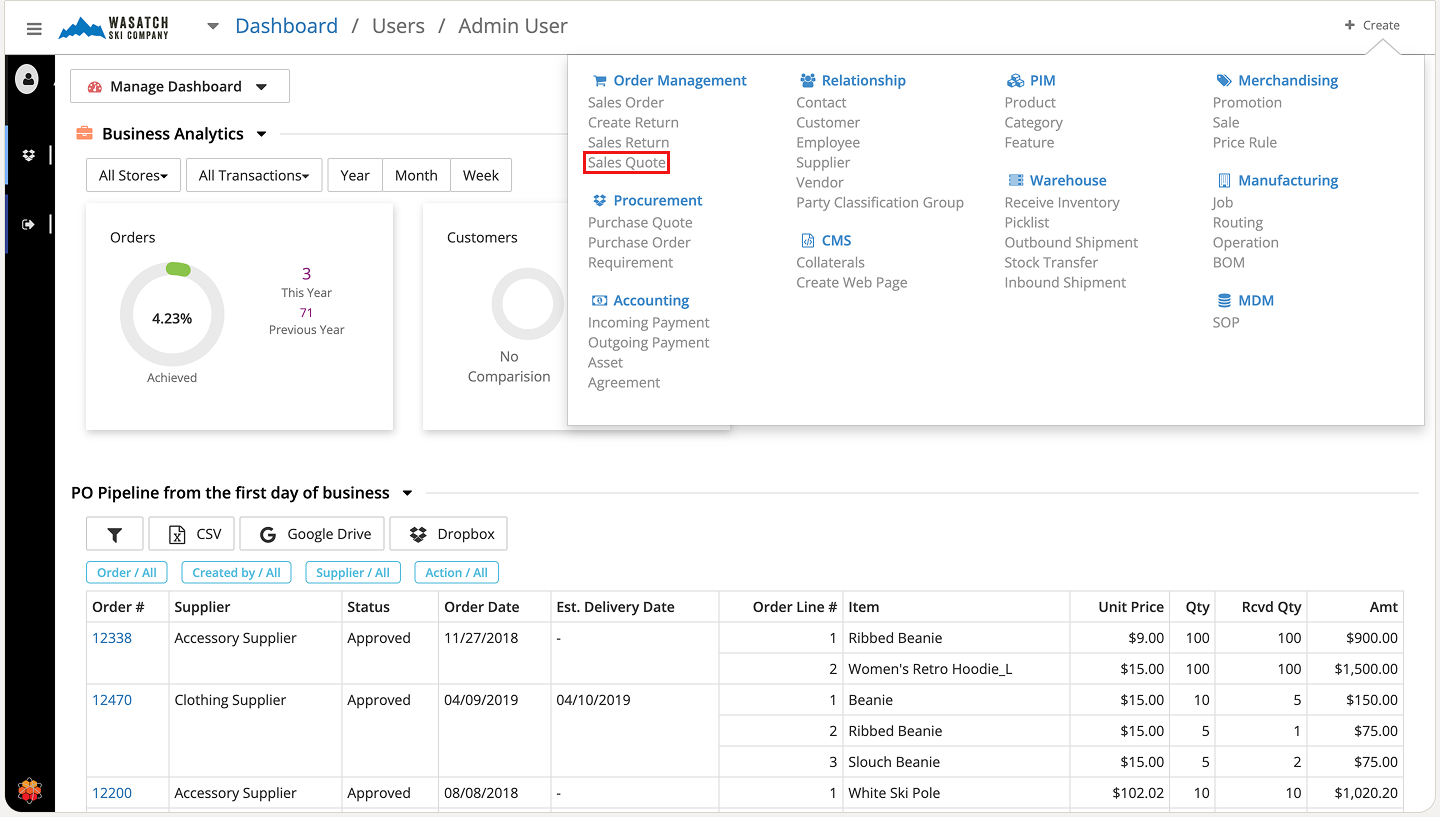
From the dropdown menu, under the Order Management section, select Sales Quote.
Step 3: Enter Quote Details
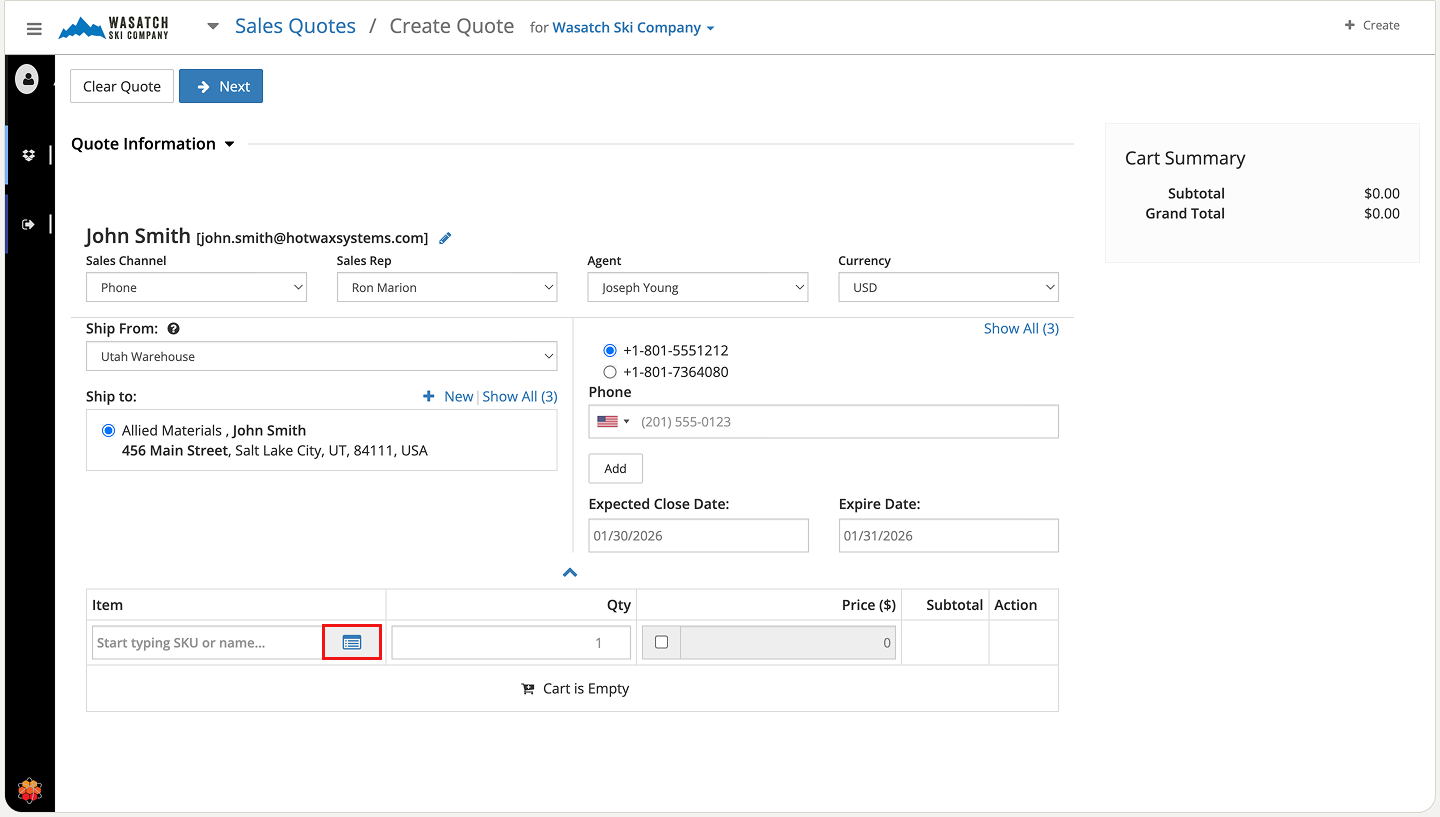
The Sales Quote creation screen appears. Fill in the required fields, including customer information, quote date, and any notes. To add items, either type the product name directly in the search field or click the Item List icon (highlighted below) to browse.
Step 4: Add Items from the Product List
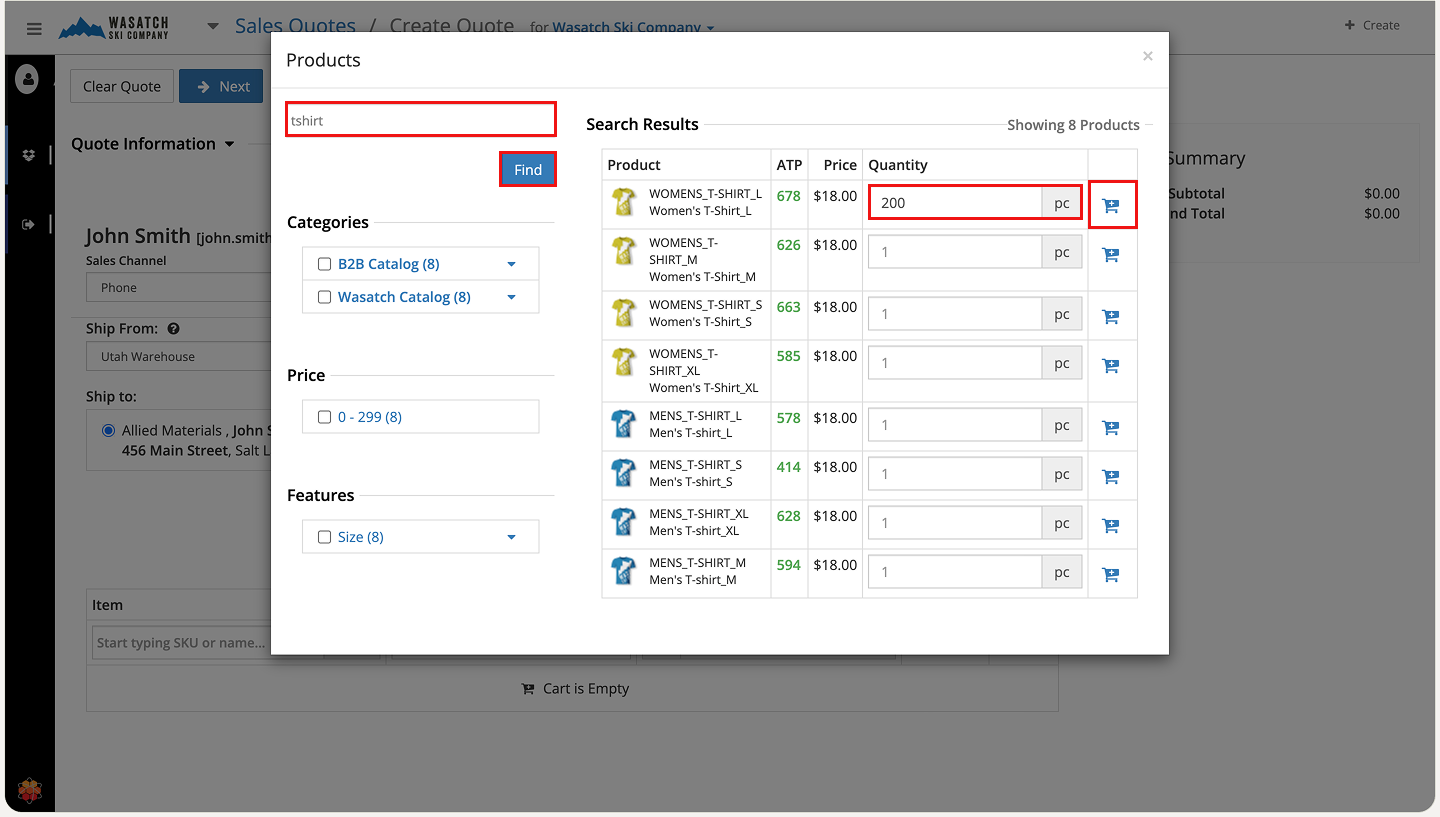
The product catalog pop-up opens. Use the top-left search bar or apply filters to locate items quickly. Once found, enter the desired quantity in the highlighted field and click the blue Cart icon to add the item with that quantity to the quote.
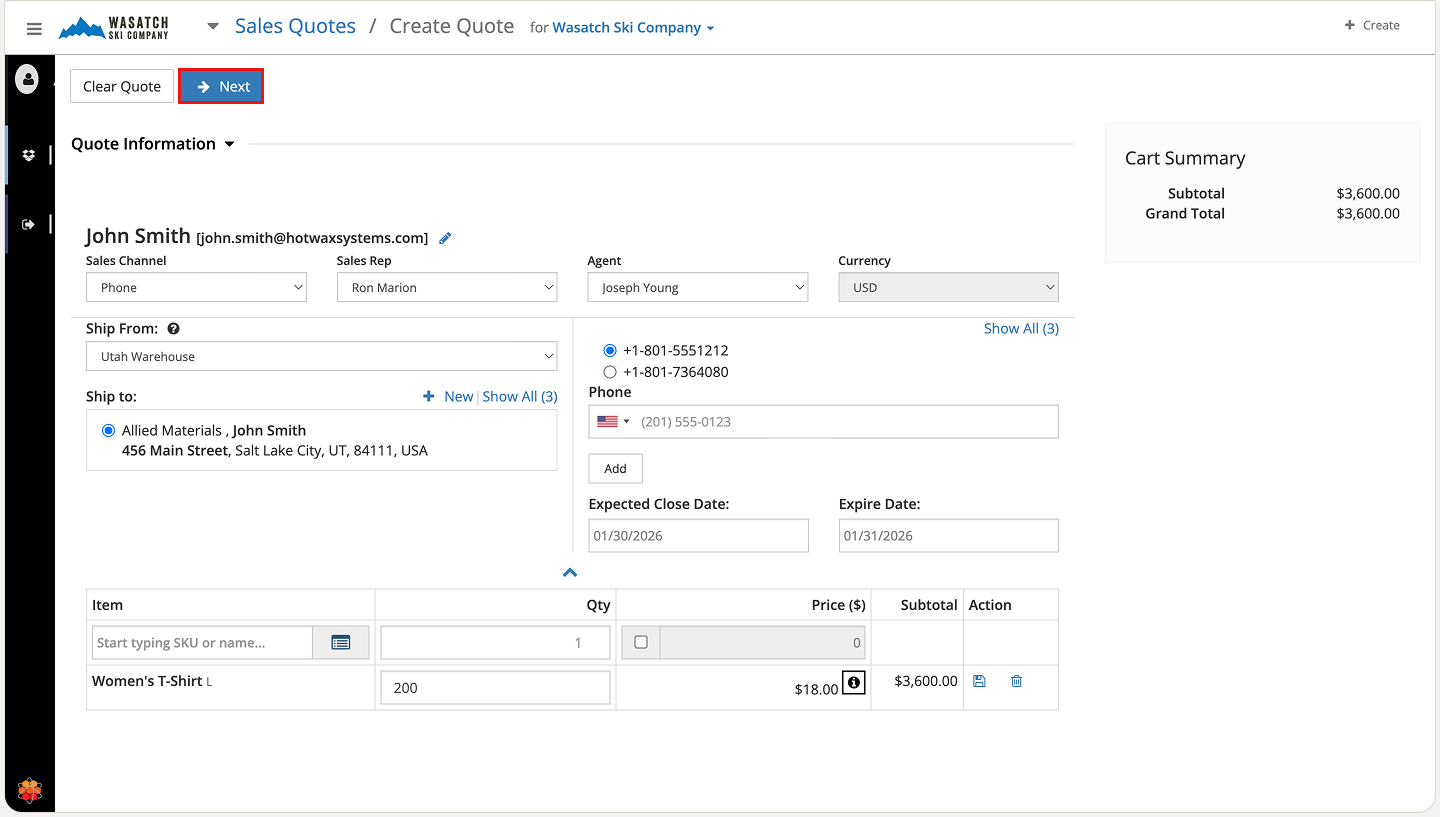
Step 5: Review and Proceed
Back on the main quote screen, review the added items, quantities, and calculated totals. When satisfied, click Next to continue.
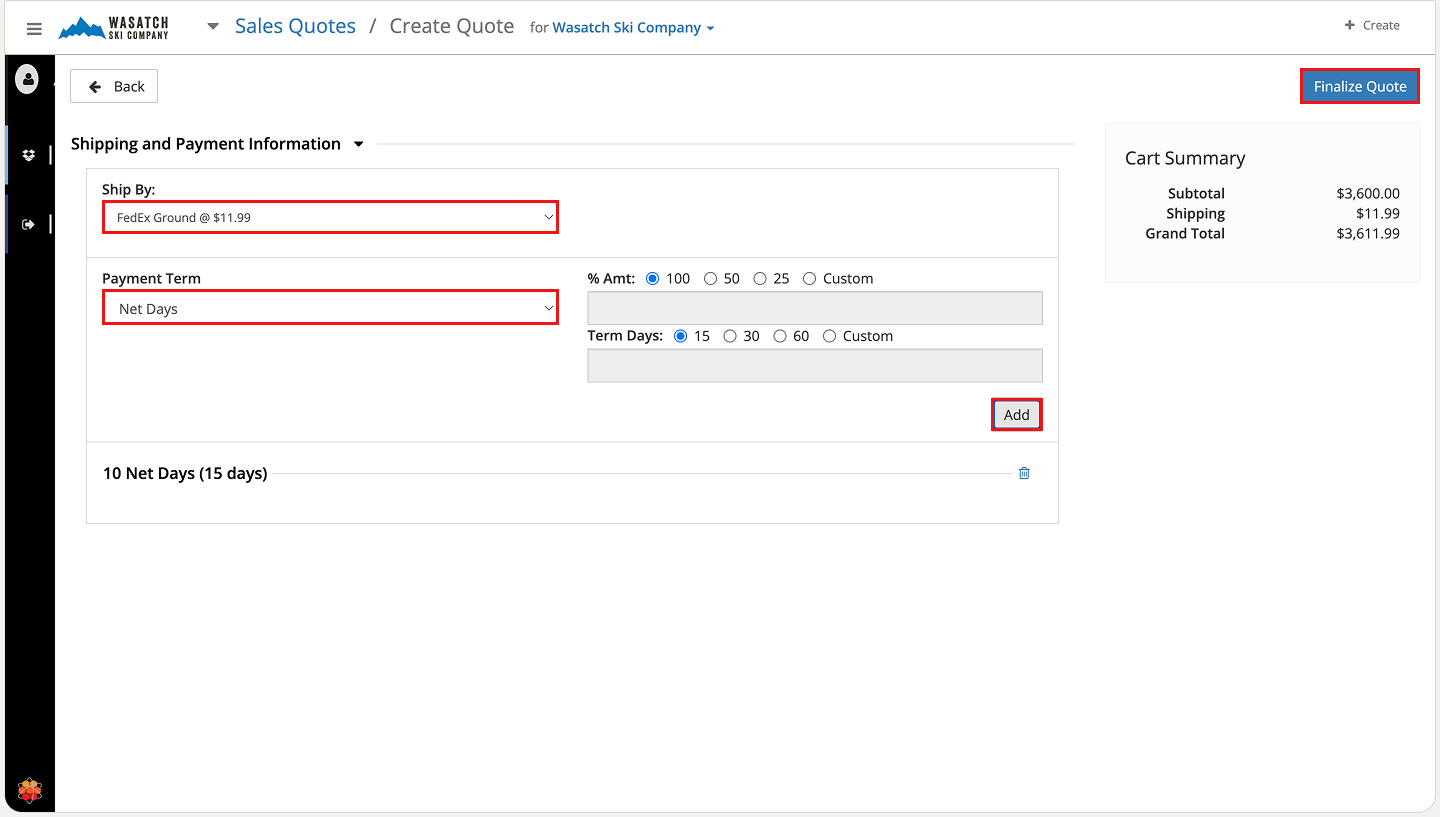
Step 6: Configure Shipping and Terms
Add the preferred shipping method and payment terms. Review all details carefully, then click Finalize Quote to complete the draft.
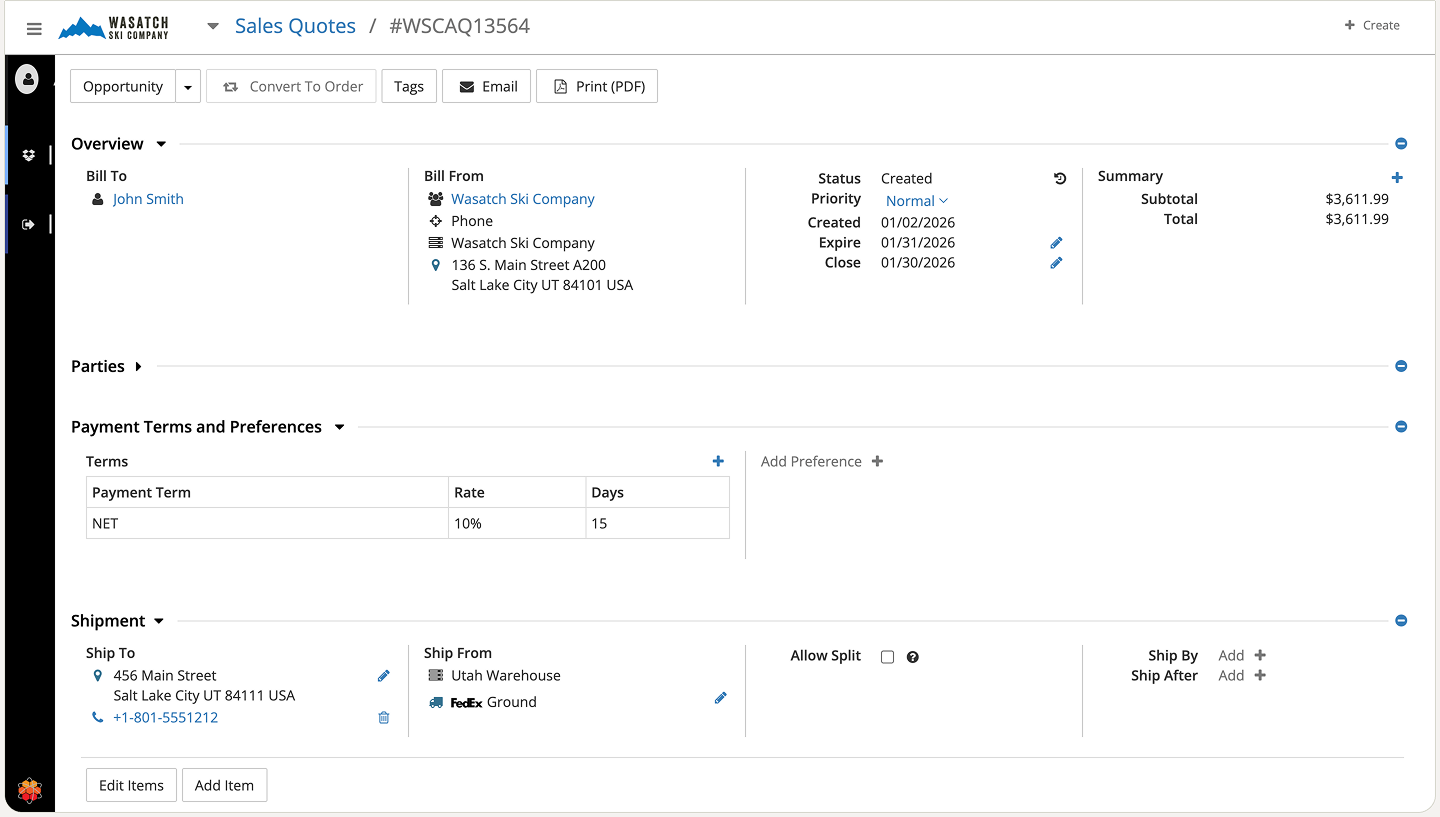
Step 7: View the Completed Quote
The full Sales Quote screen loads, displaying all entered information for final verification.
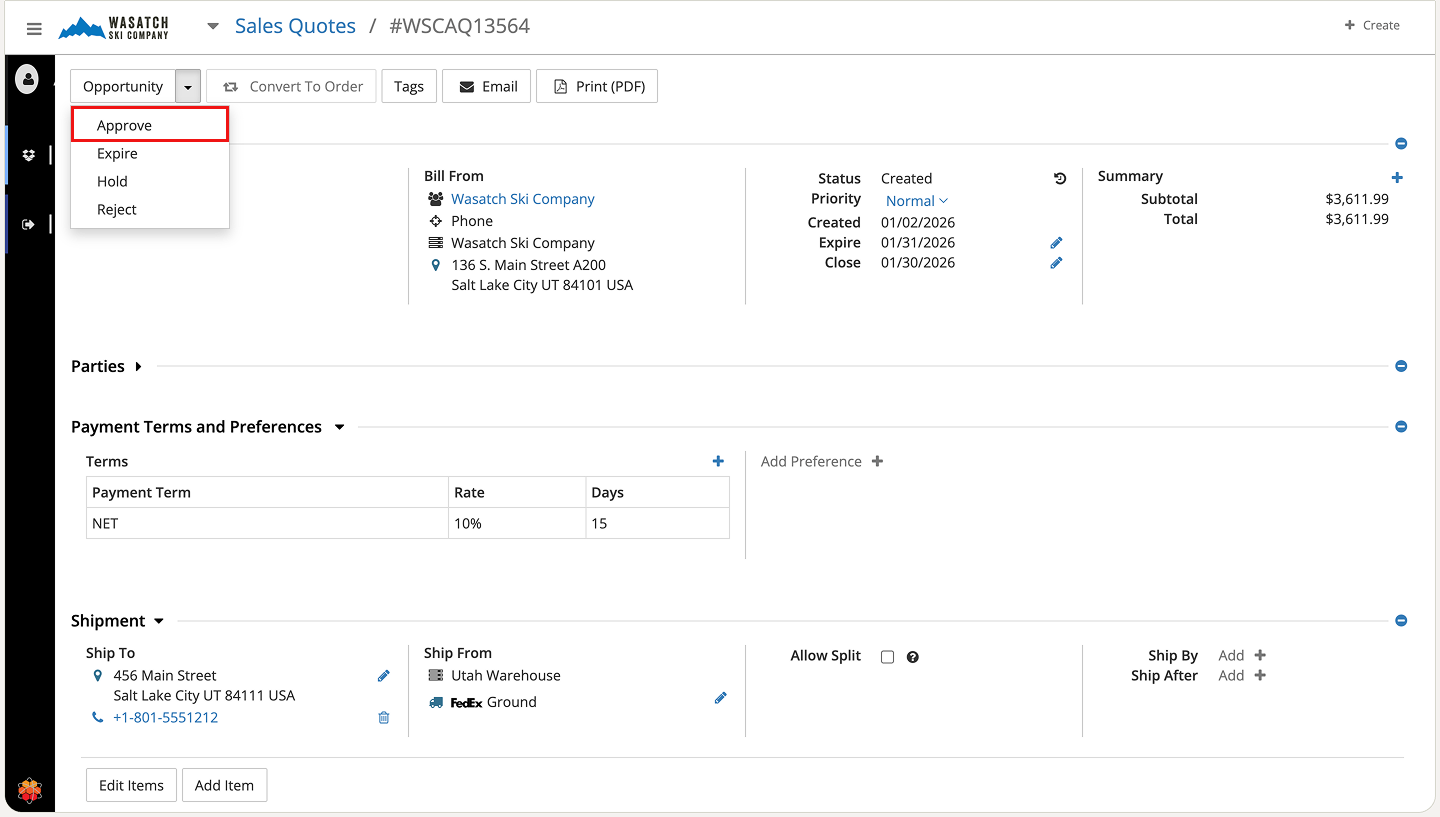
Step 8: Approve the Quote Internally
In the top-left status dropdown, select Approve to move the quote forward internally.
Step 9: Email the Quote to the Customer
Click the Email button in the top action bar to send the quote directly from the system.
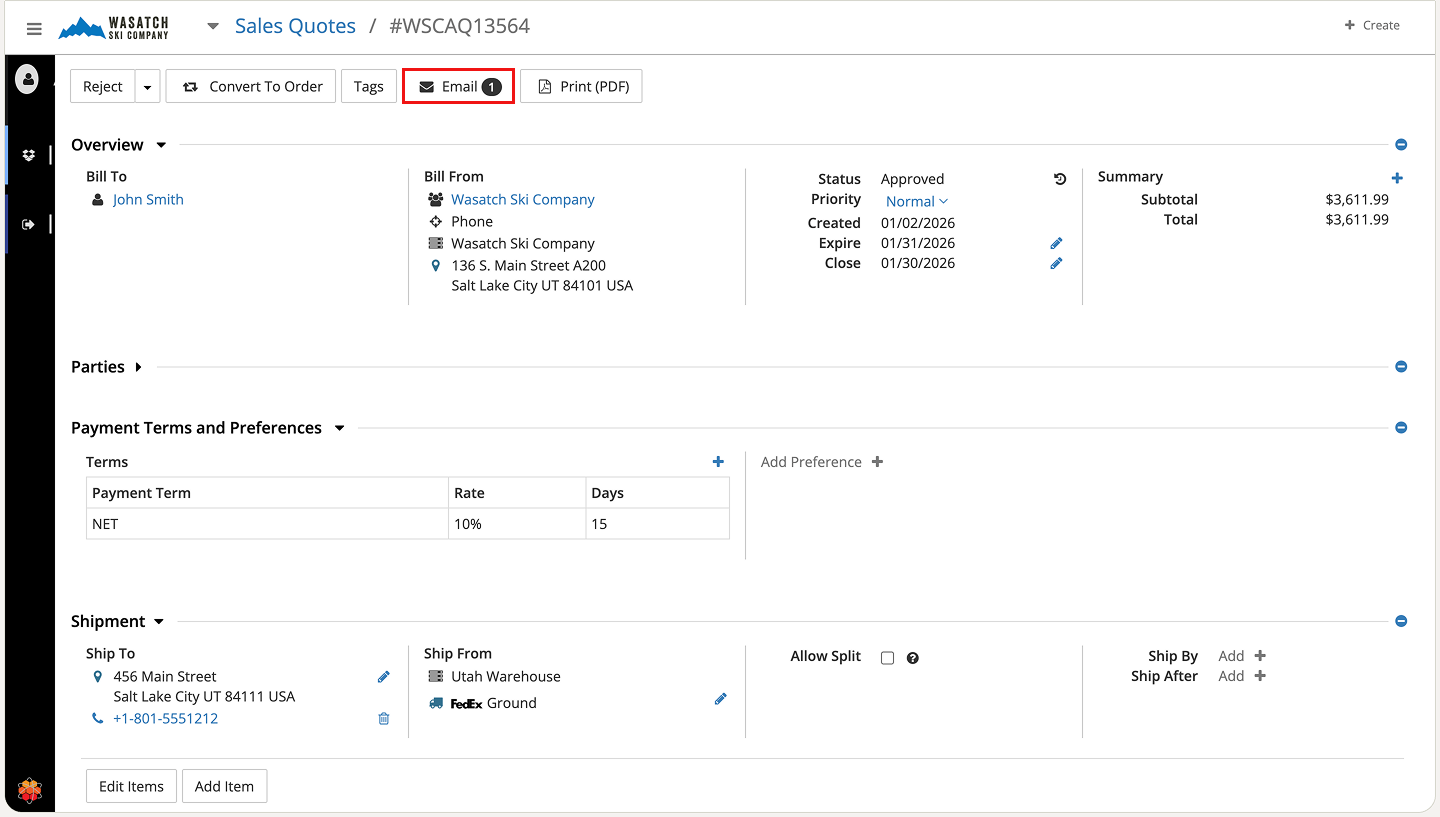
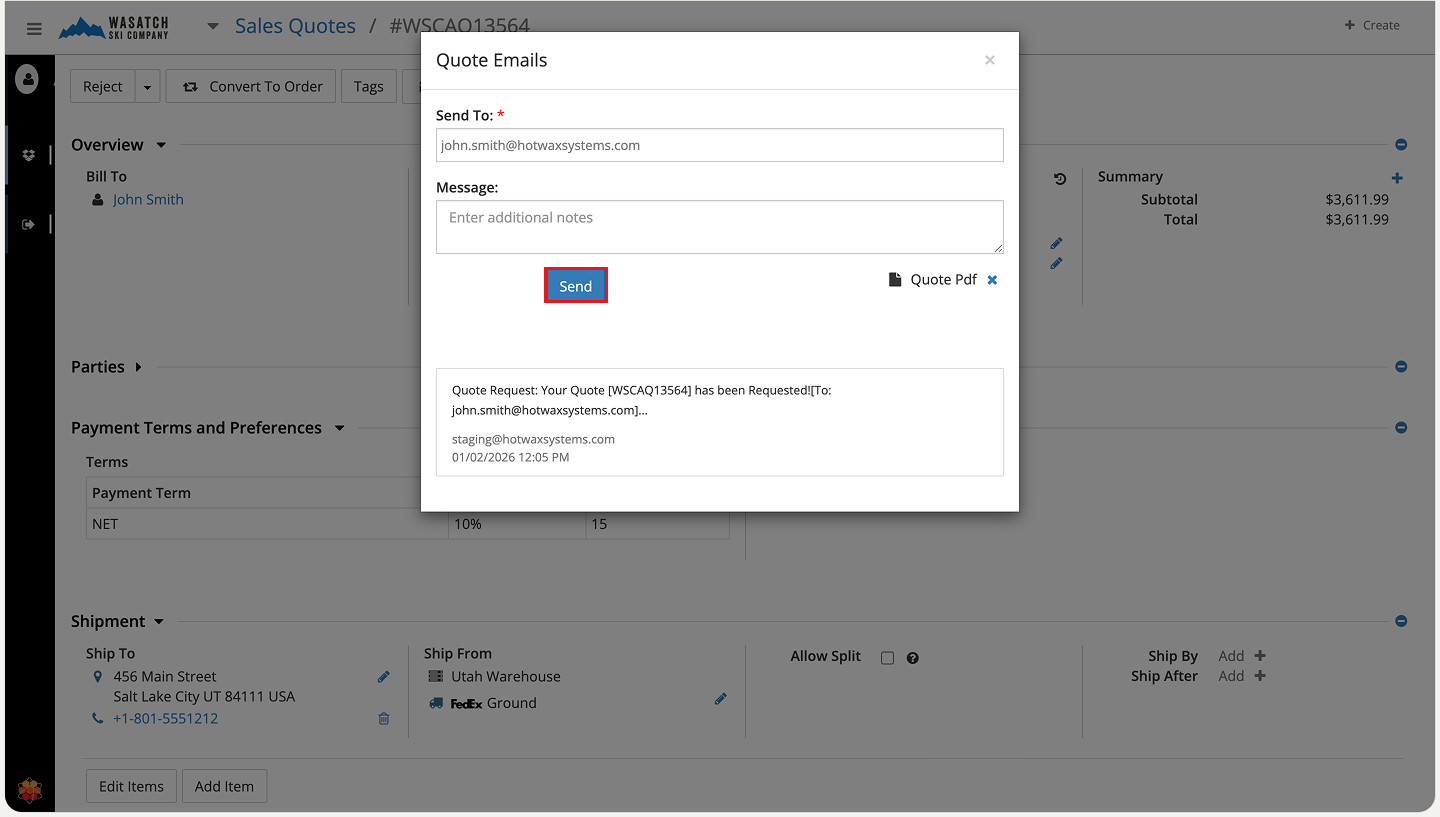
Step 10: Compose the Email
A pop-up appears. Add an optional personalised message (the quote will be attached as a PDF), then click Send.
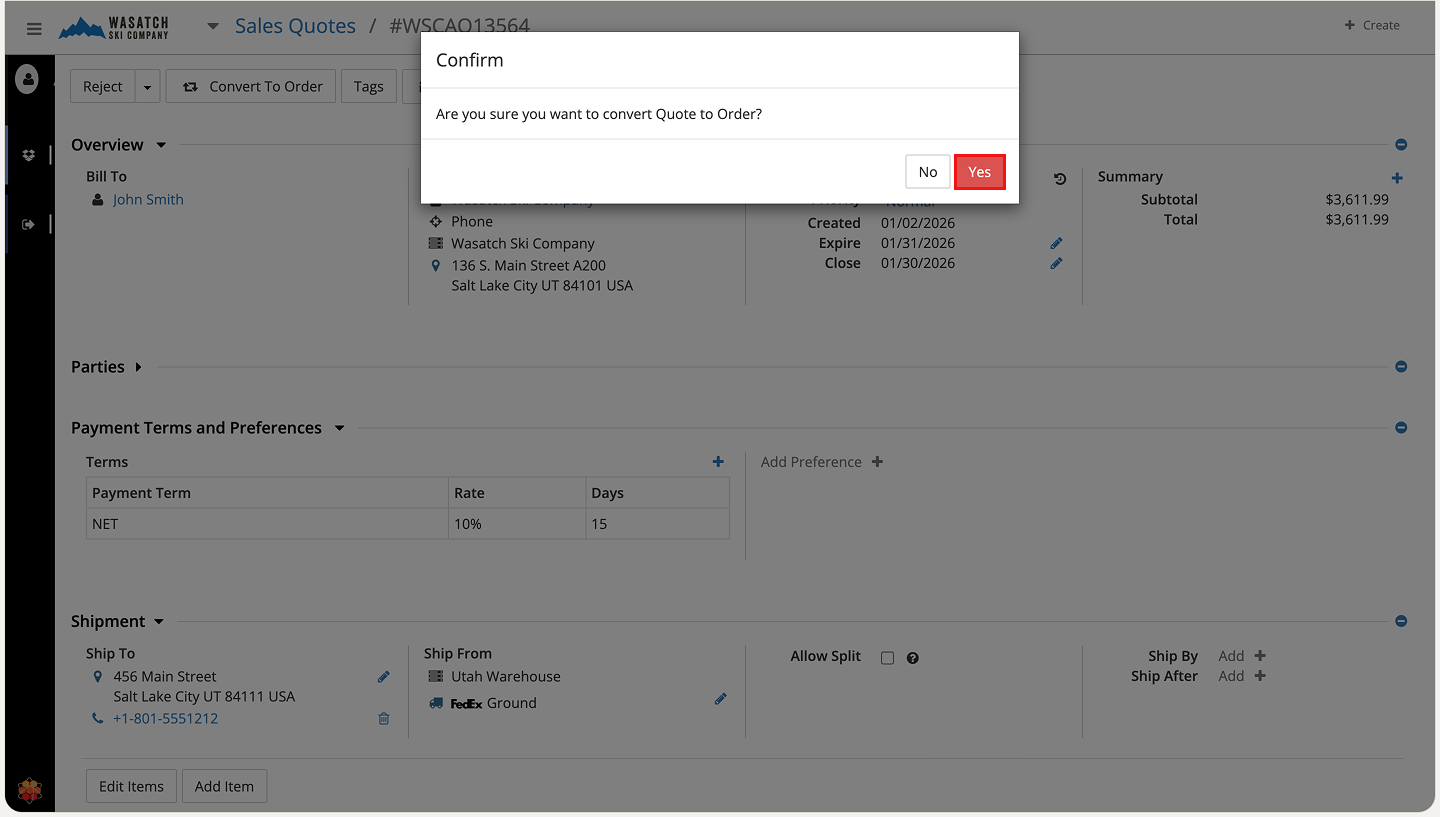
Step 11: Confirm Sending
A final confirmation pop-up ensures everything is correct before dispatch. Review and confirm to email the quote to the customer.
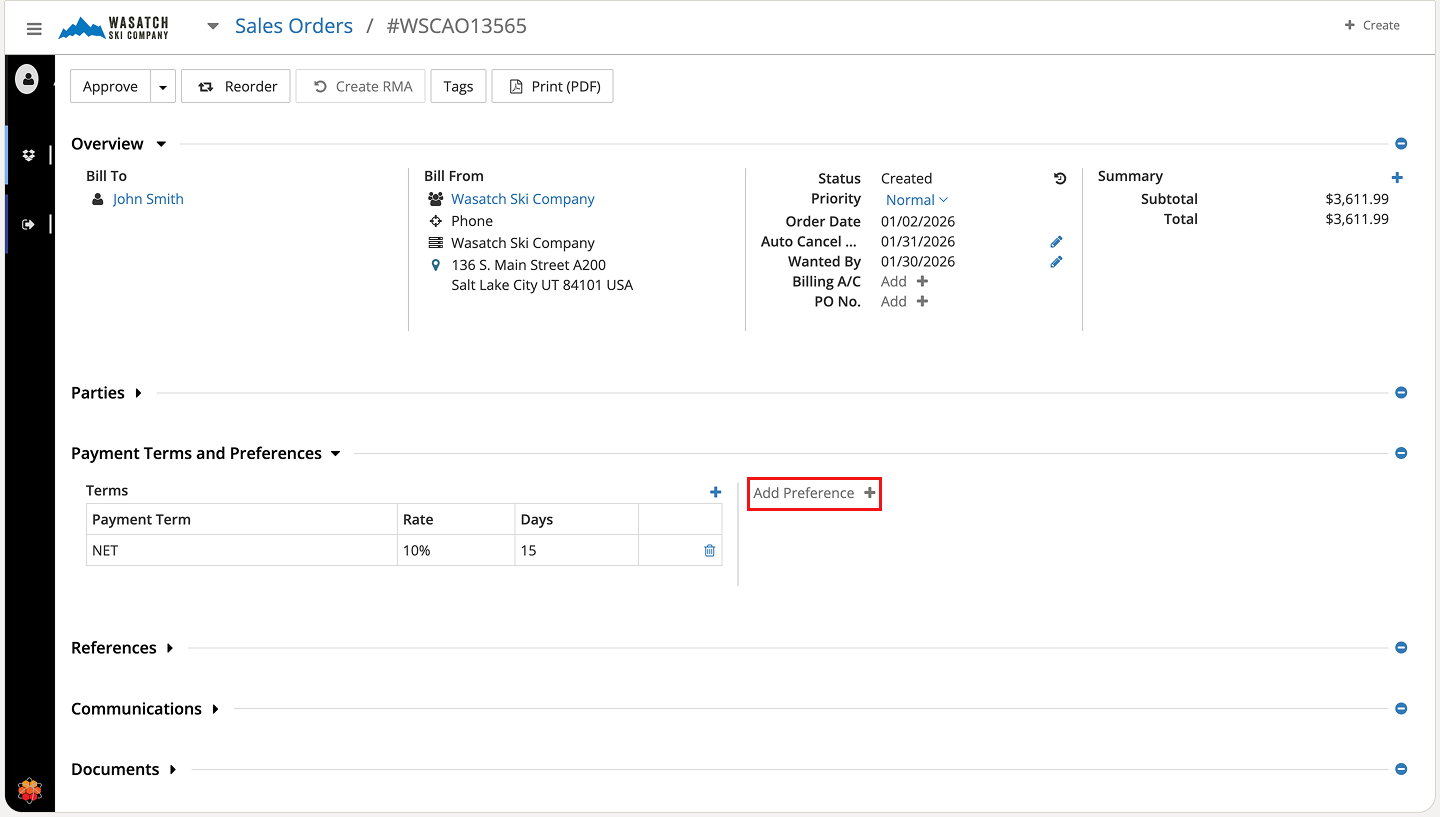
Step 12: Add Payment Method (Upon Customer Acceptance)
Once the customer accepts, return to the Payment Terms and Preferences section and click Add Preference +.
Step 13: Select Payment Method
In the pop-up, choose the customer's preferred payment method and click Add.
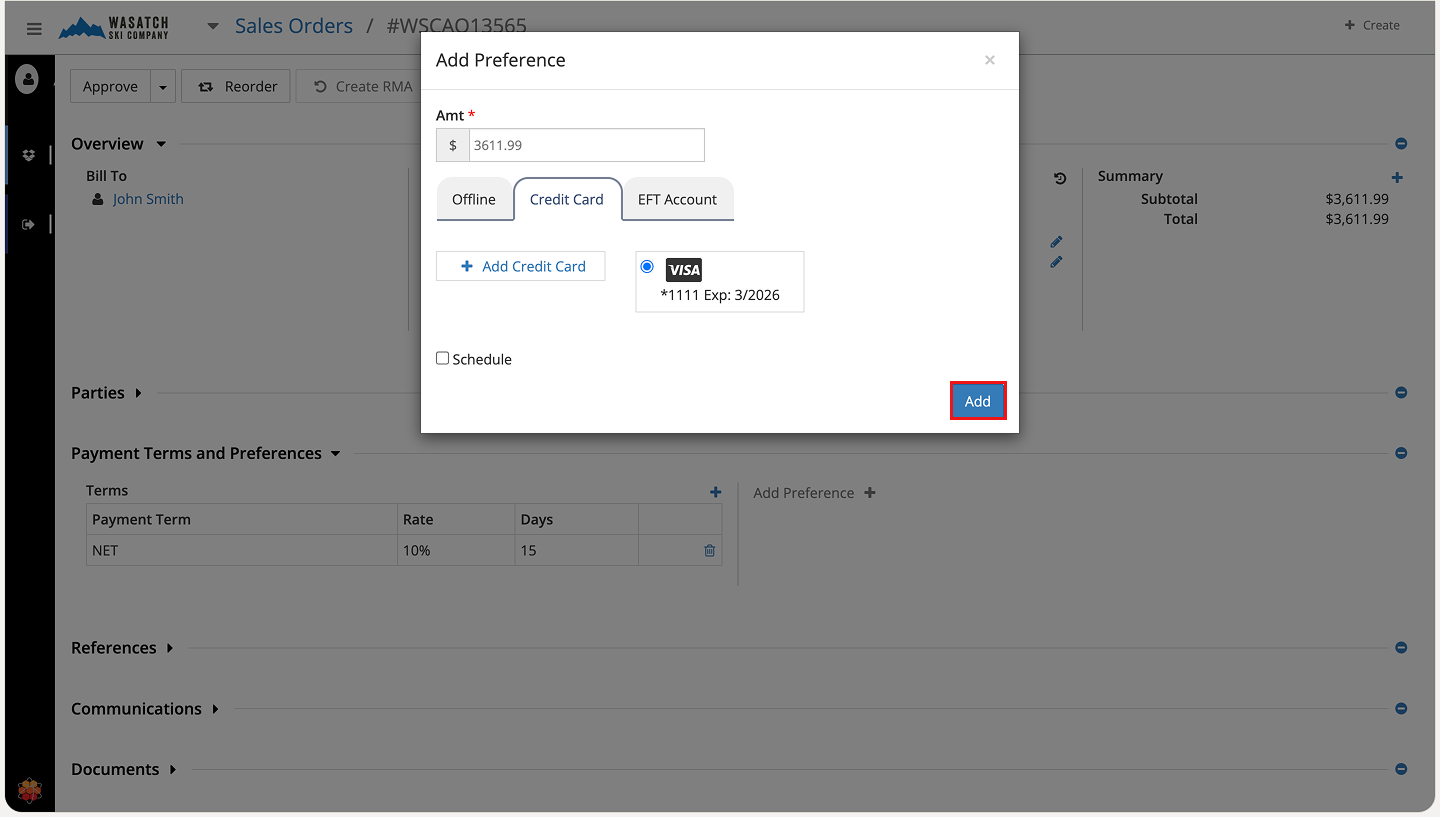
Step 14: Capture Payment (Optional at This Stage)
If payment is received upfront, click Capture under the Status column for the payment preference. Although this step is optional at this stage, we are doing it here for demonstration purposes.
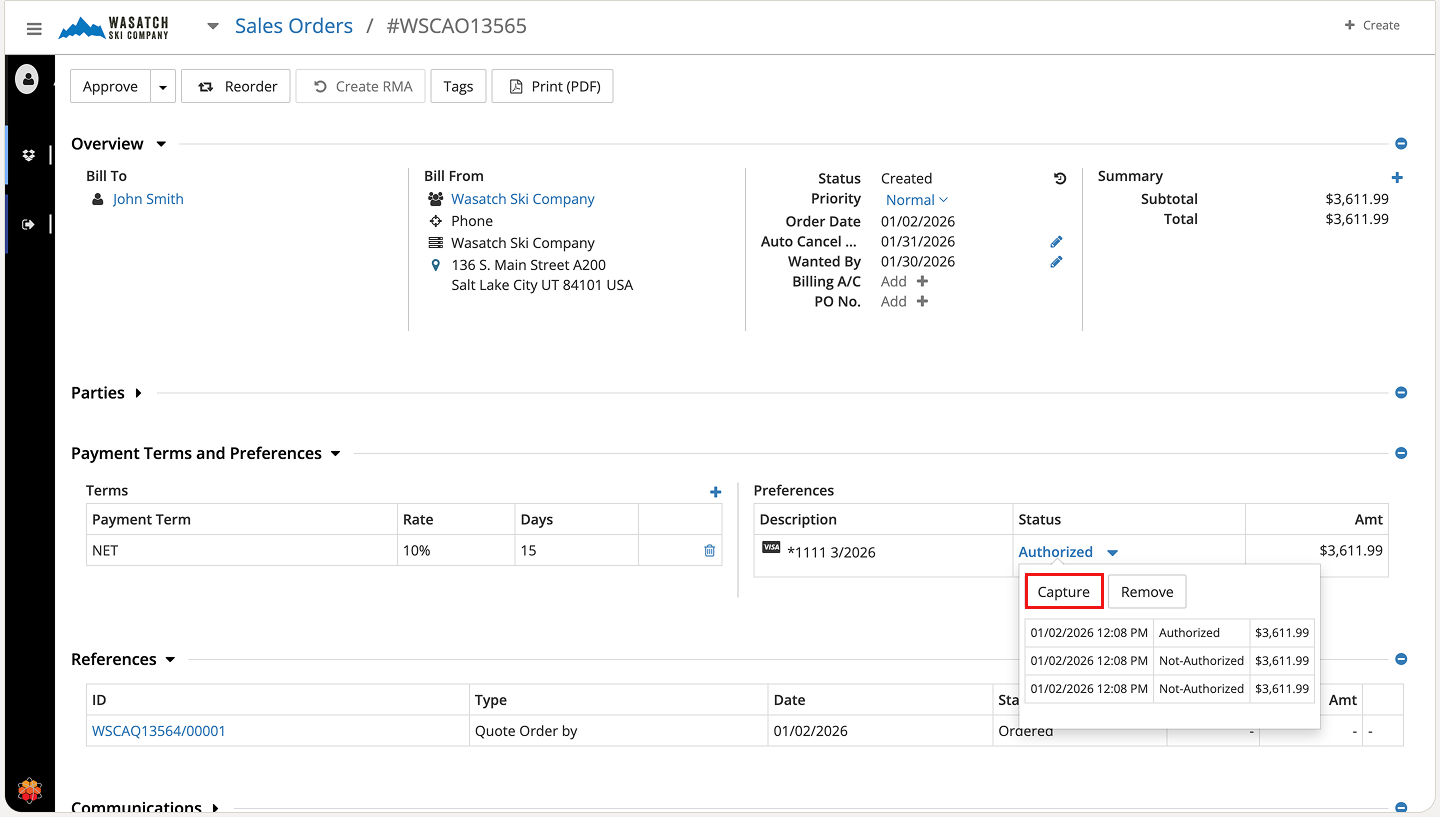
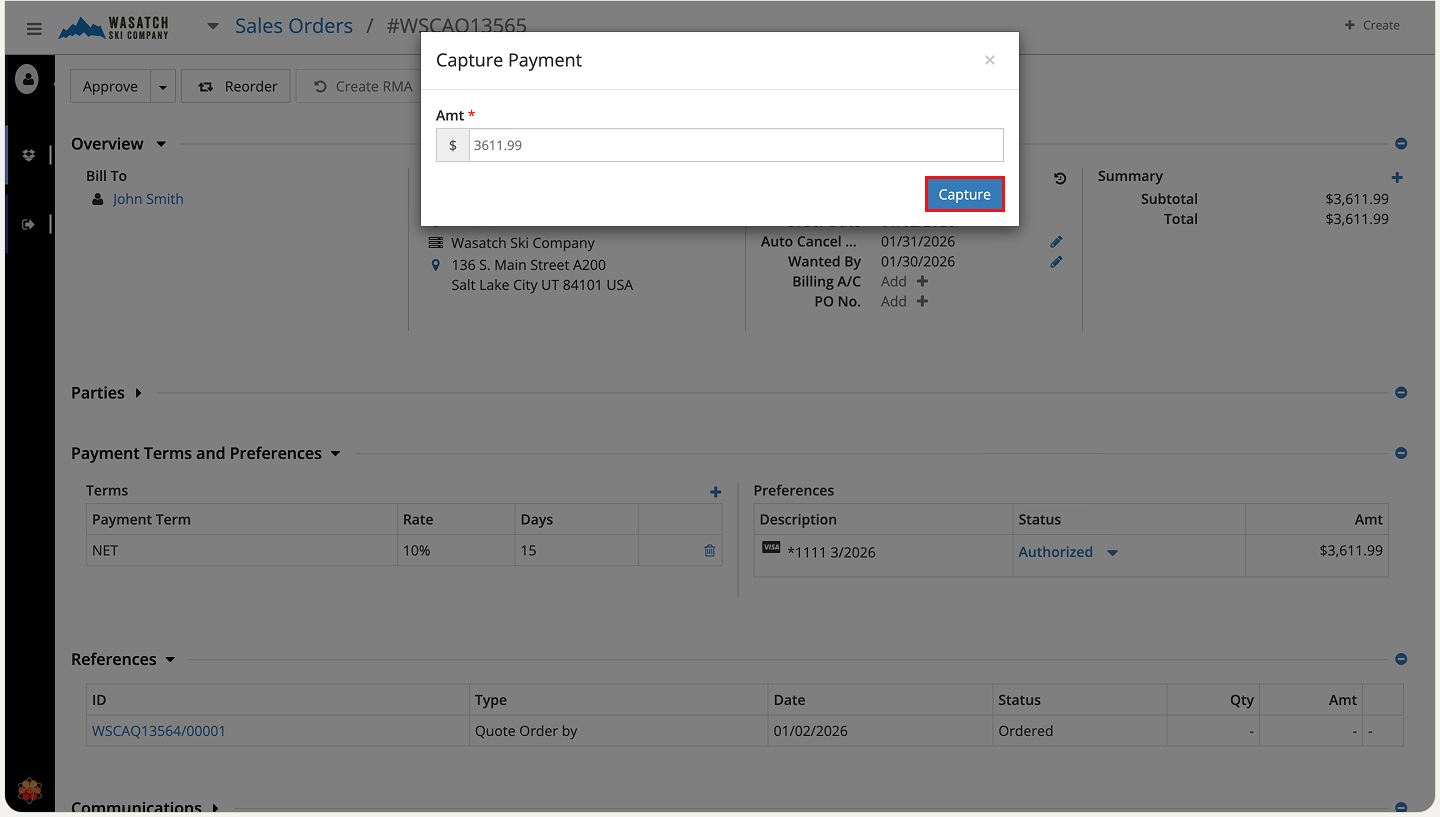
Step 15: Process the Payment
The capture pop-up appears, pre-filled with the quote amount. Verify the details, adjust if needed, and click Capture to record the payment.
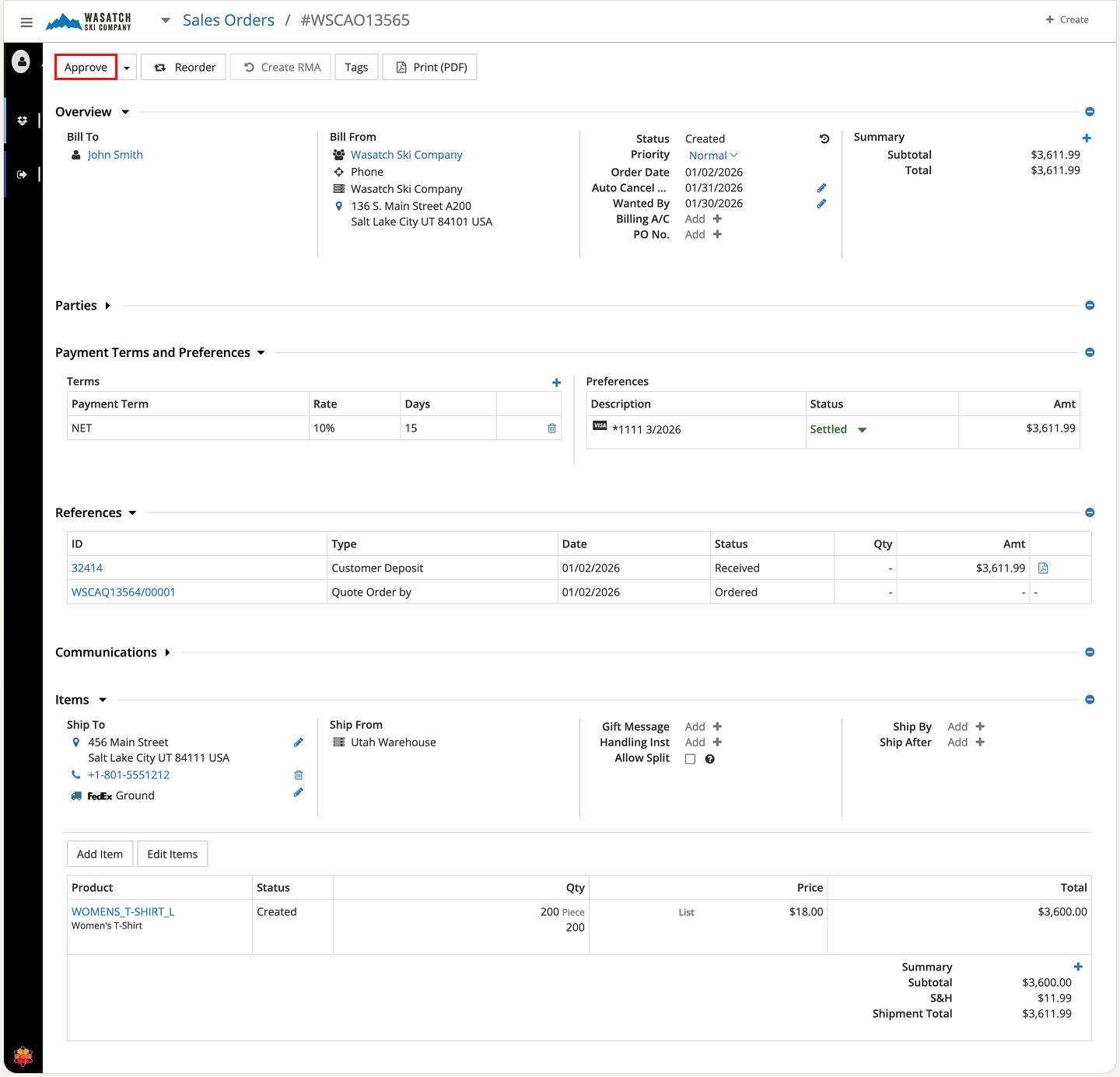
Step 16: Convert Quote to Sales Order
With payment and acceptance confirmed, change the status to Approved in the top-left dropdown. This finalises the conversion to a binding sales order, ready for fulfillment.
For faster transactions — such as eCommerce orders, phone sales, or walk-in customers — HotWax Accelerator allows you to create a sales order directly, bypassing the quote stage. This method skips preliminary approvals and goes straight to order entry, item addition, party assignment, and fulfillment preparation.
Let’s walk through the steps to create a sales order directly.
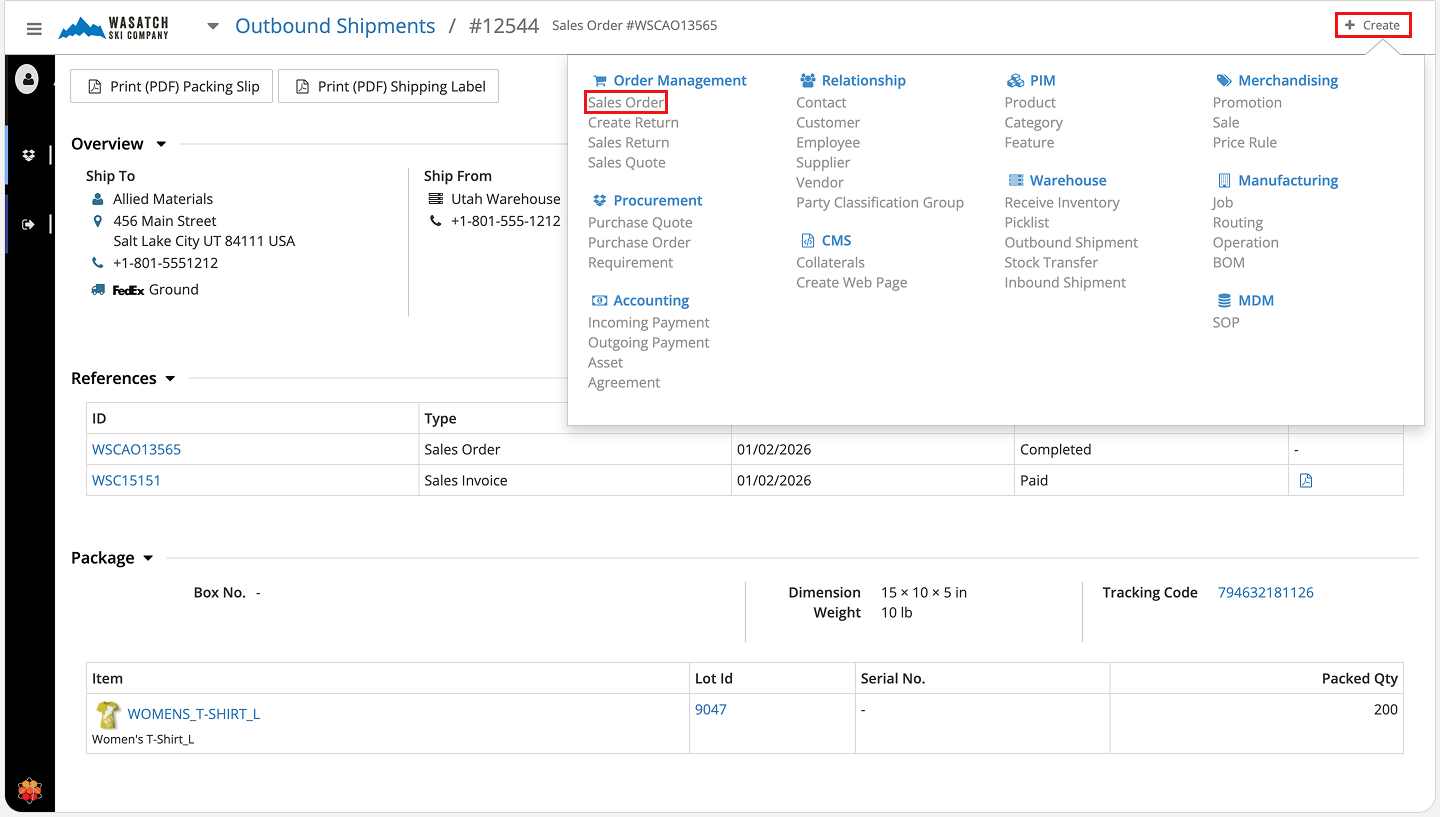
Step 1: Access the Create Menu and Select Sales Order
From any screen in HotWax Accelerator, click + Create in the top-right corner. In the dropdown menu, under the Order Management section, choose Sales Order.
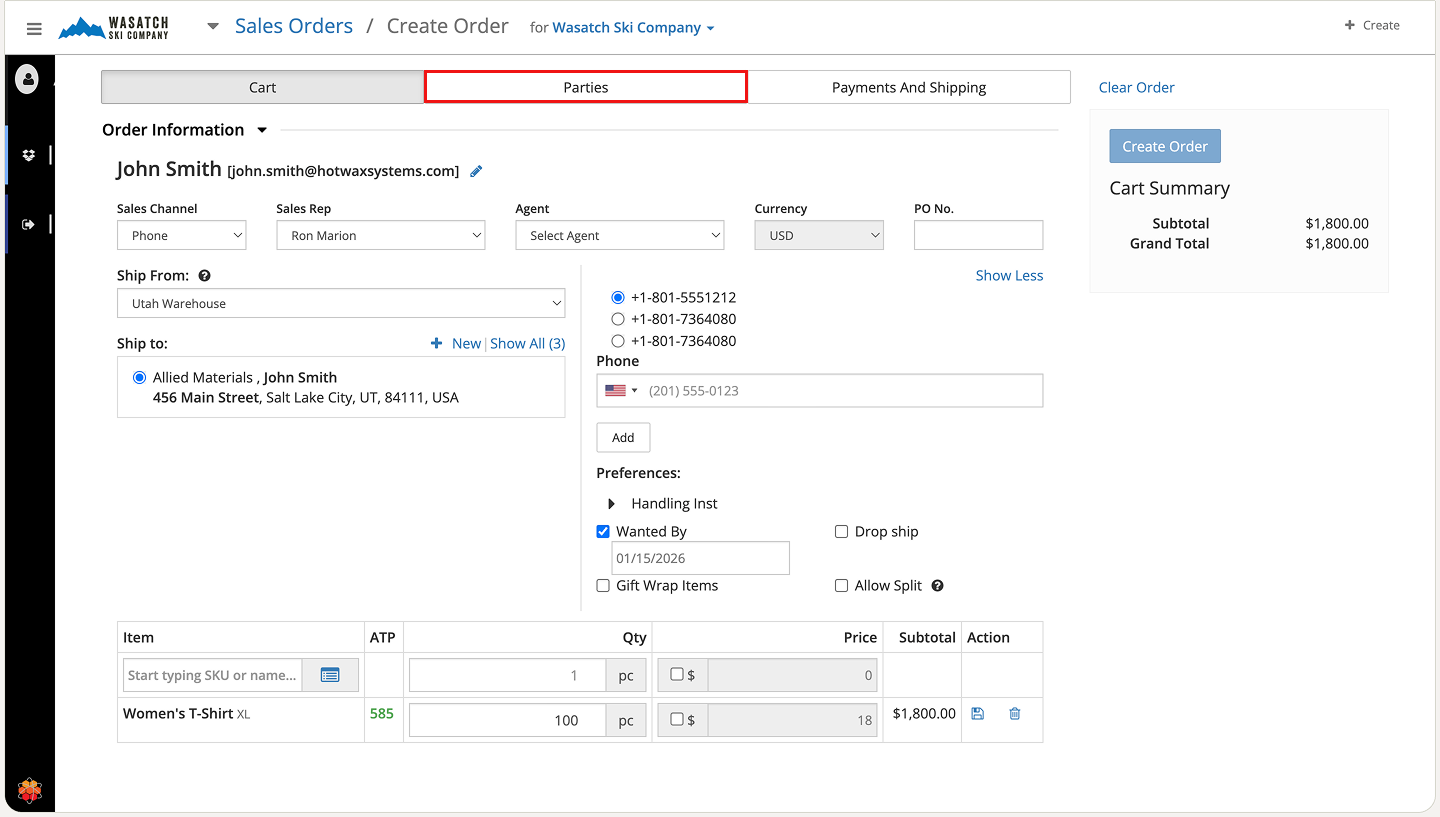
Step 2: Enter Order and Customer Details
The Sales Order creation screen opens. Fill in customer information, order date, and any notes. Add items by searching or browsing the catalog, specifying quantities, and reviewing calculated totals.
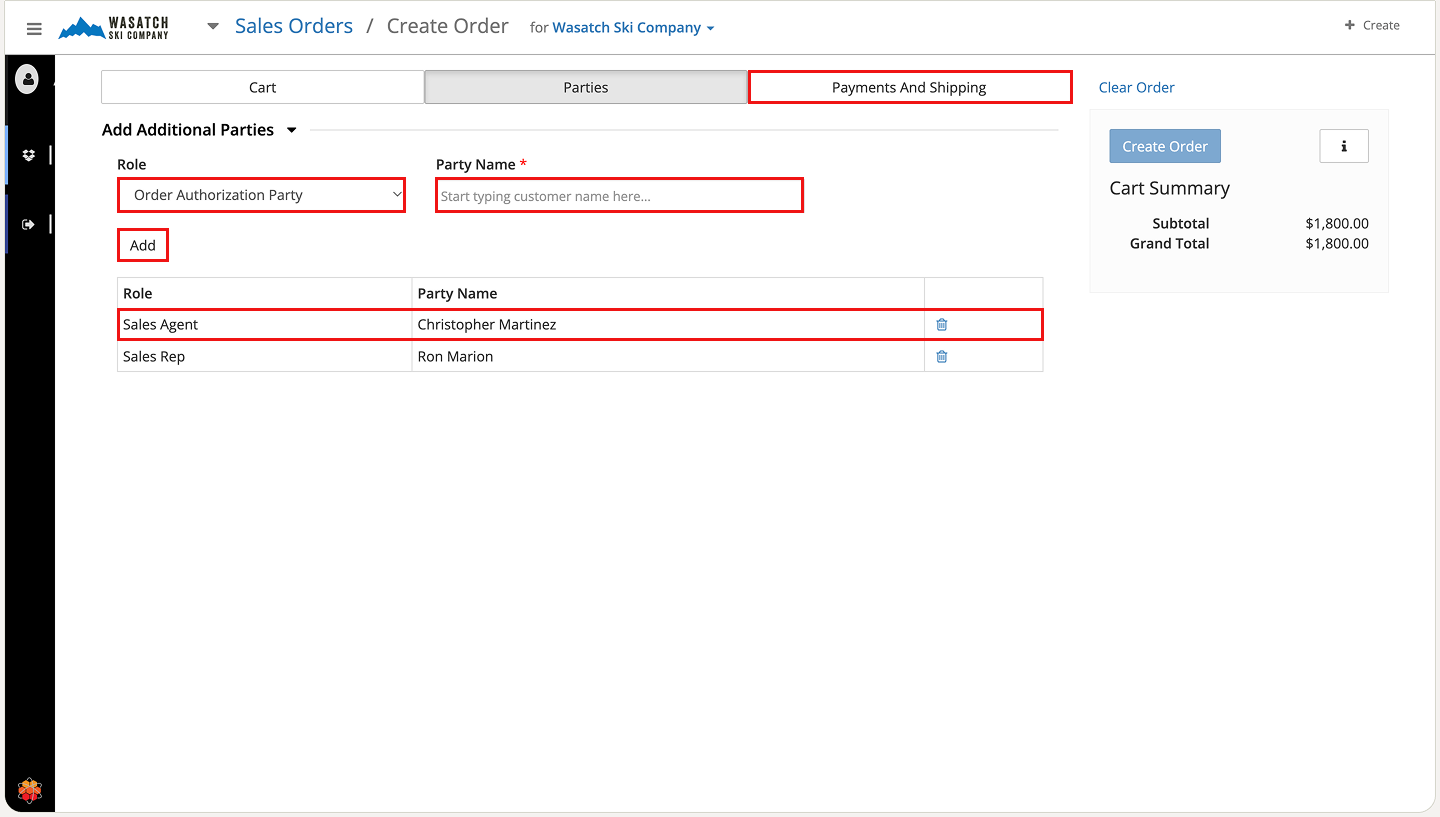
Step 3: Assign Parties
Click the Parties tab. Search for and add relevant parties (e.g., sales agent, sales representative) by entering the Party Name, selecting the appropriate Role from the dropdown, and clicking Add. Added parties appear in the list below for verification.
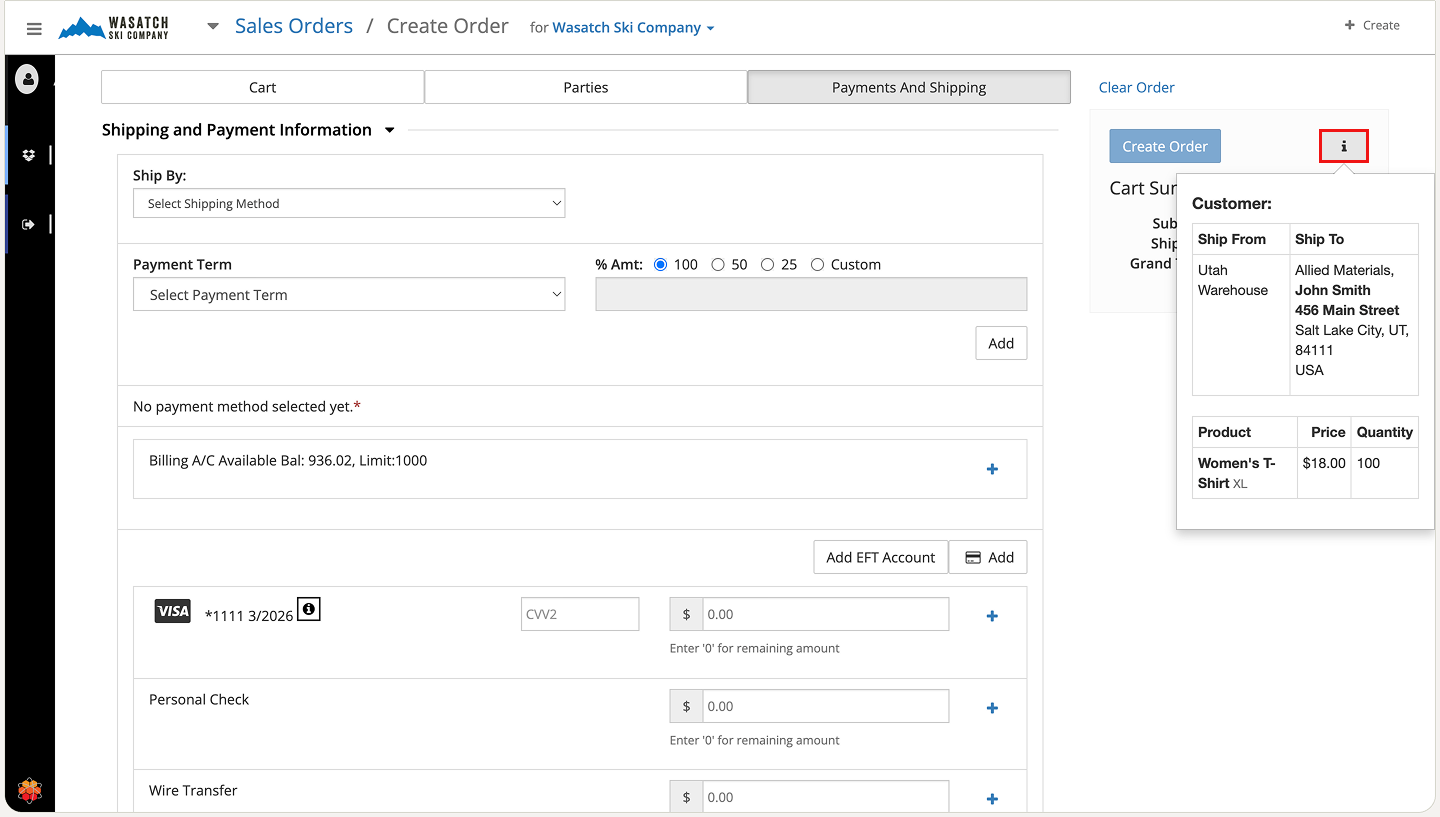
Step 4: Configure Shipping and Payment
Move to the relevant tabs to set shipping methods, and payment preferences. Review all entries carefully.
Informational Tooltips on Hover
HotWax Accelerator includes helpful "i" (information) icons throughout the interface, placed next to key fields, sections, or buttons.
Simply hover your cursor over any "i" icon to display a quick glance with contextual guidance, explanations, or additional details about that element. This on-demand help reduces the need to consult external documentation and assists users in understanding field requirements, calculations, or process implications without leaving the screen.
This feature is particularly useful during order entry, fulfillment, or configuration tasks, providing quick clarifications to keep workflows smooth and error-free.
Order Validation on Hover
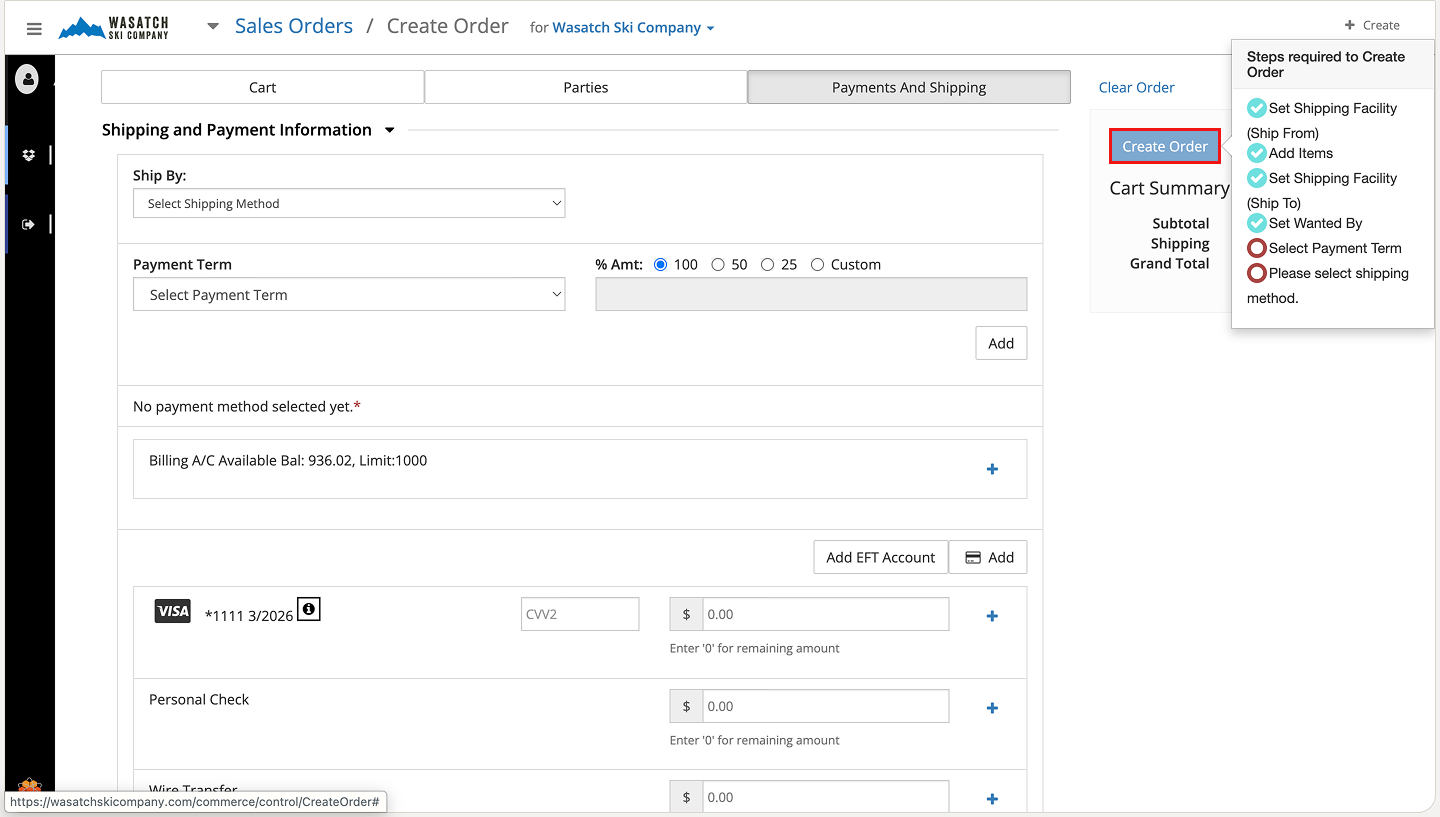
HotWax Accelerator further enhances usability by providing instant feedback on incomplete fields. Simply hover over the inactive Create Order button to display a tooltip listing any missing or required information.
This convenient feature helps users quickly identify and address gaps without trial-and-error submissions, ensuring all critical details are captured before finalising the order. The validation rules are fully configurable to align with your specific business priorities and policies.
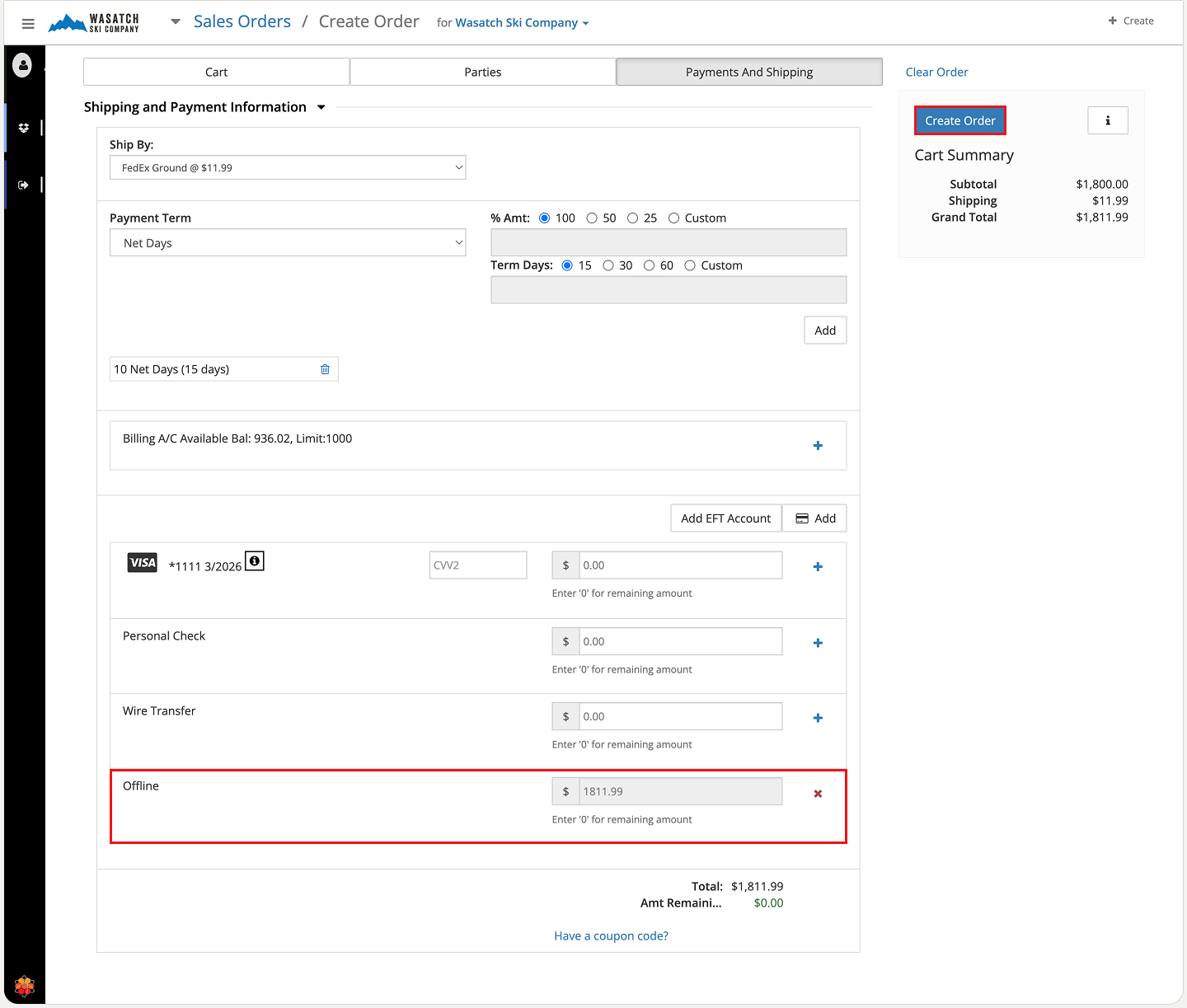
Step 5: Finalise the Order
Once all details are confirmed, click Create Order. The order status advances, and now the sales order is ready for fulfillment processing.
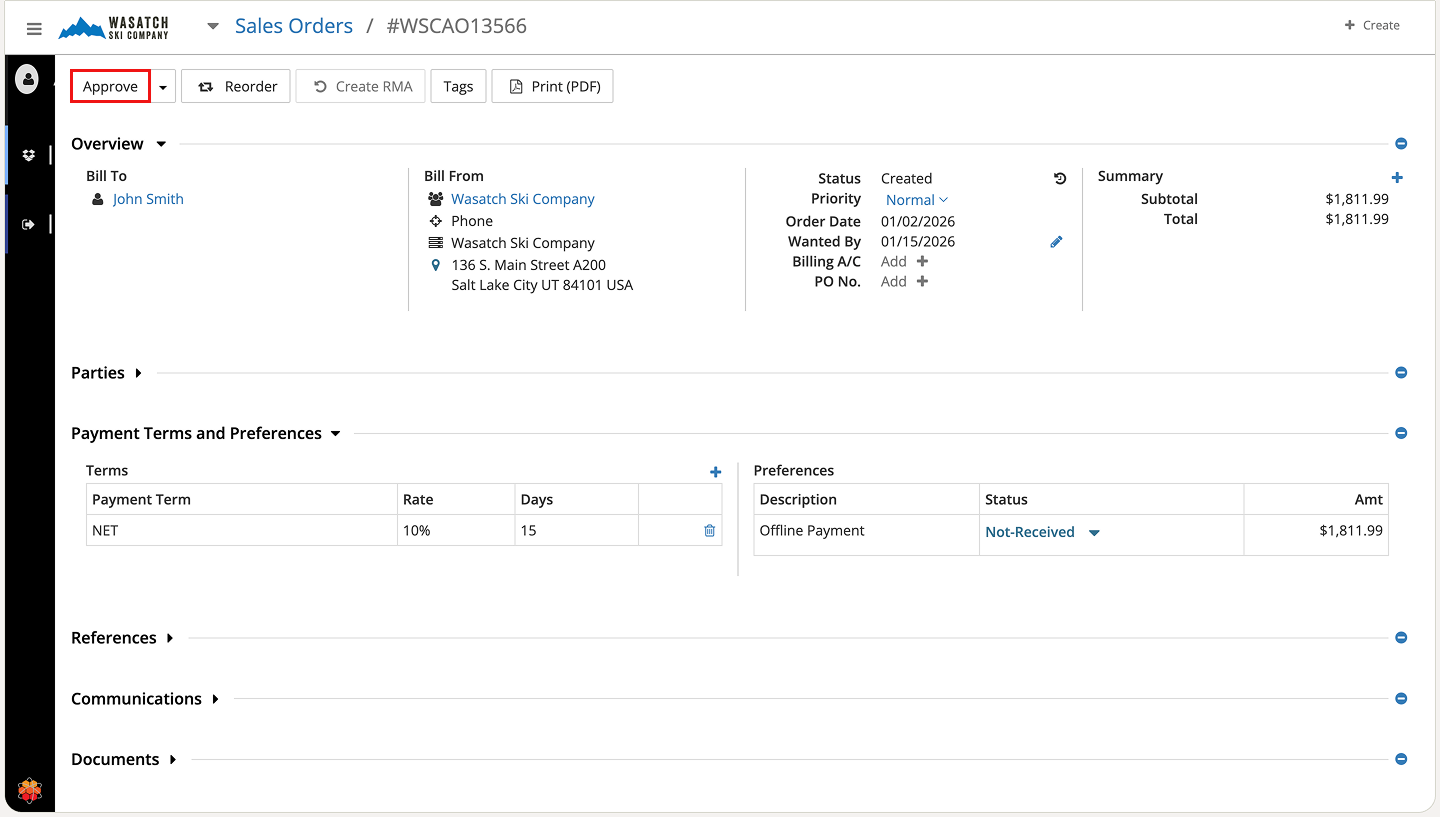
Step 6: Finalise the Sales Order
The completed Sales Order screen appears (shown below), summarising all entered details: items, quantities, pricing, customer information, shipping method, and payment terms.
Review everything carefully for accuracy. Once satisfied, change the status to approved by clicking the Approve button in the top-left corner.
This action finalises the order, reserves inventory (if configured as such), triggers fulfillment processes, and makes the order visible for picking, packing, and shipping.
With the sales order approved and inventory reserved, the next phase is fulfillment: picking, packing, and shipping the items to the customer. HotWax Accelerator streamlines this process with intuitive tools for creating packages, integrating with carriers (such as FedEx in this example) for real-time rate calculation and label generation, and updating order status upon delivery.
All shipping and handling charges are automatically added to the customer's final billing at order creation, ensuring transparency. The system also provides tracking information, packing slips, and shipping labels directly from the interface.
Let’s continue from the approved sales order and walk through the fulfillment workflow.
Once the sales order is approved, HotWax Accelerator guides warehouse teams through efficient picking and packing to prepare items for shipment. The platform provides clear pick lists, supports batch picking for multiple orders, and allows real-time updates as items are picked from shelves.
Let’s continue with the picking and packing workflow in HotWax Accelerator.
Step 1: Access the Pick List
Once the order has been finalised, click on + Create in the top right corner of the screen.
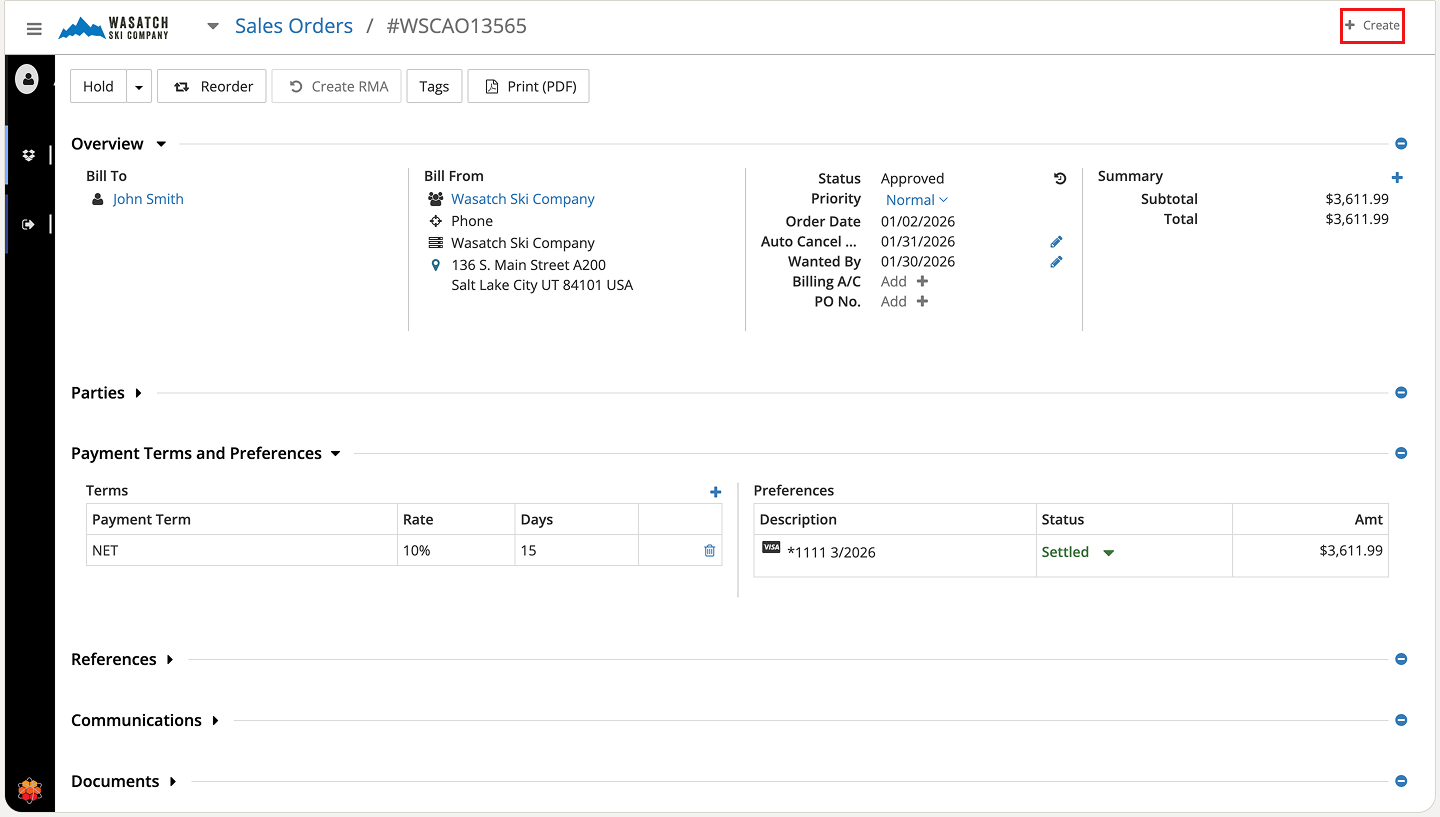
Step 2: Open Picklist Screen
Choose Picklist from the drop down menu under the Warehouse section.
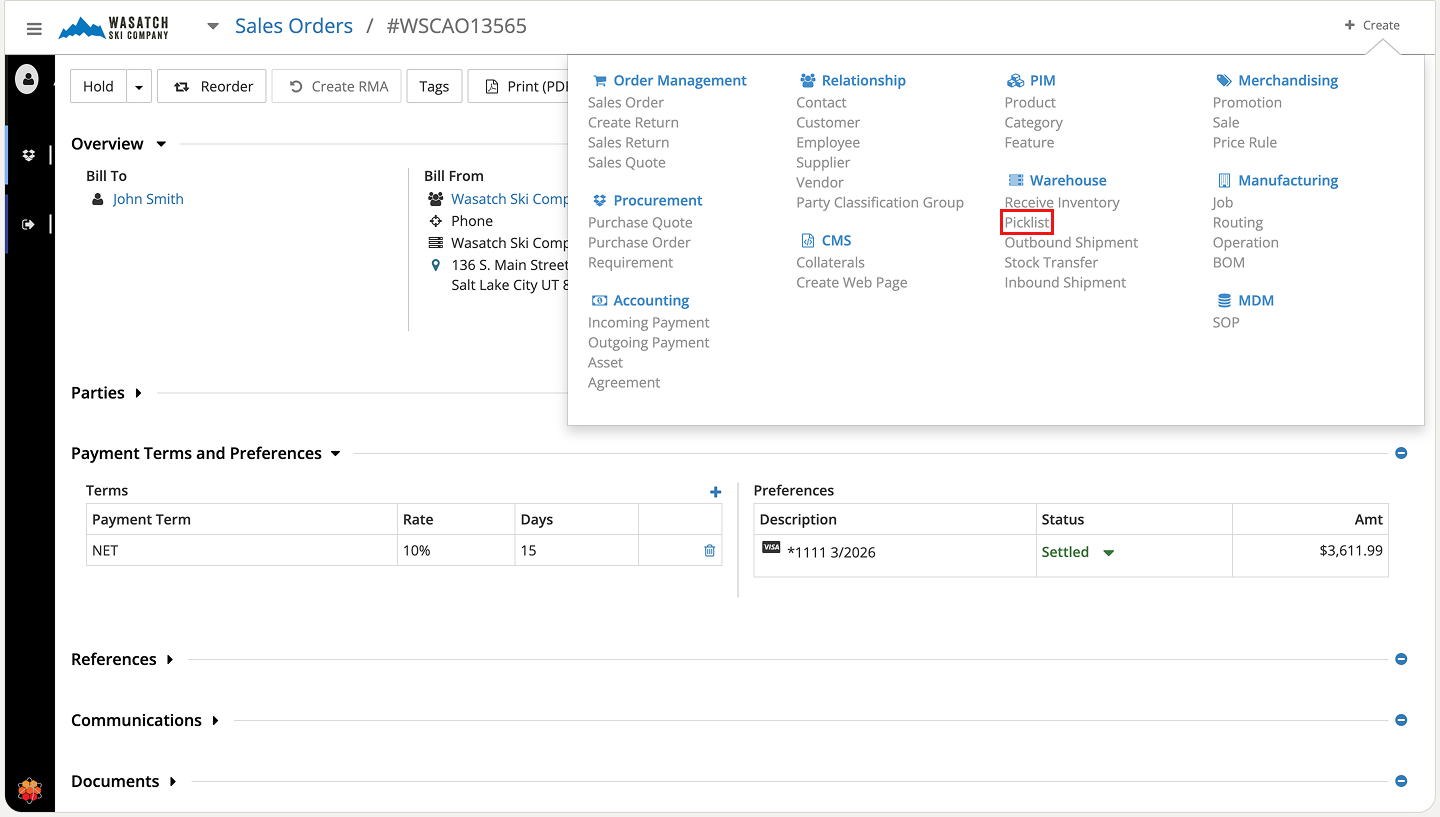
Step 3: Select the Order for Picking
From the Fulfillment section, choose the warehouse (facility) responsible for fulfilling the order. A list of all pending orders for that facility appears, with the sales order we just created displayed at the top (as shown below).
Select the order by checking the adjacent checkbox and click Pick to generate the pick list and begin the picking process.
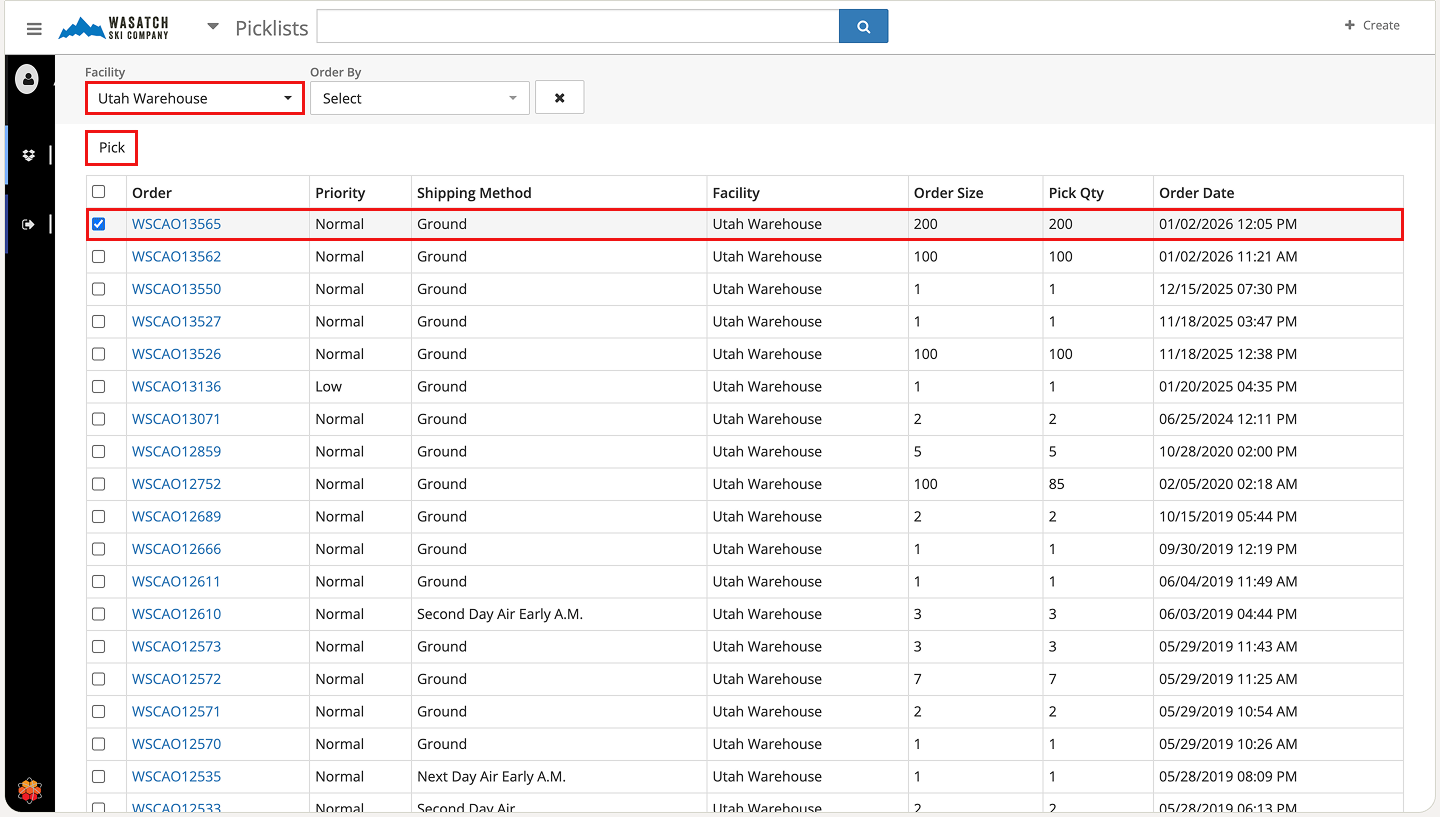
Step 4: Manage the Pick List
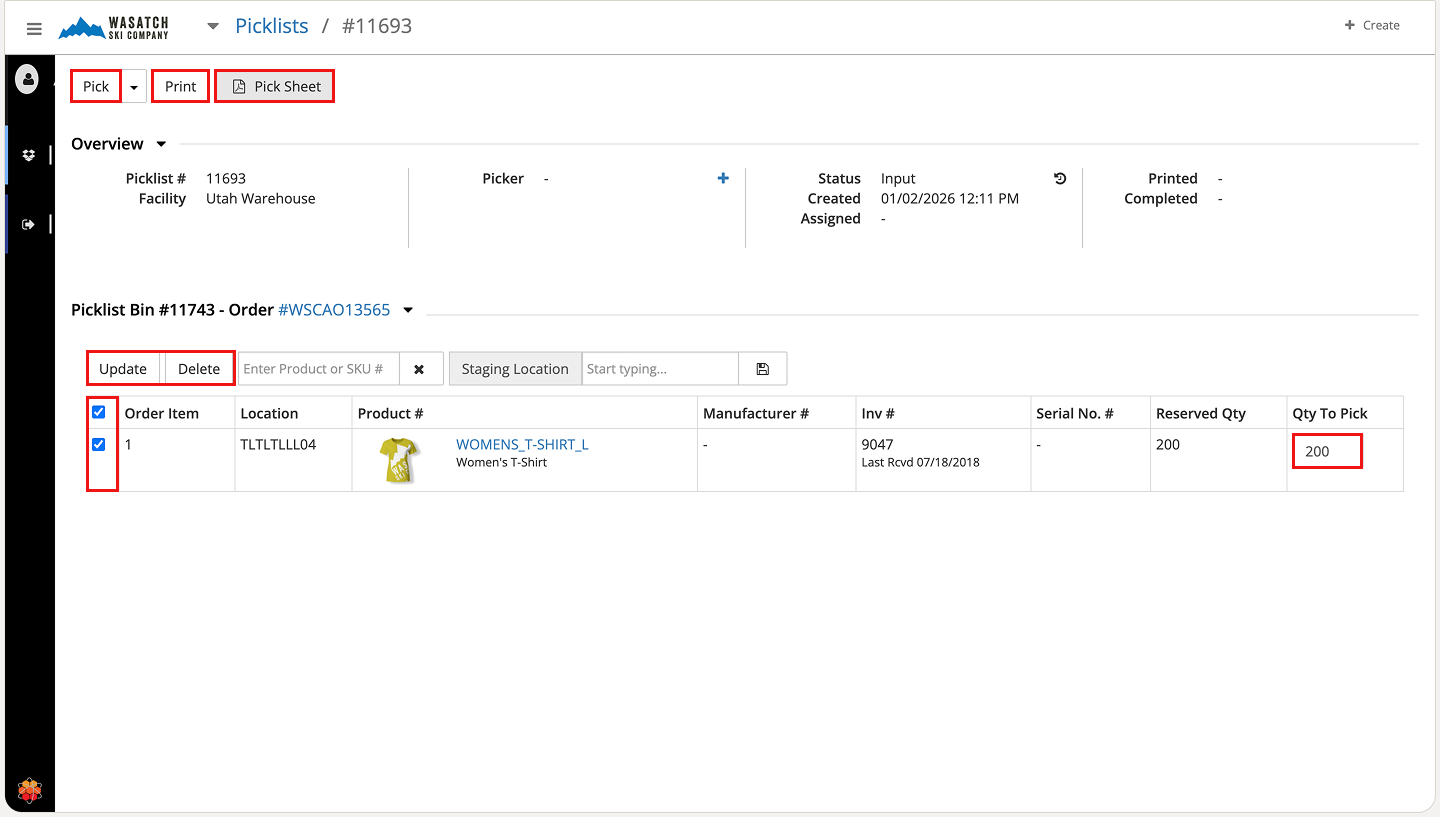
The picking screen opens, displaying the items, quantities to pick, locations, and any instructions (shown below).
Perform the following actions as needed:
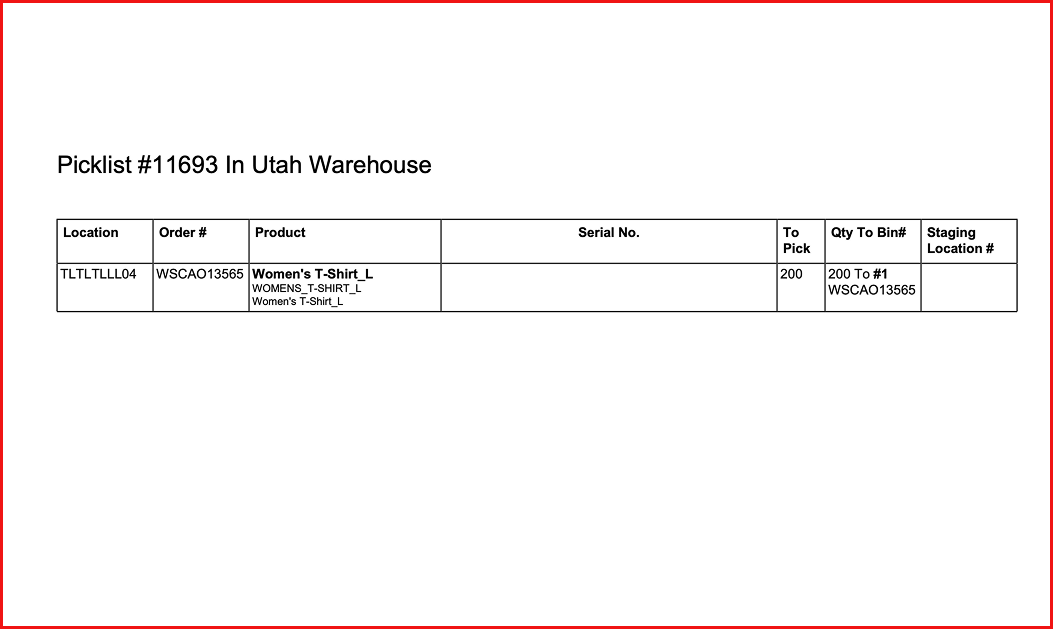
(PDF view of the picklist)
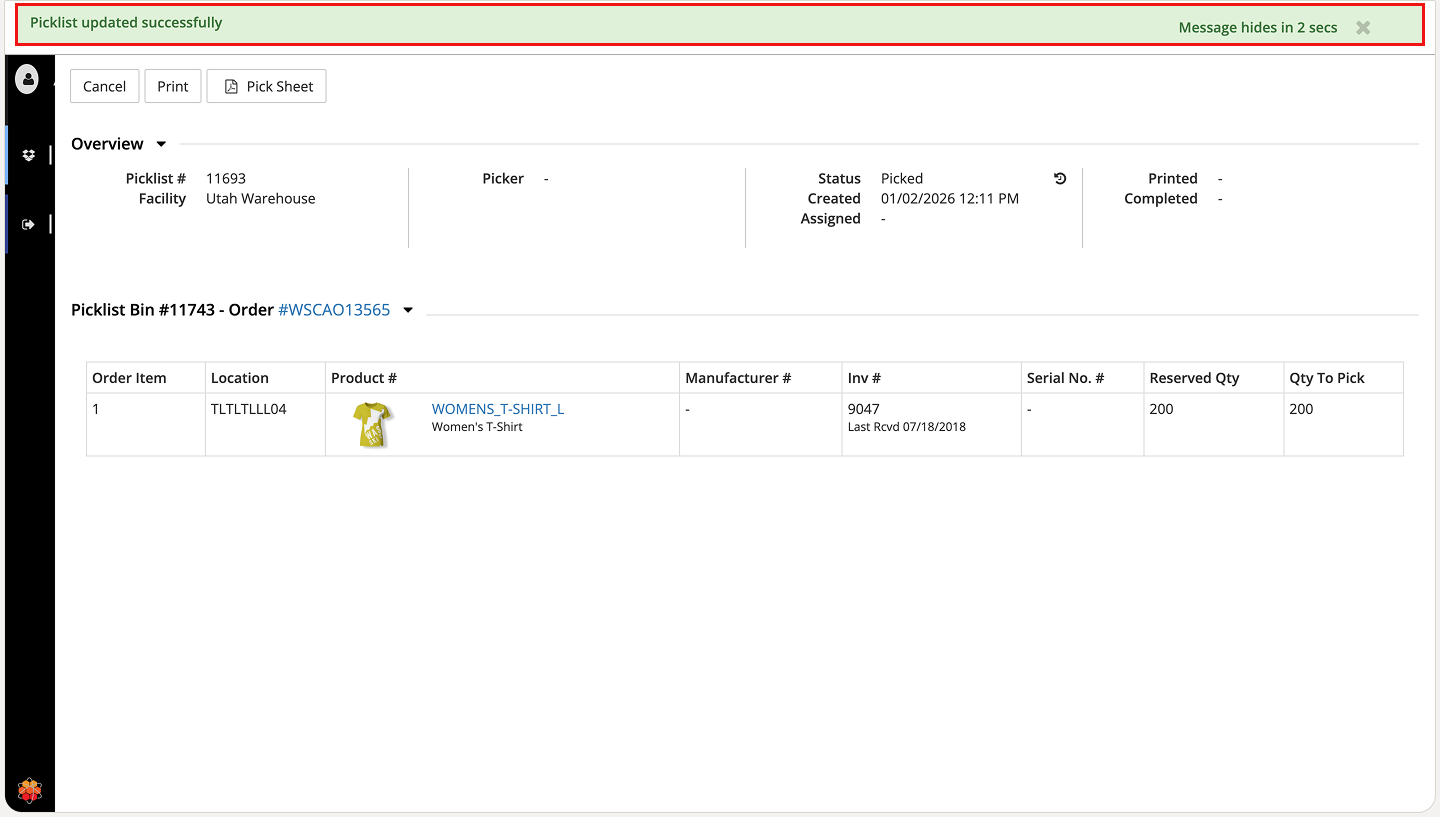
Step 5: Confirm Picking Completion
After clicking Pick, a confirmation message appears at the top of the screen, verifying that the order has been successfully marked as picked.
Inventory is now updated (picked quantities are reserved and deducted from available stock), and the order moves forward in the fulfillment workflow, ready for packing and shipping.
Once picking and packing are complete, HotWax Accelerator moves the order to the shipping stage. The platform supports seamless carrier integration (FedEx in this example) to calculate real-time shipping rates, generate labels, and book pickups—all directly from the order screen.
This integration automatically adds accurate shipping and handling charges to the customer's invoice (calculated at order creation for transparency), provides tracking numbers, and produces printable packing slips and labels. Warehouse staff can create packages, confirm dimensions and weight, and finalise shipment details efficiently.
Let’s continue with the shipment creation and carrier integration workflow in HotWax Accelerator.
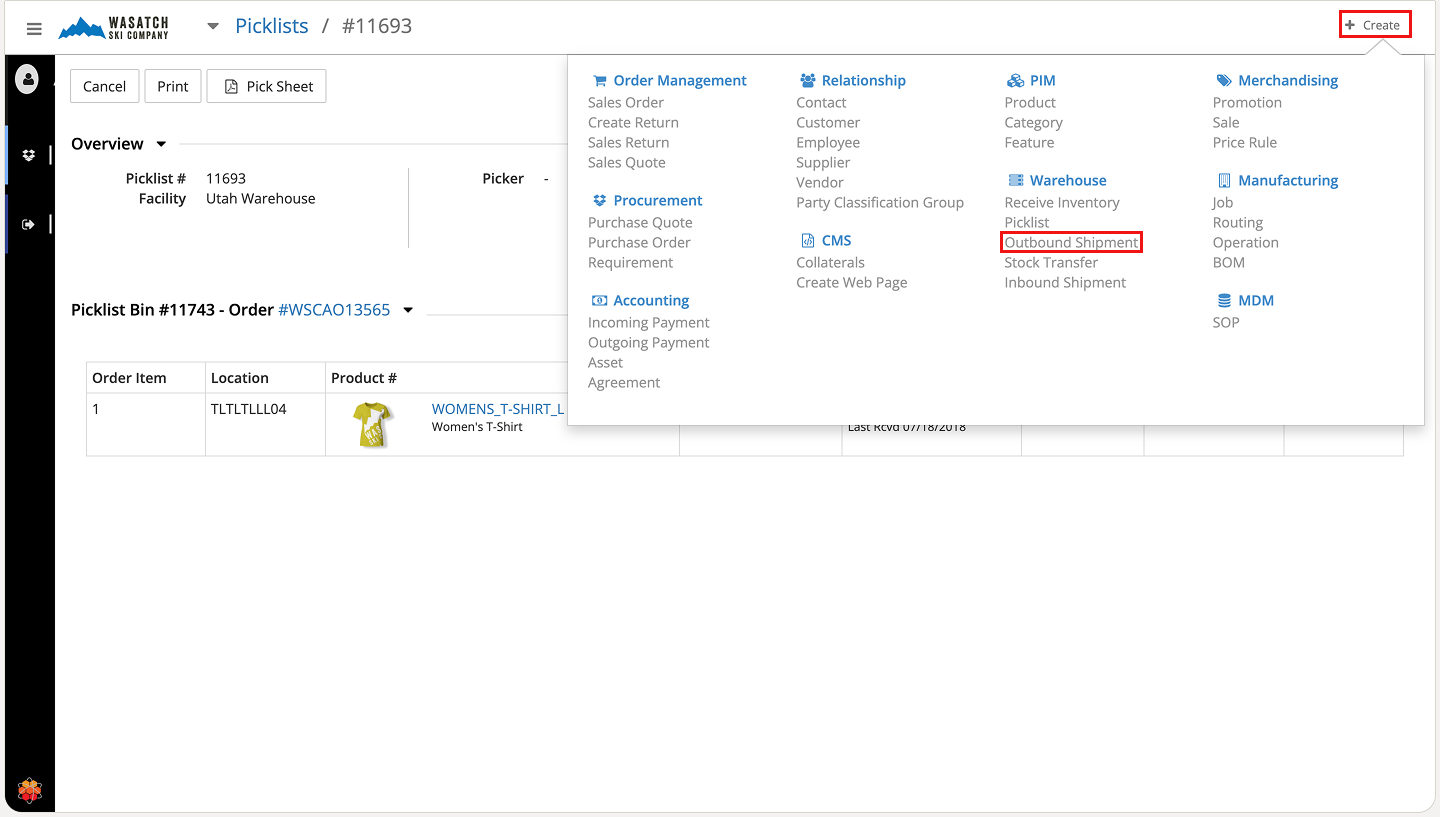
Step 1: Initiate Outbound Shipment
From any screen, click + Create in the top-right corner. In the dropdown menu, under the Warehouse section, select Outbound Shipment to begin preparing the order for dispatch.
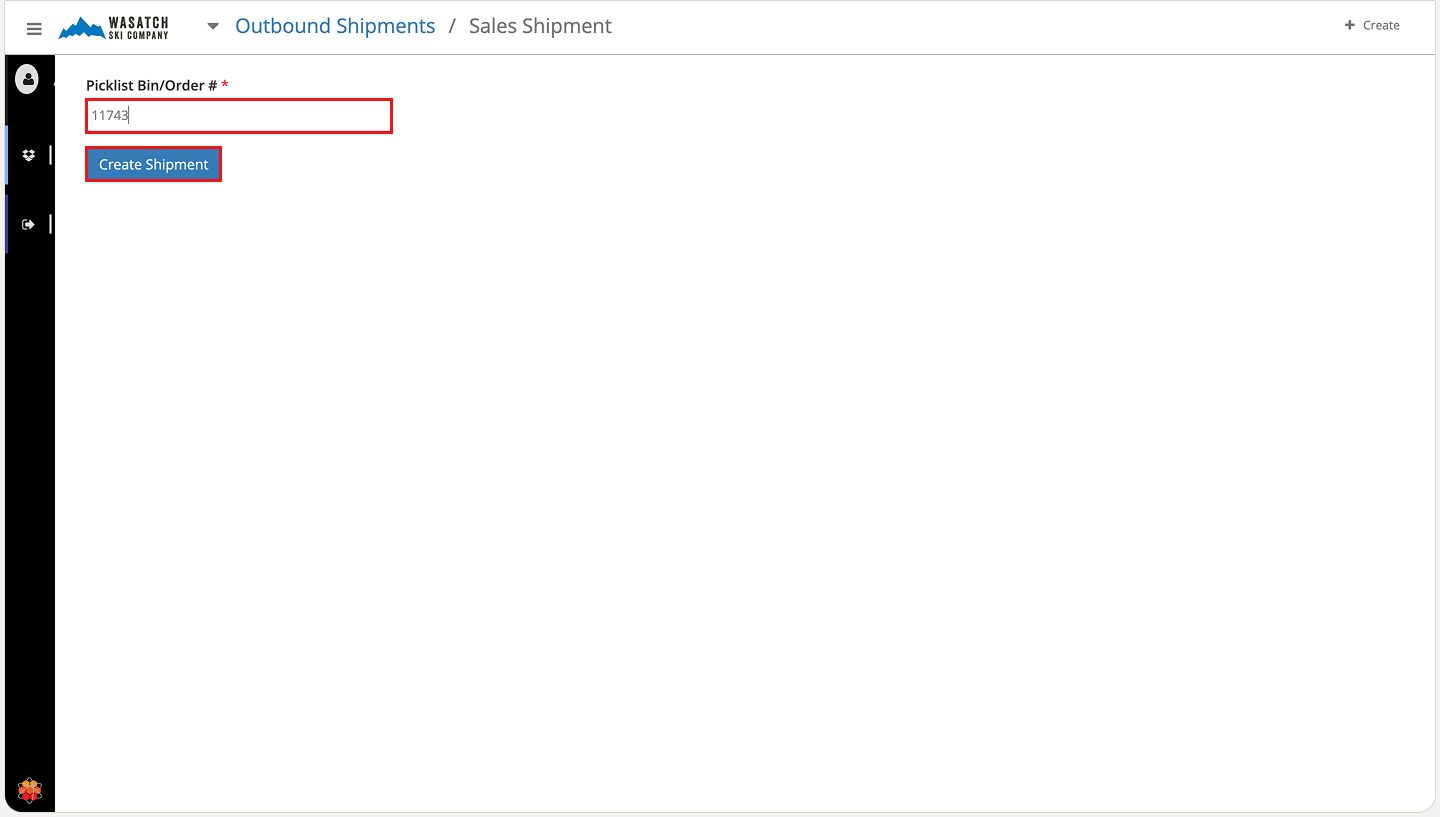
Step 2: Link the Order or Picklist
The Outbound Shipment creation screen opens (shown below). Enter the Order Number in the search field. The system automatically retrieves and displays the associated picklist details, including the bin number.
This flexibility supports real-world collaboration: order management teams typically work with order numbers, while fulfillment or packing staff may reference picklist bins. Either identifier traces back to the same order, enabling smooth handoffs across roles without confusion.
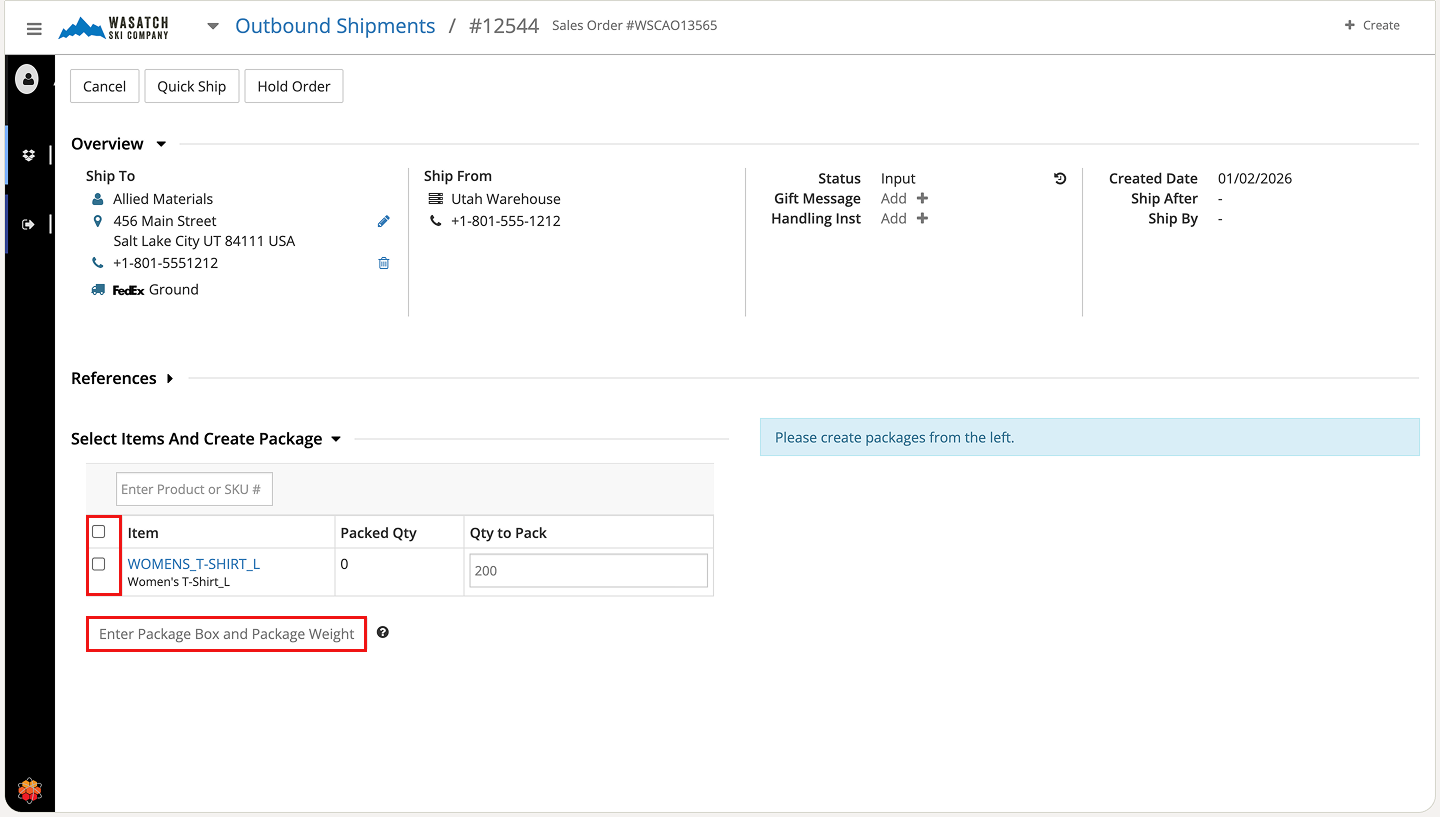
Step 3: Select Items for Packing (Cartonisation)
Check the boxes next to the items you wish to pack together into a single box. This cartonisation step groups items logically for shipment.
Once selected, click Enter Package Box and Package Weight to proceed. Accurate packaging details are essential for obtaining precise carrier rates through integration.
(In this demonstration, we use FedEx as the shipping partner.)
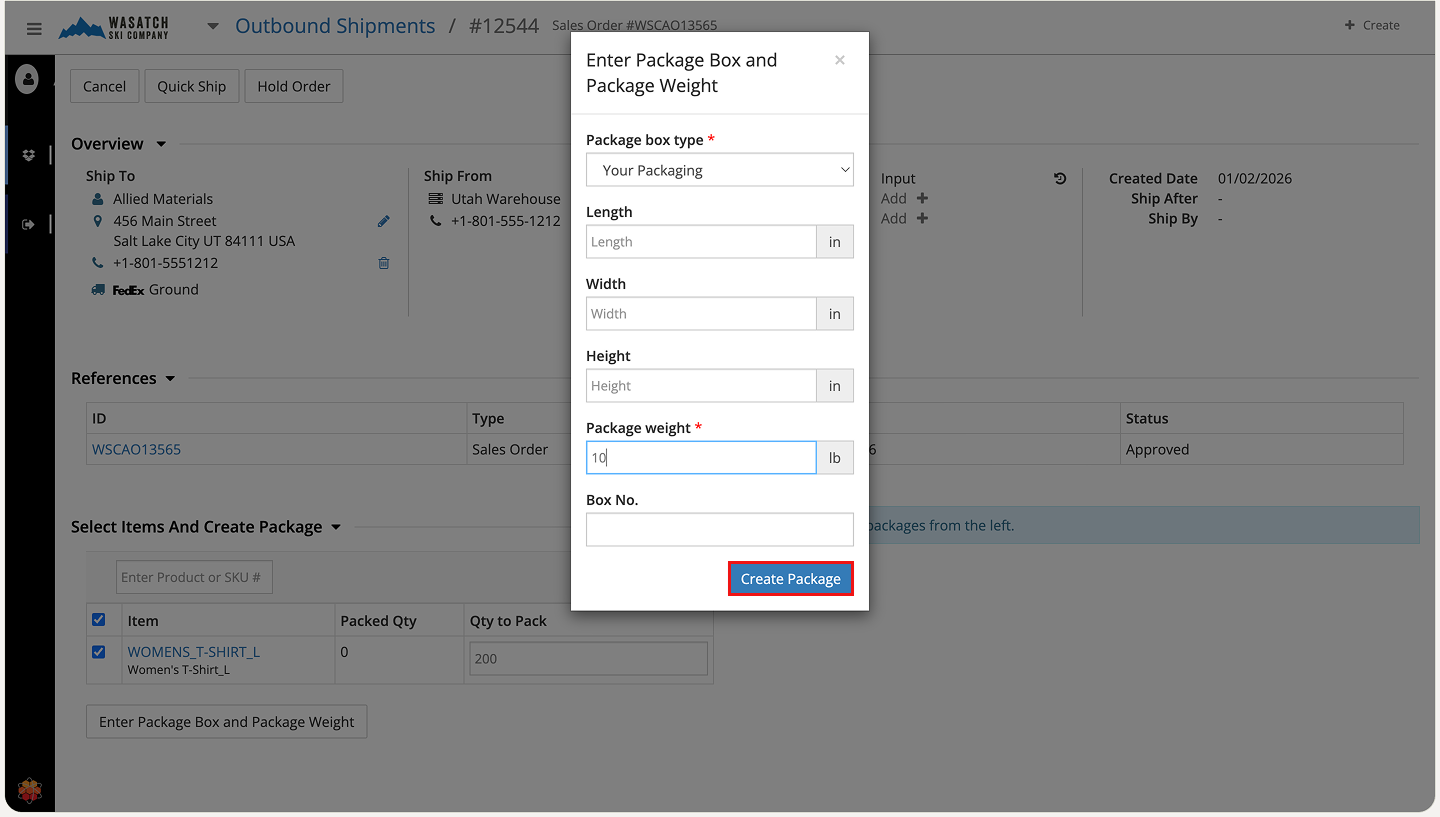
Step 4: Define Package Details
Select the Package Type from the dropdown at the top. Enter the physical box dimensions (length, width, height) and total weight.
After physically preparing the package, click Create Package to register it in the system.
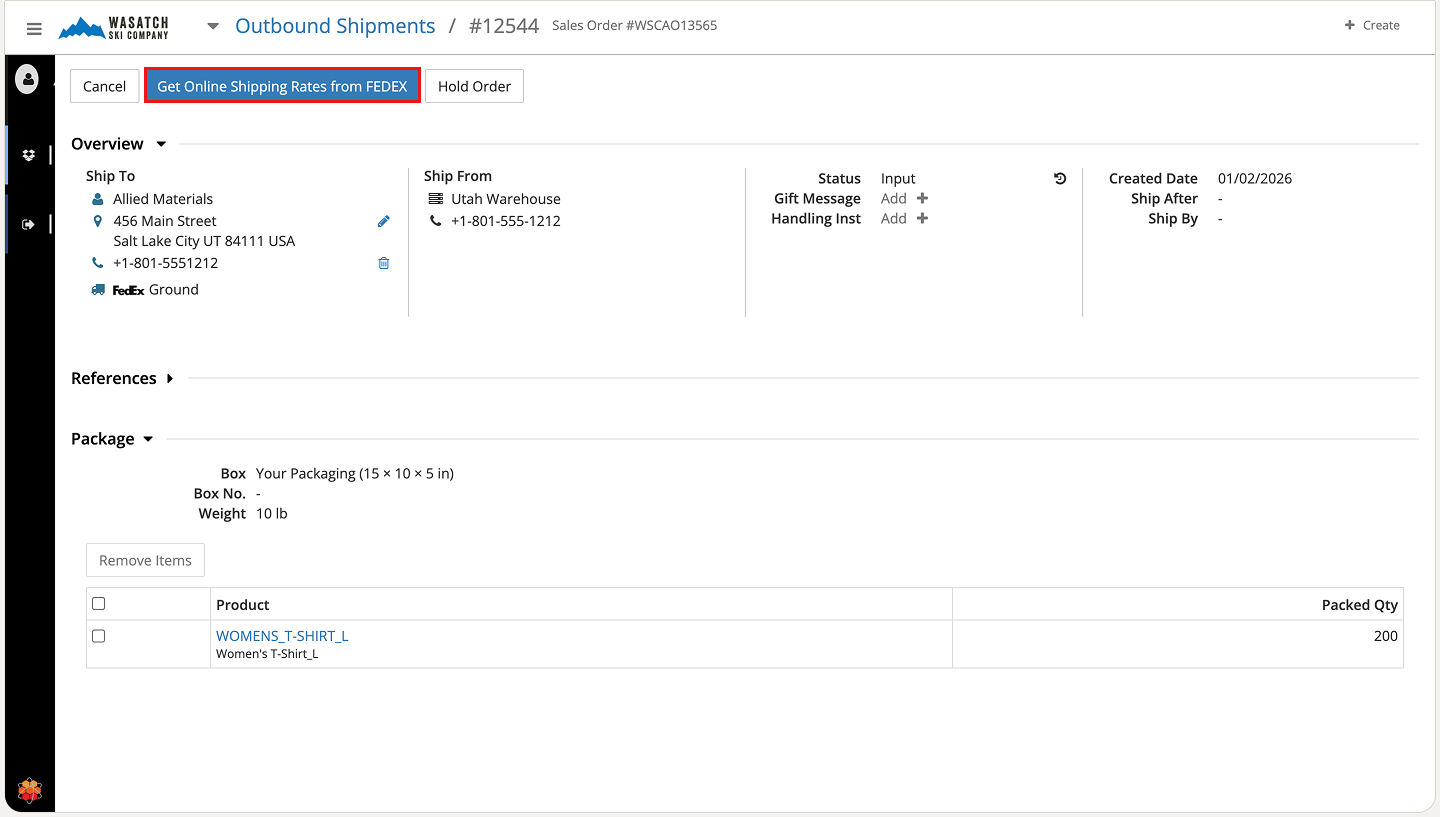
Step 5: Retrieve Real-Time Shipping Rates
Click Get Online Shipping Rates from FedEx to fetch current carrier charges based on package details, origin, destination, and service level.
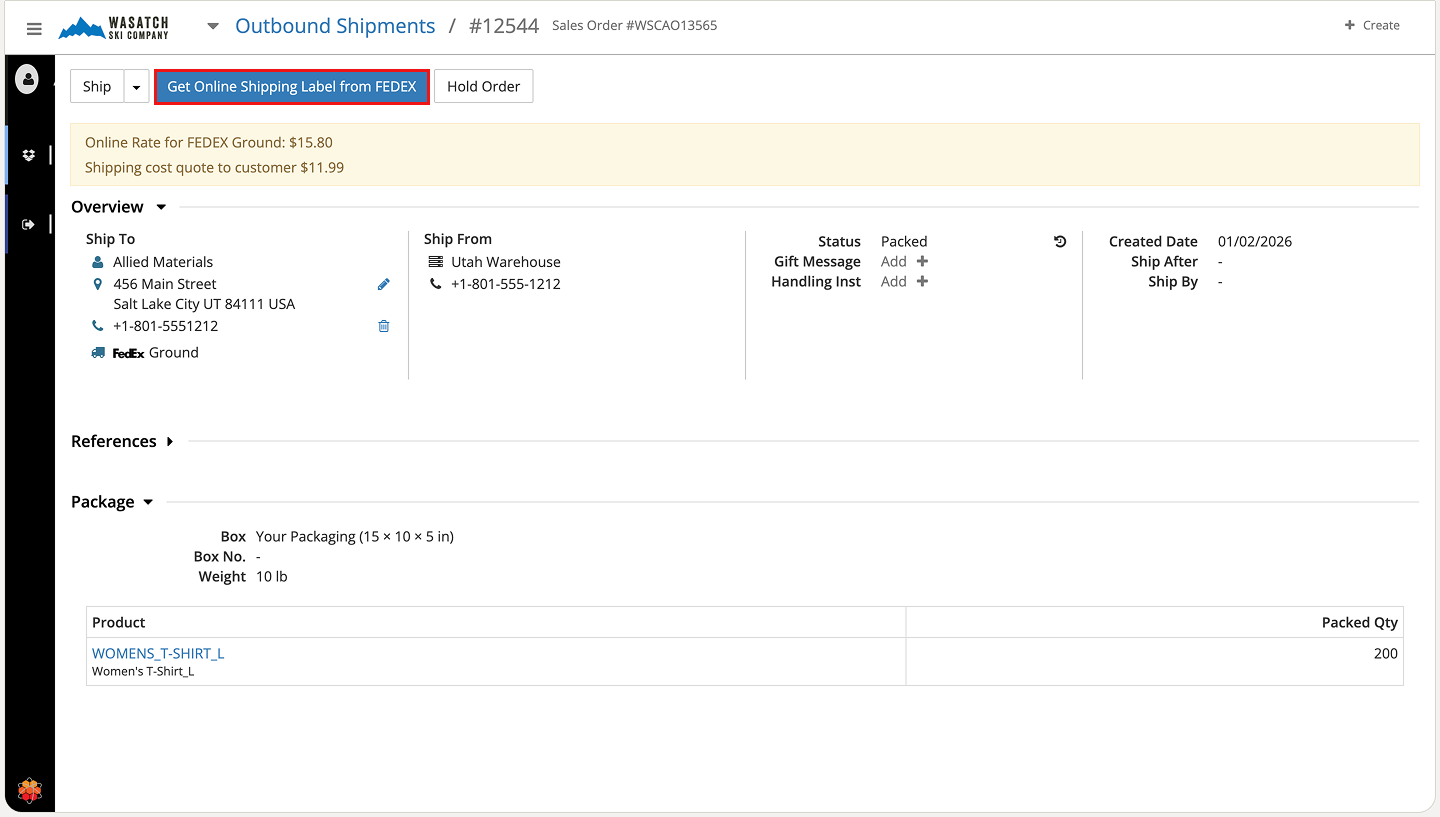
Step 6: Review Rates and Generate Label
Available rates appear at the top of the screen. Then click Get Online Shipping Label from FedEx to book the shipment and generate the label.
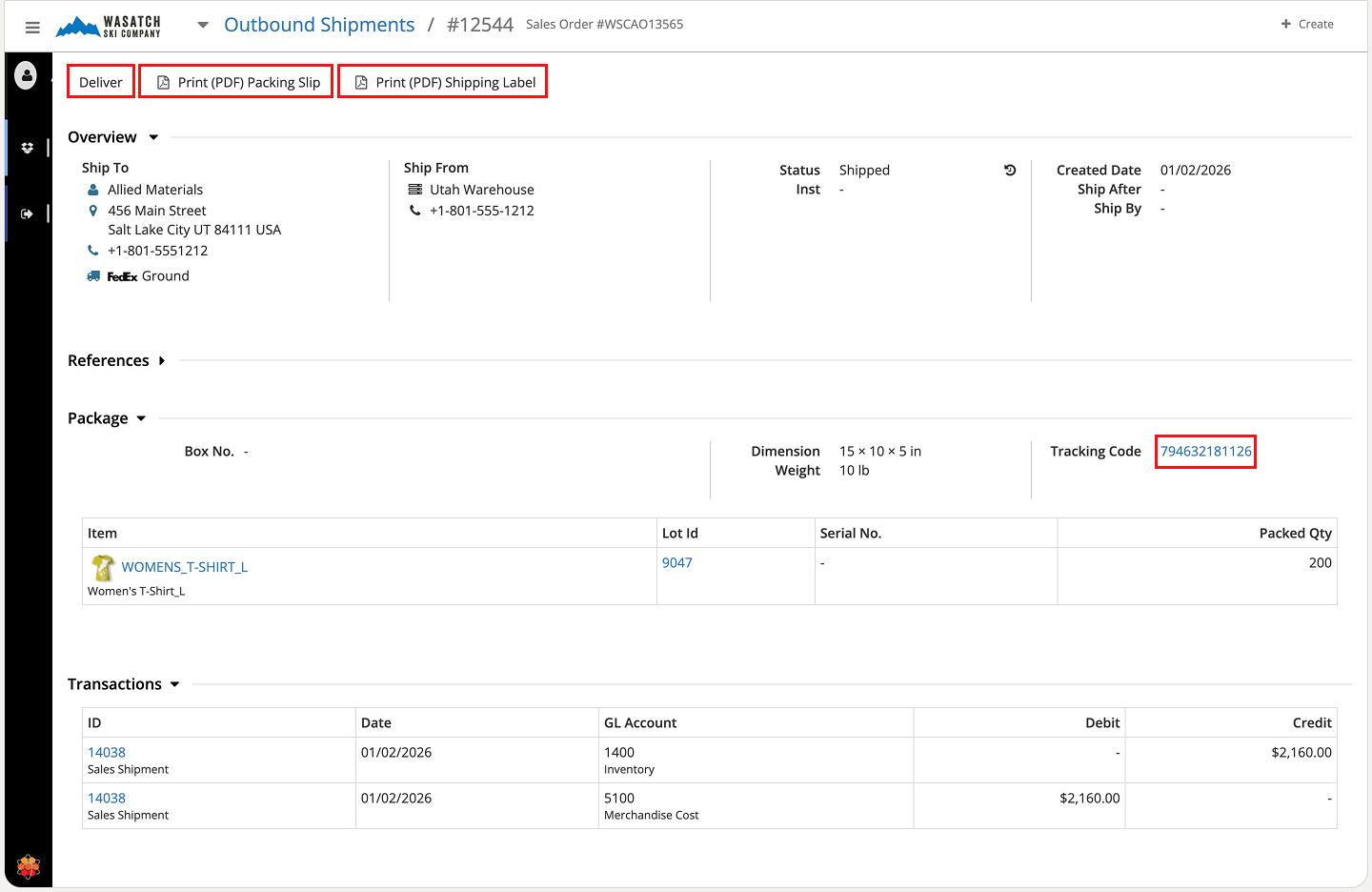
Step 7: Finalise Shipment and Notify Customer
The system provides a Tracking Code. Share this with the customer via your retail channels or directly.
Once the carrier confirms delivery, click Deliver in the top-left corner to mark the shipment as delivered. This automatically completes the associated sales order.
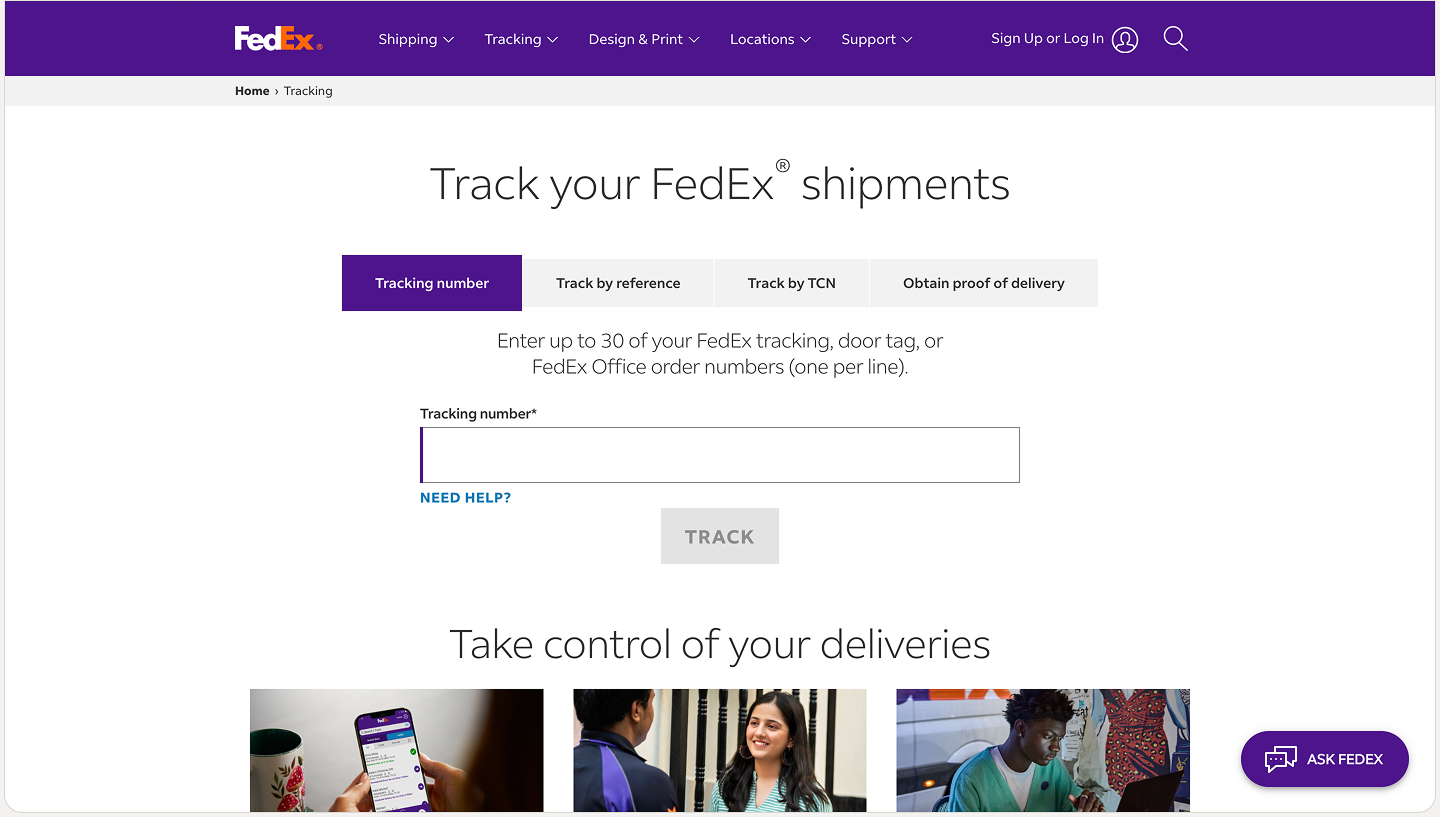
(FedEx Shipment Tracking Page, reached via clicking the Tracking Code)
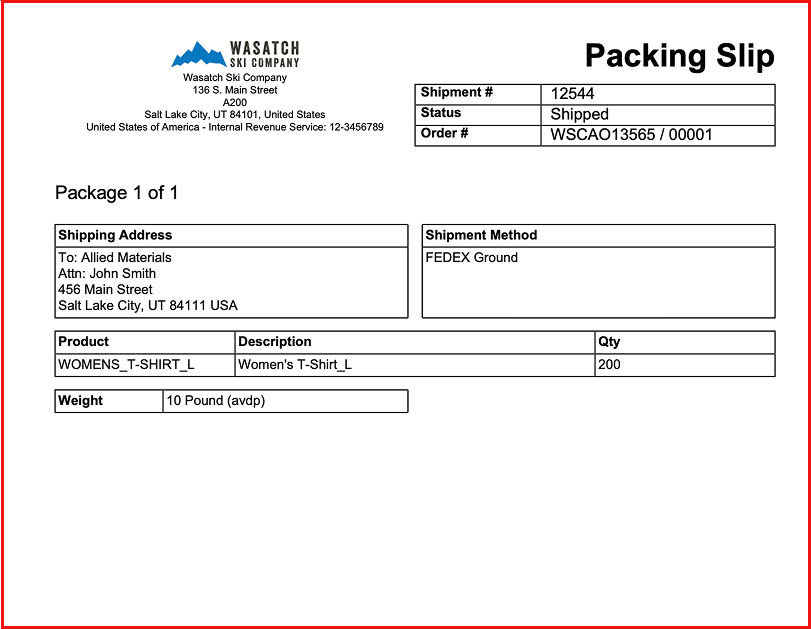
(Packing Slip PDF)
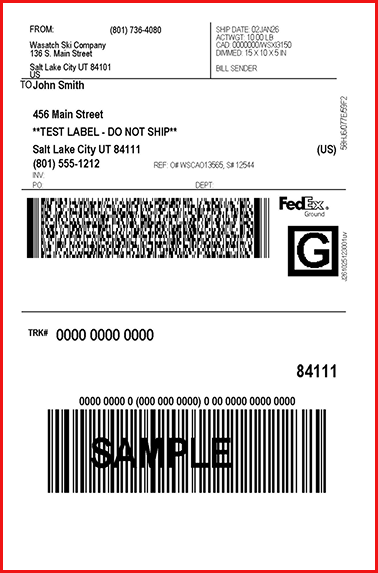
(Shipping Label PDF)
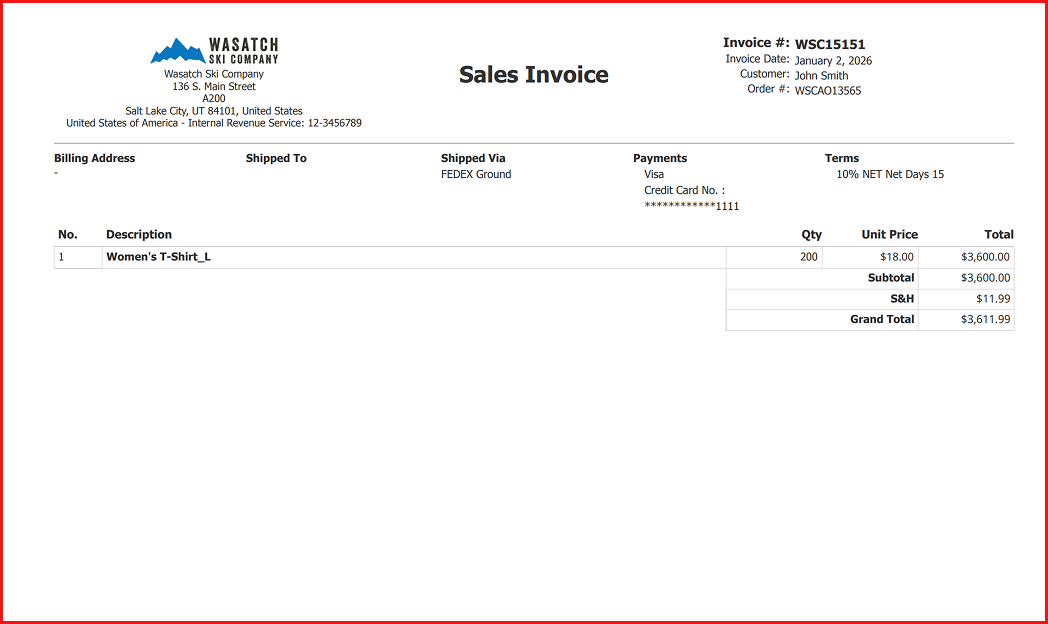
Step 8: Access Customer Invoice
For reference or customer communication, click the PDF icon under the References section to view or download the final customer invoice, including all applied shipping charges.
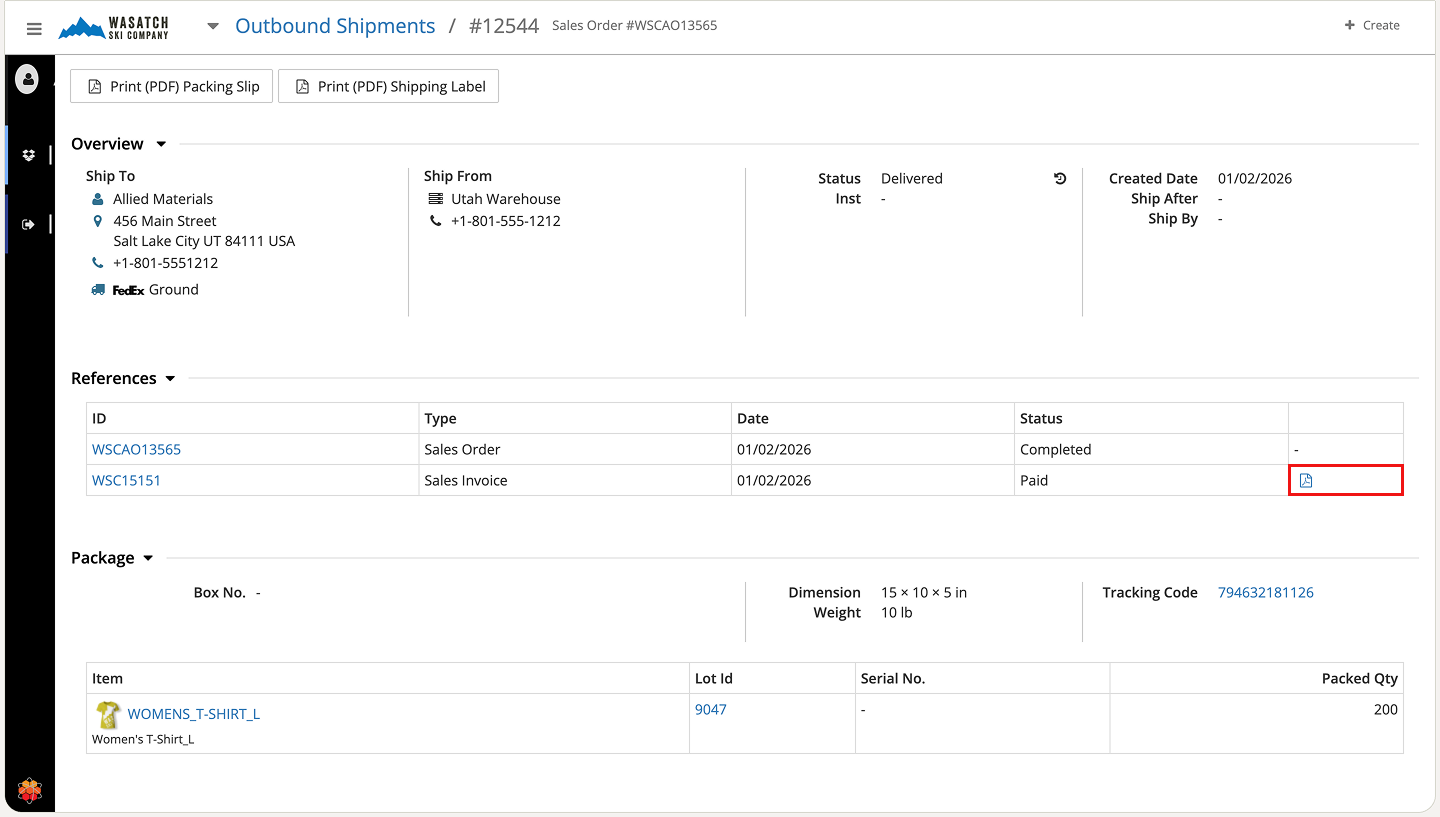
(Customer's receipt)
HotWax Accelerator streamlines the entire Quote to Cash workflow on top of Apache OFBiz, transforming a traditionally complex process into an intuitive, efficient experience for sales, fulfillment, and customer service teams. From creating flexible sales quotes or direct orders, through real-time inventory reservation and carrier-integrated shipping (with automatic rate calculation and label generation), the platform ensures accuracy, speed, and transparency at every stage. Built-in features like validation on hover, informational tooltips, configurable business rules, and seamless data flow via Apache Solr and NiFi empower users to manage high-volume operations without friction.
The result is a modern, responsive interface that reduces training time, minimises errors, and provides real-time visibility across orders, inventory, and customer interactions. Whether processing B2B quotes with negotiated terms, fulfilling eCommerce orders with precise carrier integration, or managing returns with clear credit and put-away processes, HotWax Accelerator delivers a cohesive experience tailored to modern and dynamic business demands.
By leveraging these capabilities, businesses can achieve faster order cycles, higher customer satisfaction, and more reliable financial closure; all while benefiting from the robust foundation of Apache OFBiz and the innovative enhancements of HotWax Systems. This guide serves as a practical reference to help teams fully utilise the Accelerator and drive operational excellence in their customer-to-cash processes.
To Learn more about HotWax Accelerator, click here.
Every business is different — and so is every solution we build. If you're wondering what this could look like for you specifically, let's find out together. Get your custom solution →



/PO.webp)
/Price%20Rules.webp)