A Complete Guide to Order Fulfillment Workflow in HotWax Accelerator


Procurement in HotWax Accelerator (HWA) is built to help you manage the full cycle of purchasing materials, products, and supplies needed across your operations. A purchase order (PO) acts as the formal request for goods from a supplier and becomes the central document that tracks what you are buying, in what quantity, at what price, and when it is expected. In a supply-chain context, the PO helps maintain traceability, ensures clarity with vendors, and provides a structured process for receiving and updating inventory.
HotWax Accelerator uses the established procurement logic of Apache OFBiz to manage these activities under the hood. The system relies on Apache OFBiz’s order module. Accelerator builds on this foundation with a cleaner interface, easier navigation, and a workflow that helps you move from PO creation to approval, receiving, and completion with fewer steps. This combination gives you a solid, consistent purchasing process that stays aligned with inventory updates, vendor records, and operational needs.
Before creating a purchase order in HWA, it helps to understand a few core concepts that guide how procurement works inside the system. These elements shape the PO workflow and determine how suppliers, products, shipments, and approvals interact with one another.
Suppliers, vendors, and party setup
Suppliers and vendors are stored in the system as party records with specific roles assigned to them. These roles determine how they participate in the procurement process, such as supplying items, approving actions, or managing purchasing activities. A separate guide covers how suppliers and vendors are created, updated, and linked to products. You can refer to that document for the complete setup process.
Purchase Order (PO): what it represents
A purchase order is the formal request to procure goods from a supplier. Each PO includes header information such as the supplier, currency, billing party, and the facility where items will be received. This header establishes the commercial and logistical framework for the order.
Order line items and quantities
Line items list the products you intend to purchase. Each line captures the item, quantity, unit price, and expected delivery date. HotWax Accelerator supports standard products as well as configurable or alternate items, depending on how your catalog is structured.
Approval and roles in the PO workflow
The PO workflow follows role-based actions. A PO may be created by one user, approved by another, and received by a warehouse operator. These roles ensure that every stage of procurement—creation, approval, receiving, and completion—is recorded and validated.
There are two ways to create a purchase order in HotWax Accelerator:
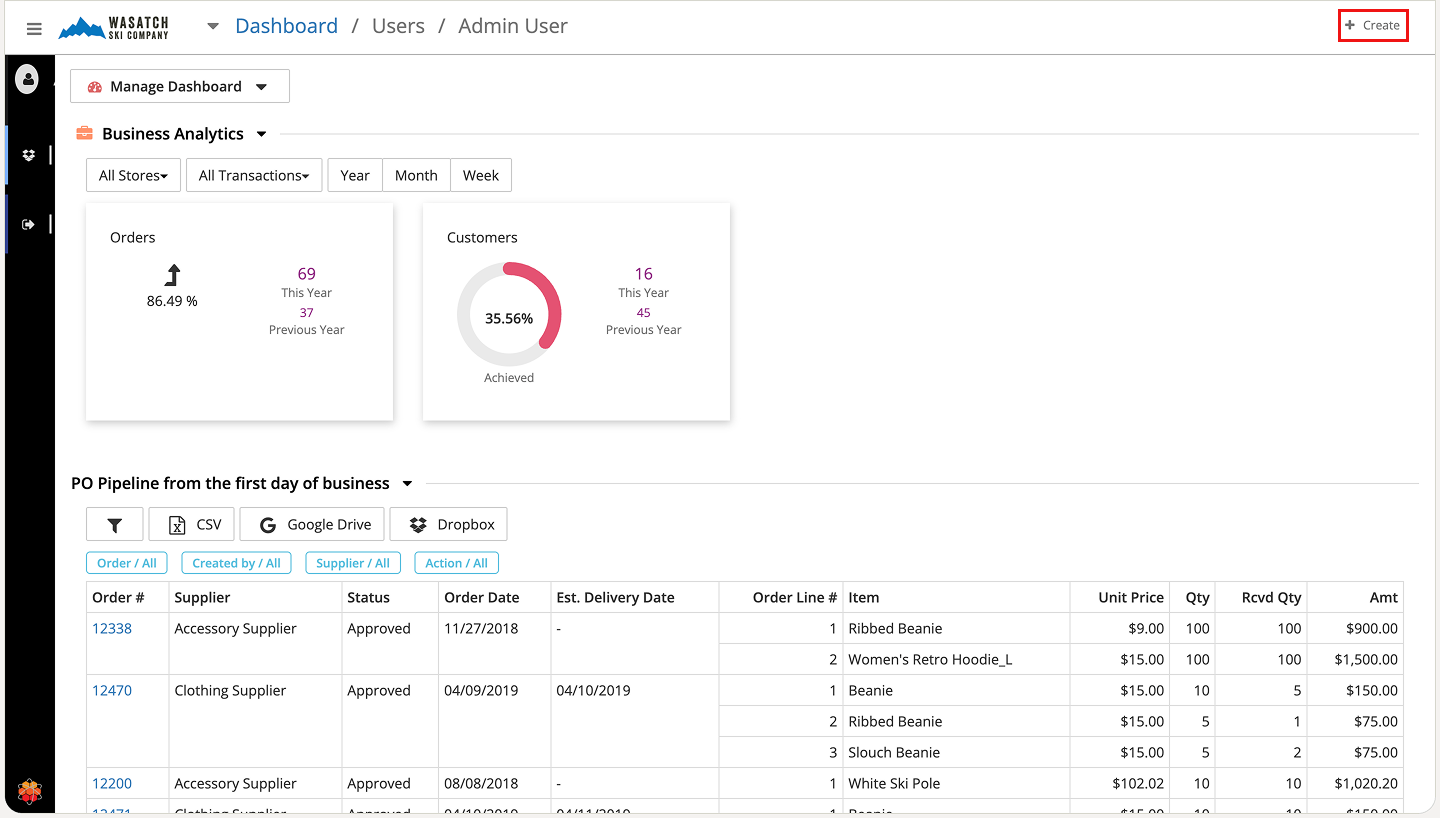
Step 1 - Open the HWA dashboard and click Create in the top-right corner.
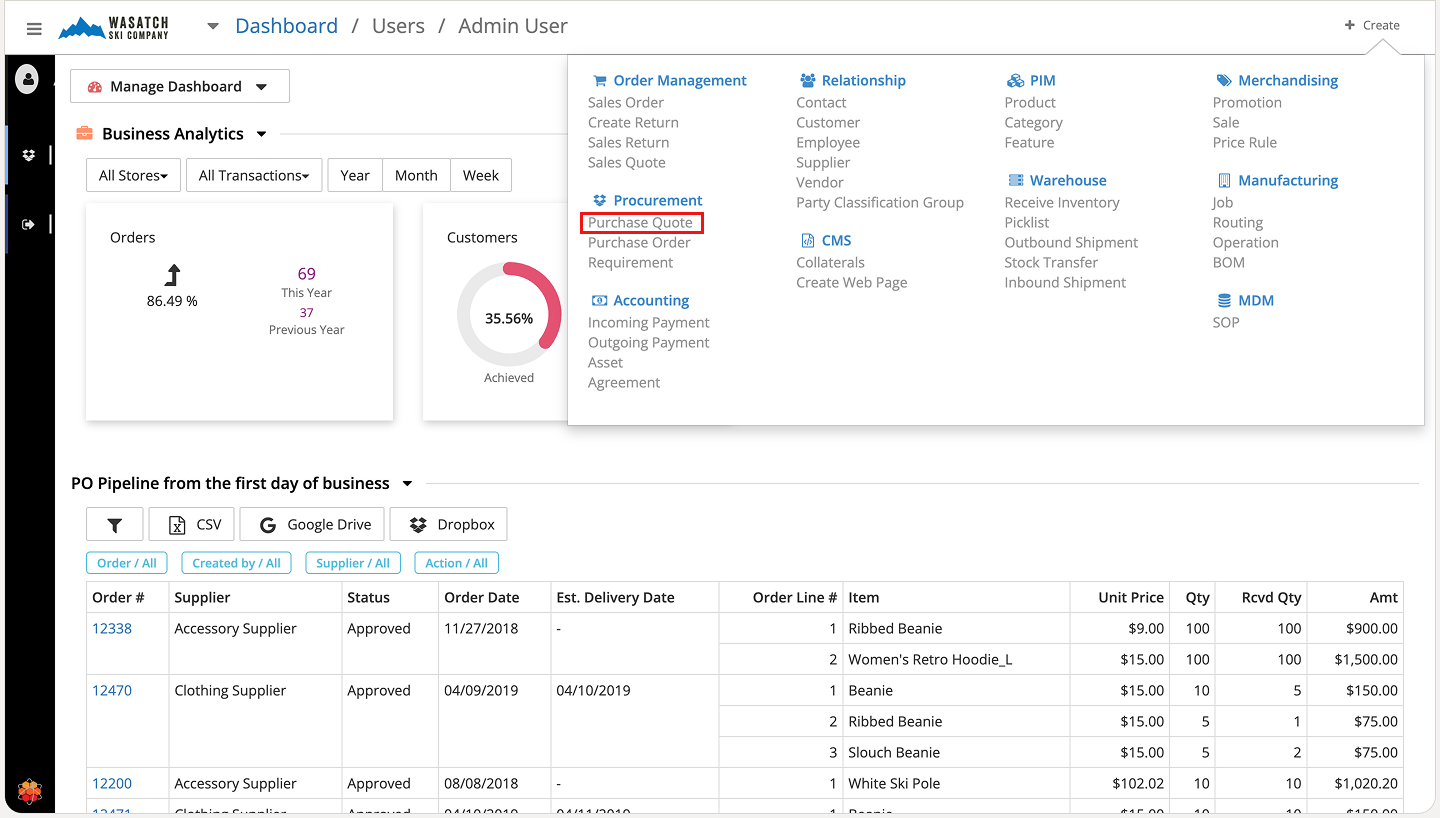
Step 2 - Select Purchase Quote under the Procurement section.
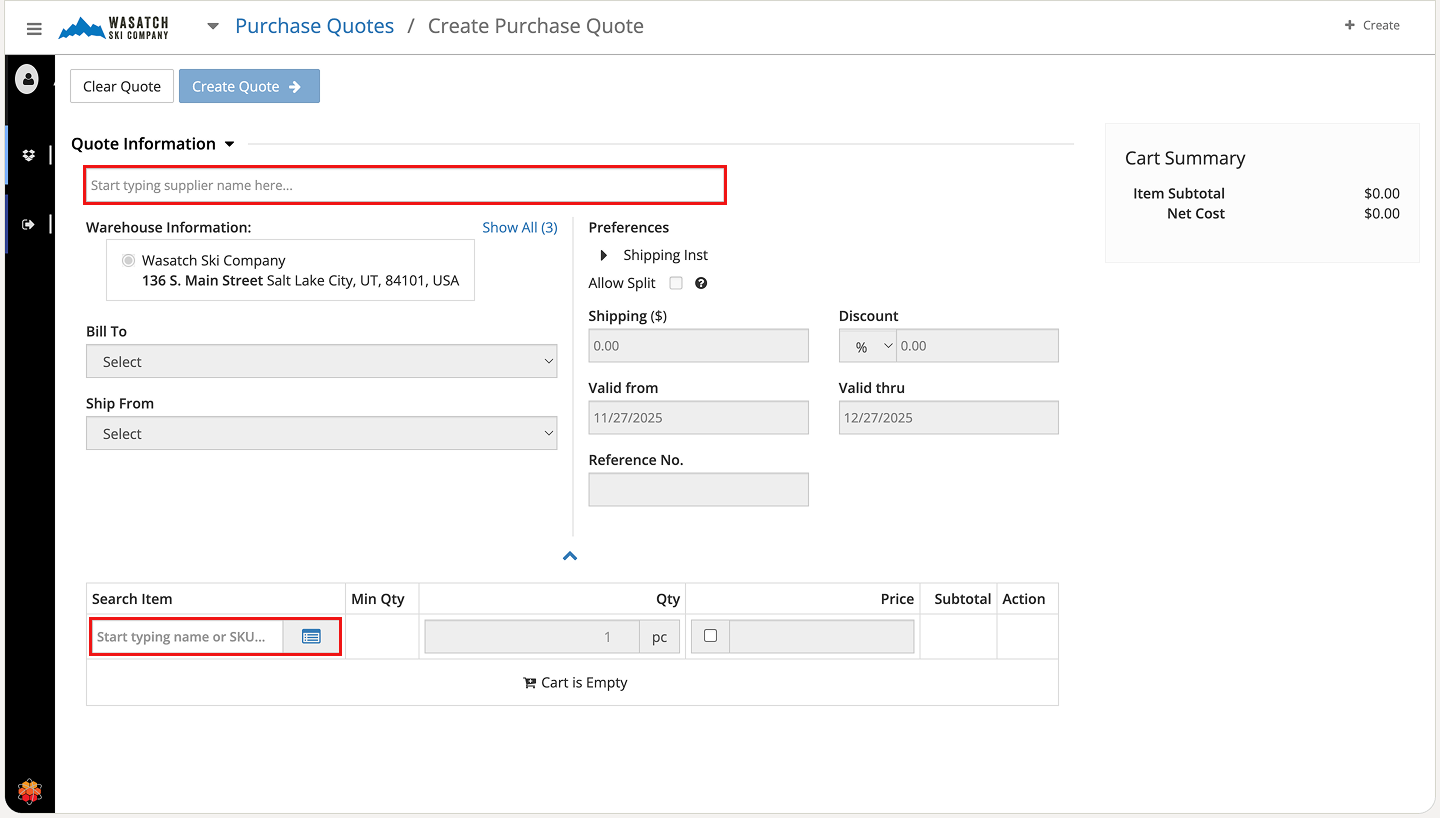
Step 3 - Enter the supplier name in the Supplier field.
To add items, click the List icon next to Search Item or enter the item manually.
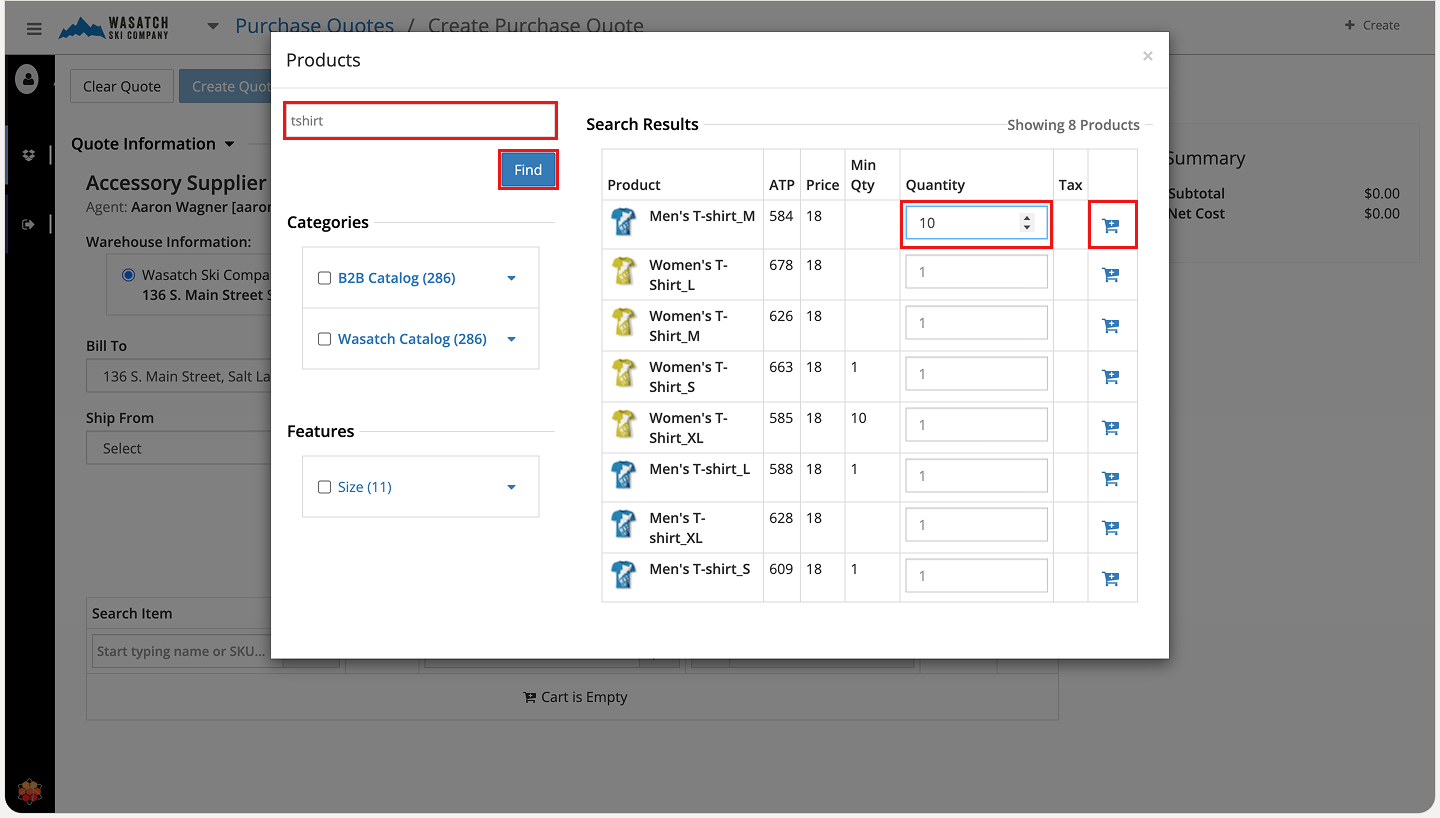
Step 4 - Search for the item by code, tag, or name.
Select the item from the list.
Enter the Quantity.
Click the Shopping Cart icon to add the item to the quote.
Step 5 - Open the Preferences section.
Select Valid From and Valid Thru to set the quote’s expiry range.
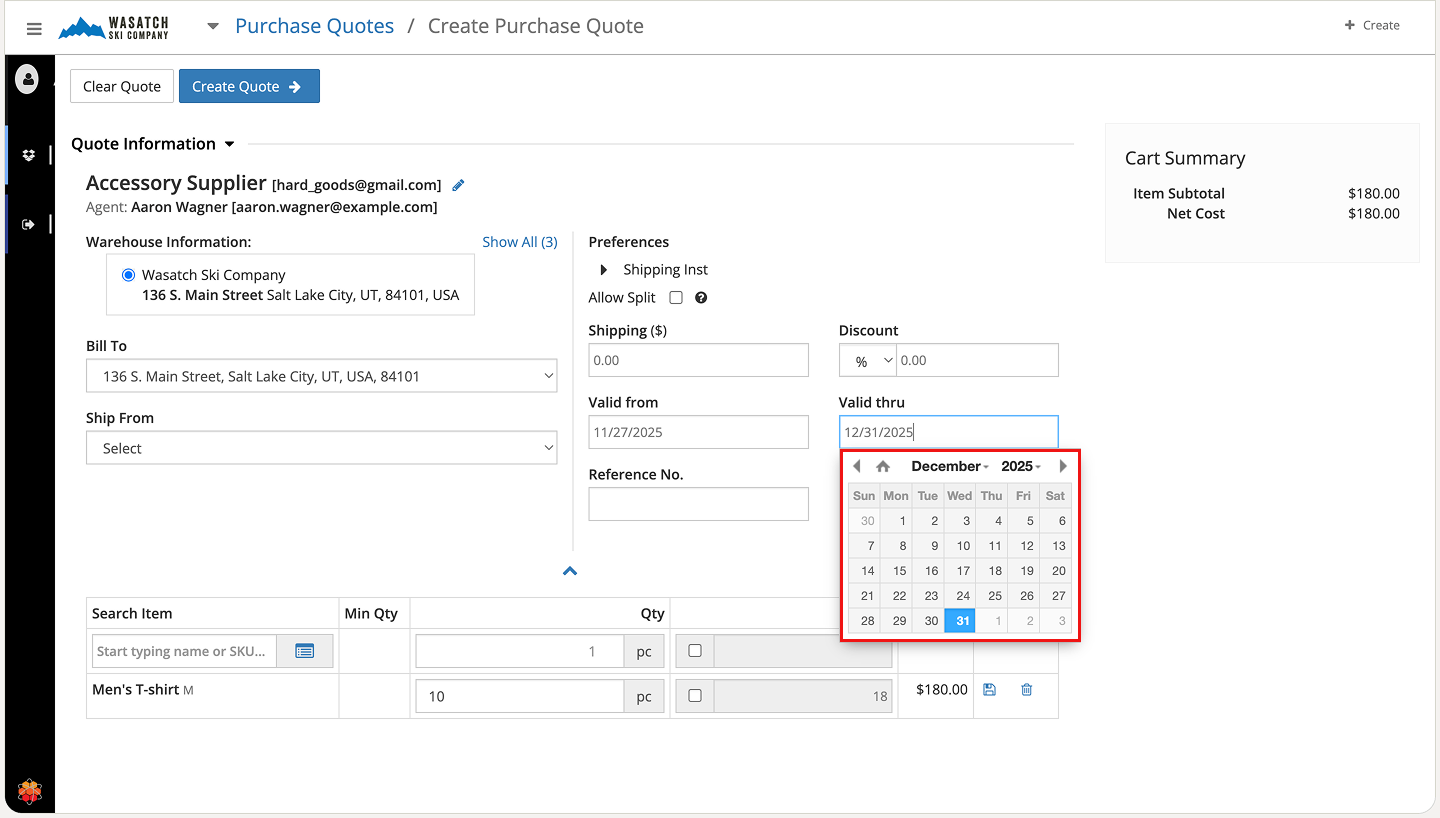
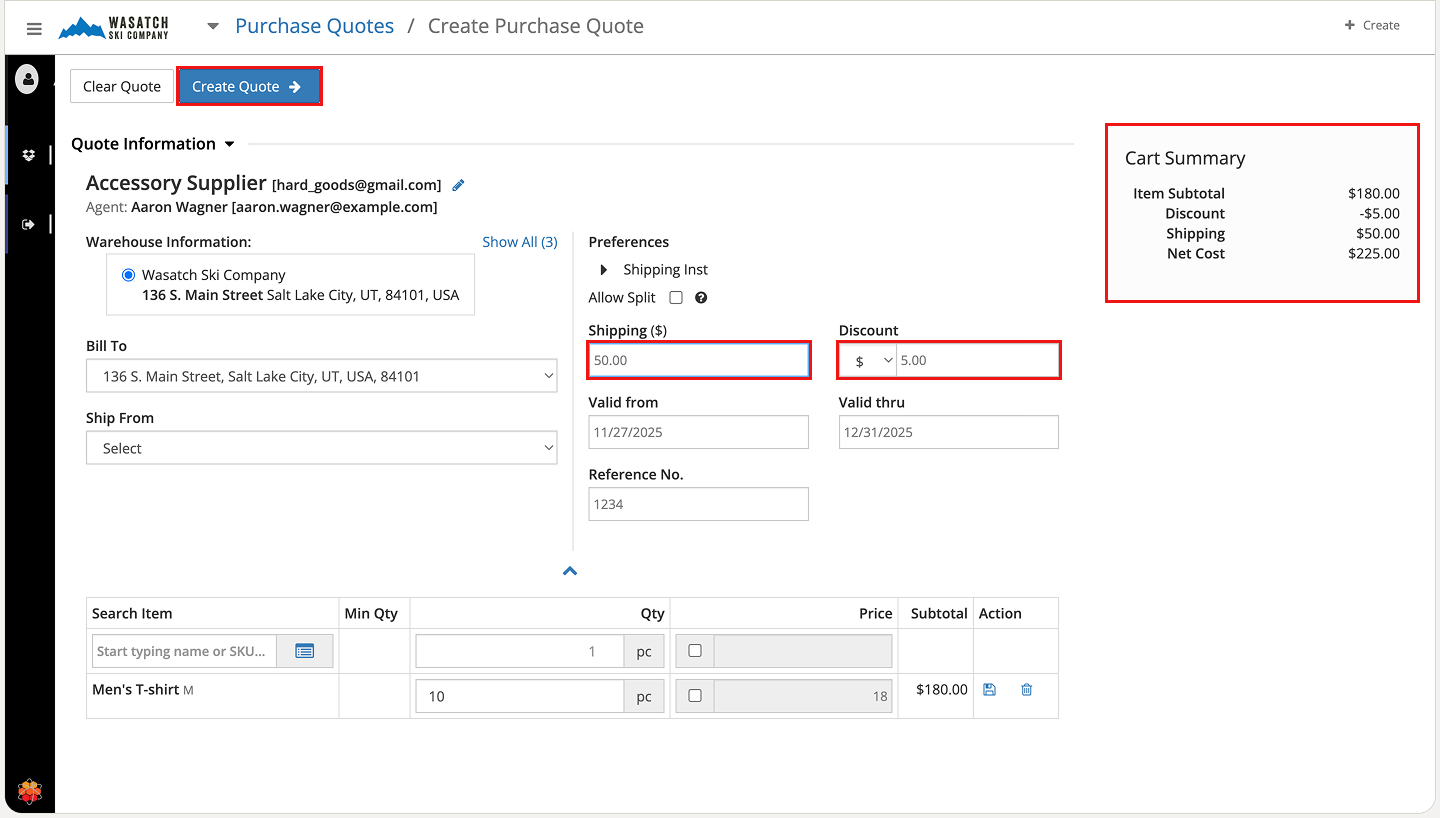
Step 6 - Add shipping charges under Shipping.
Add discounts under Discount using amount or percentage.
Click Create Quote.
Step 7 - On the quote screen, click Tags to add tags for tracking.
Add payment details in Payment Terms and Preferences.
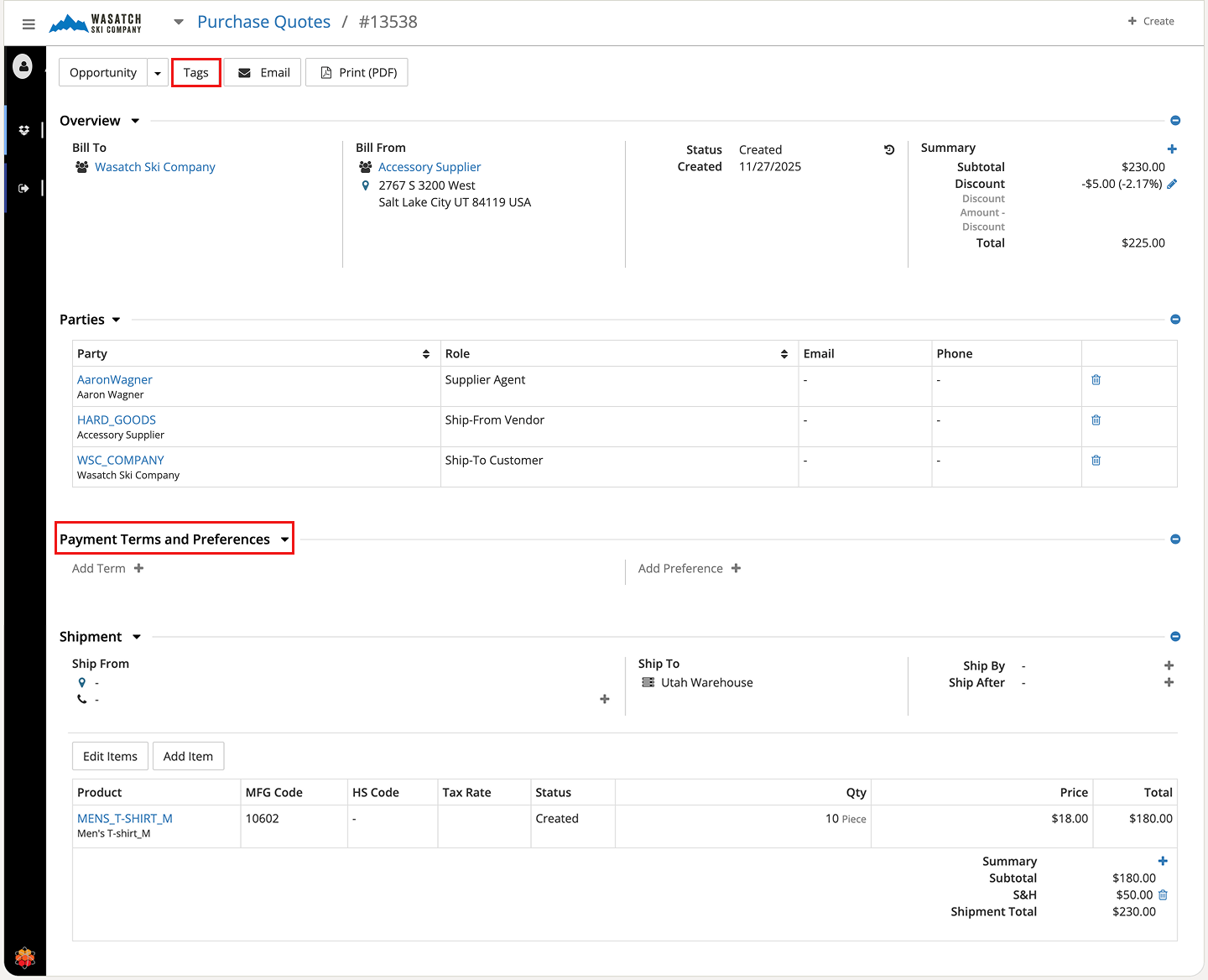
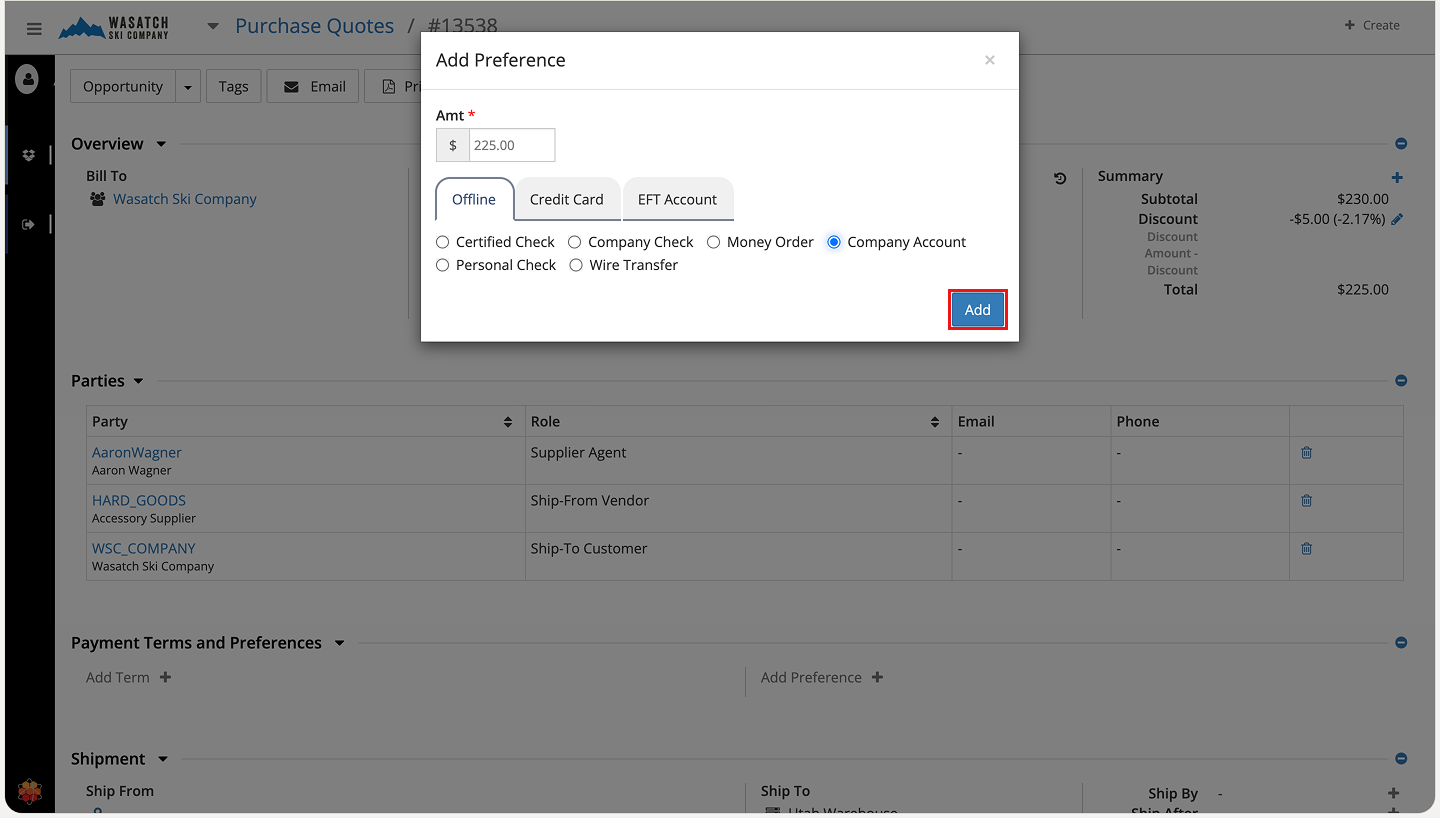
Step 8 - Click Add Preference + under Payment Terms and Preferences.
Select the payment method in the popup.
Click Add.
Step 9 - Click Add Term + under Payment Terms and Preferences.
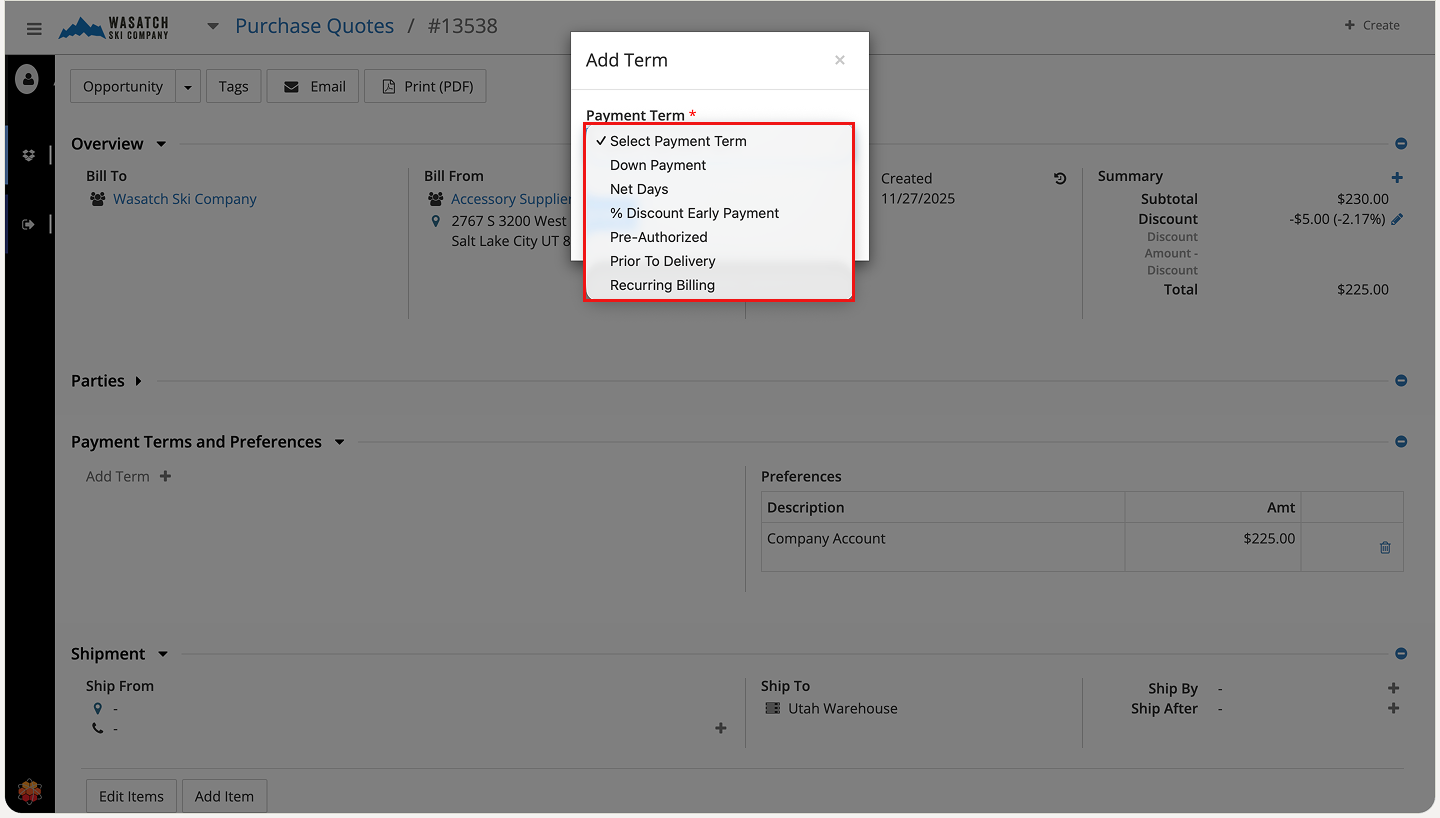
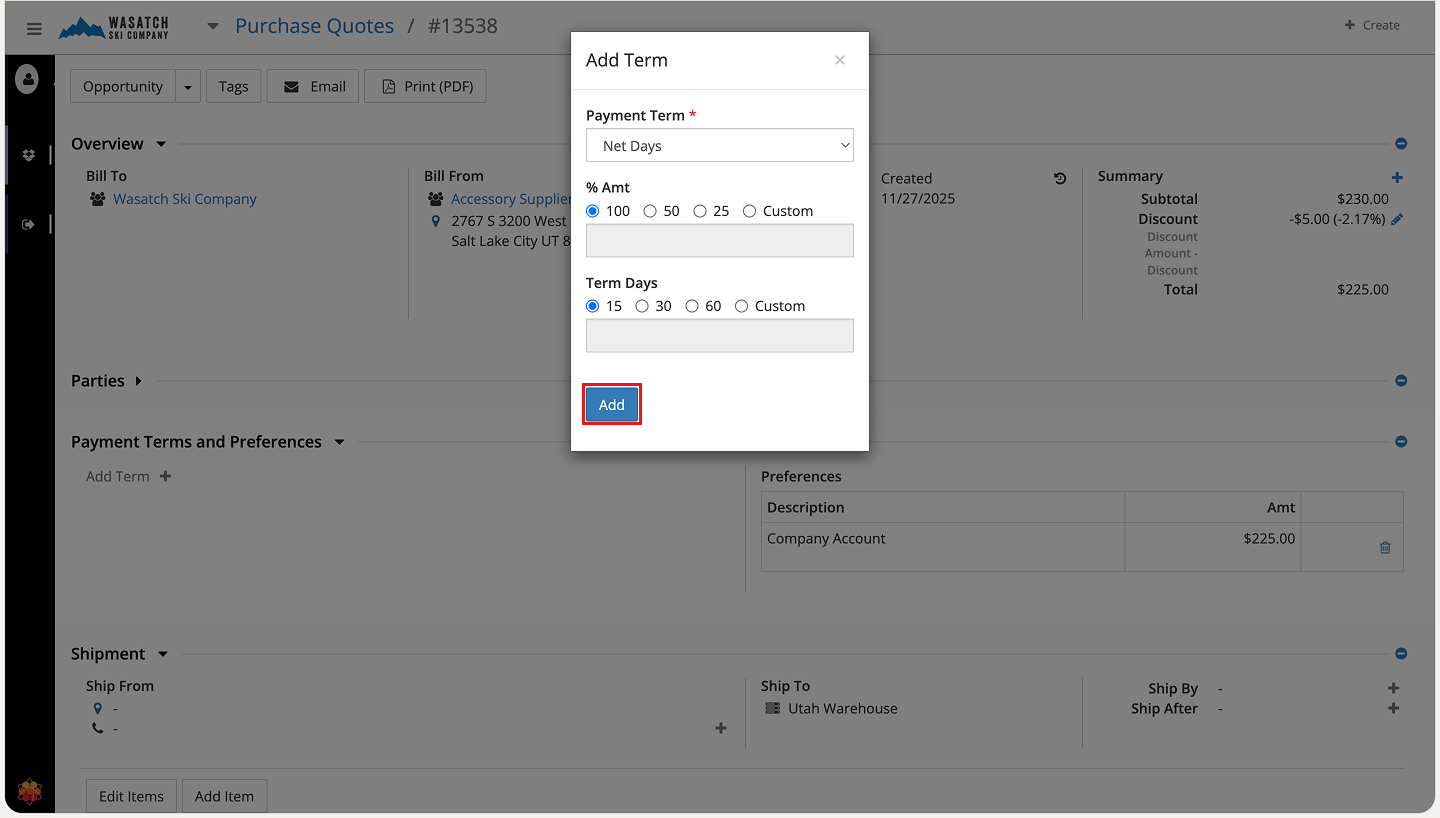
Step 10 - Fill in the payment-term details.
Click Add.
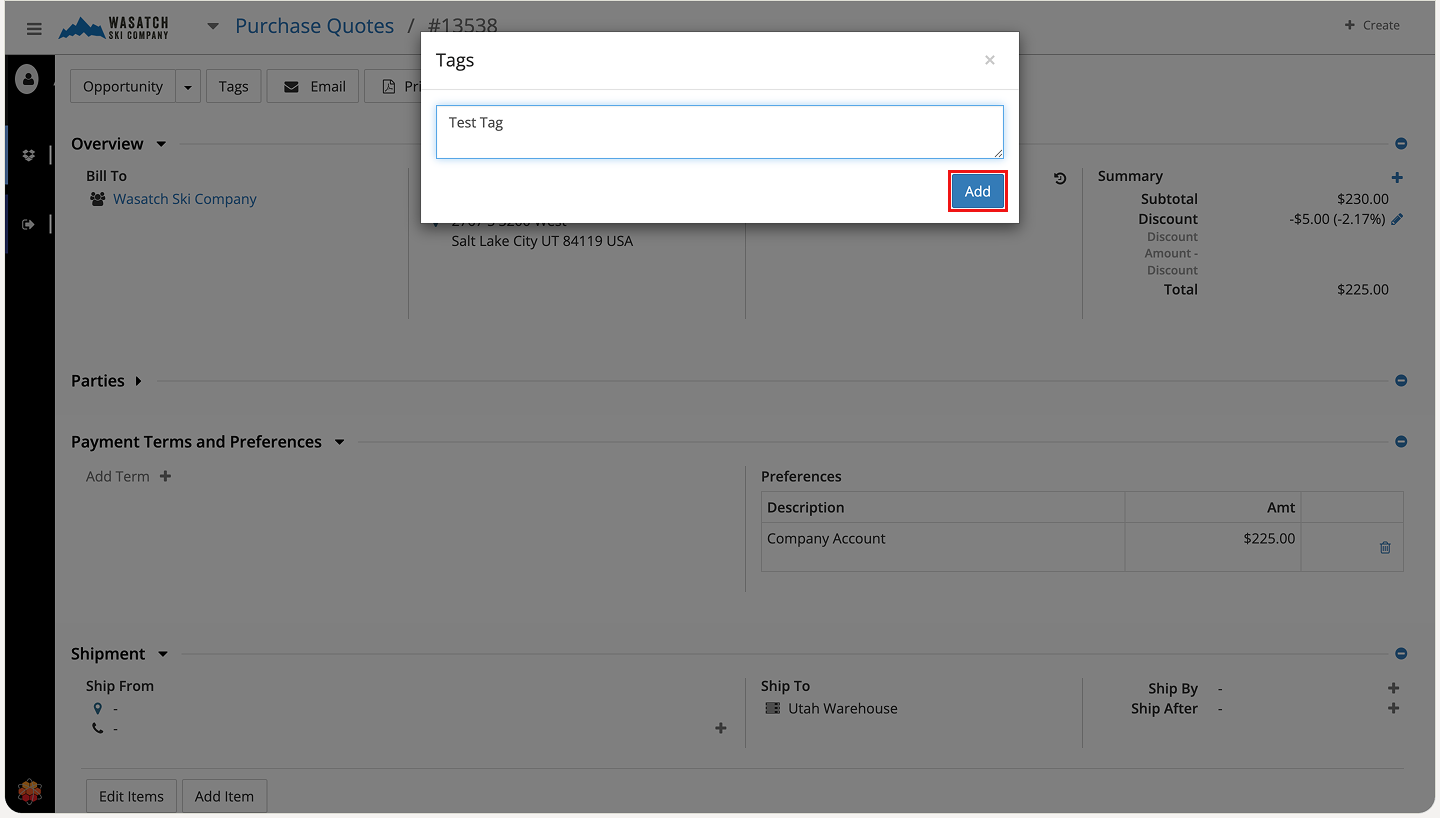
Step 11 - Click Tags.
Enter the tag values.
Click Add.
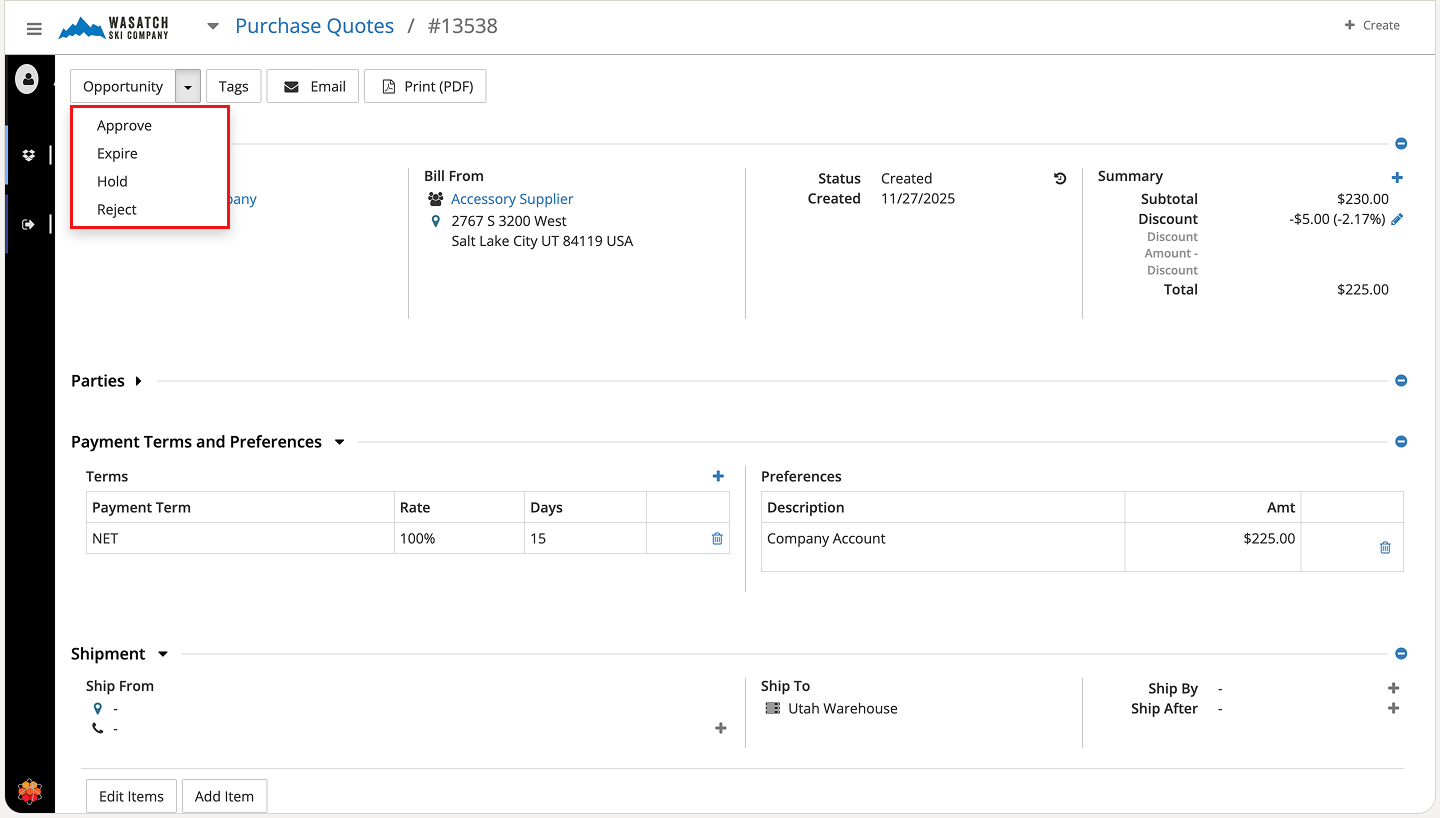
Step 12 - Open the top-left dropdown and click Approve.
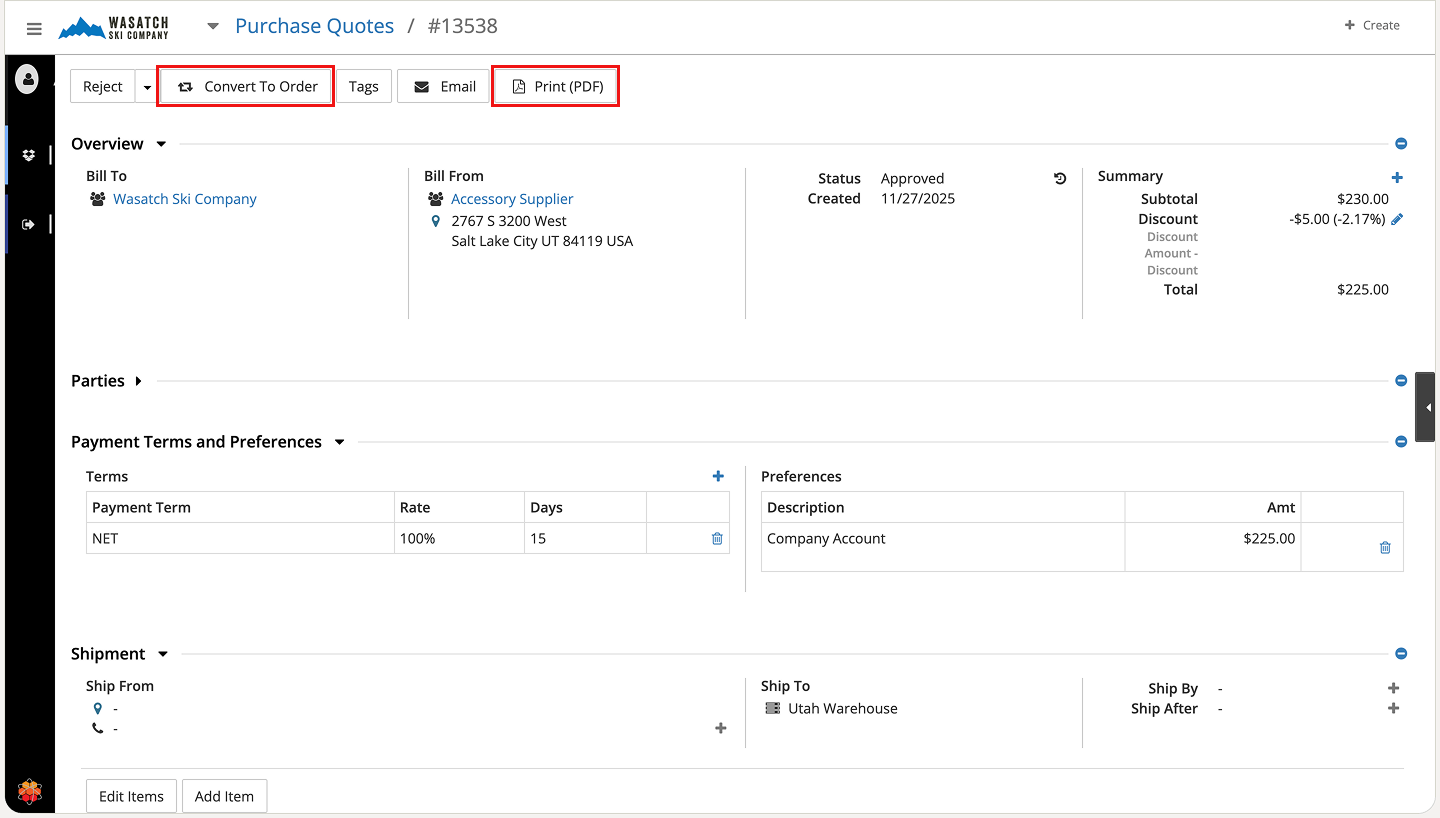
Step 13 - After approval, click Convert To Order to generate the PO.
(Optional) Click Print (PDF) to generate a printable version of the purchase quote.
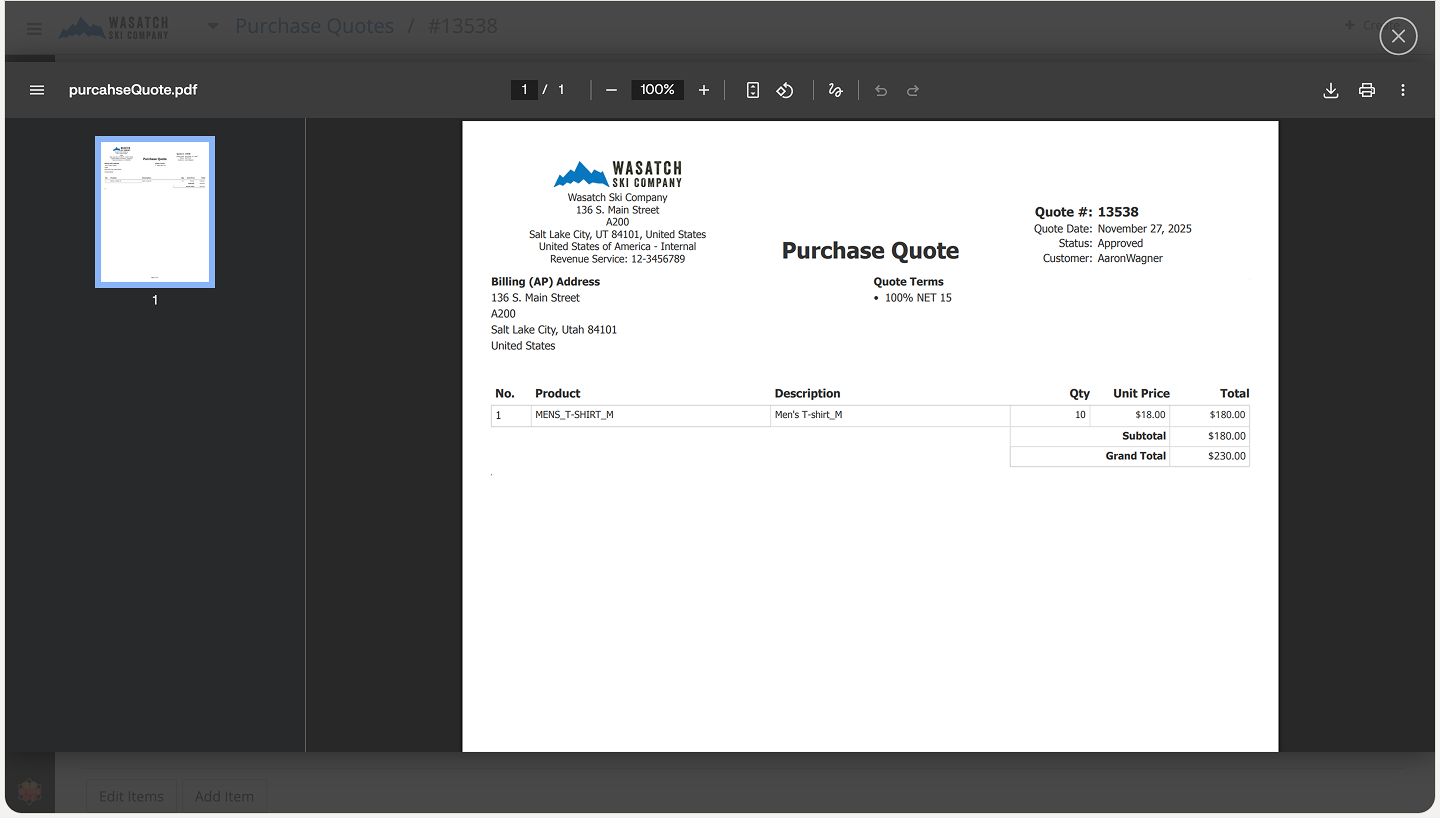
Step 14 - Review the PDF output of the purchase quote.
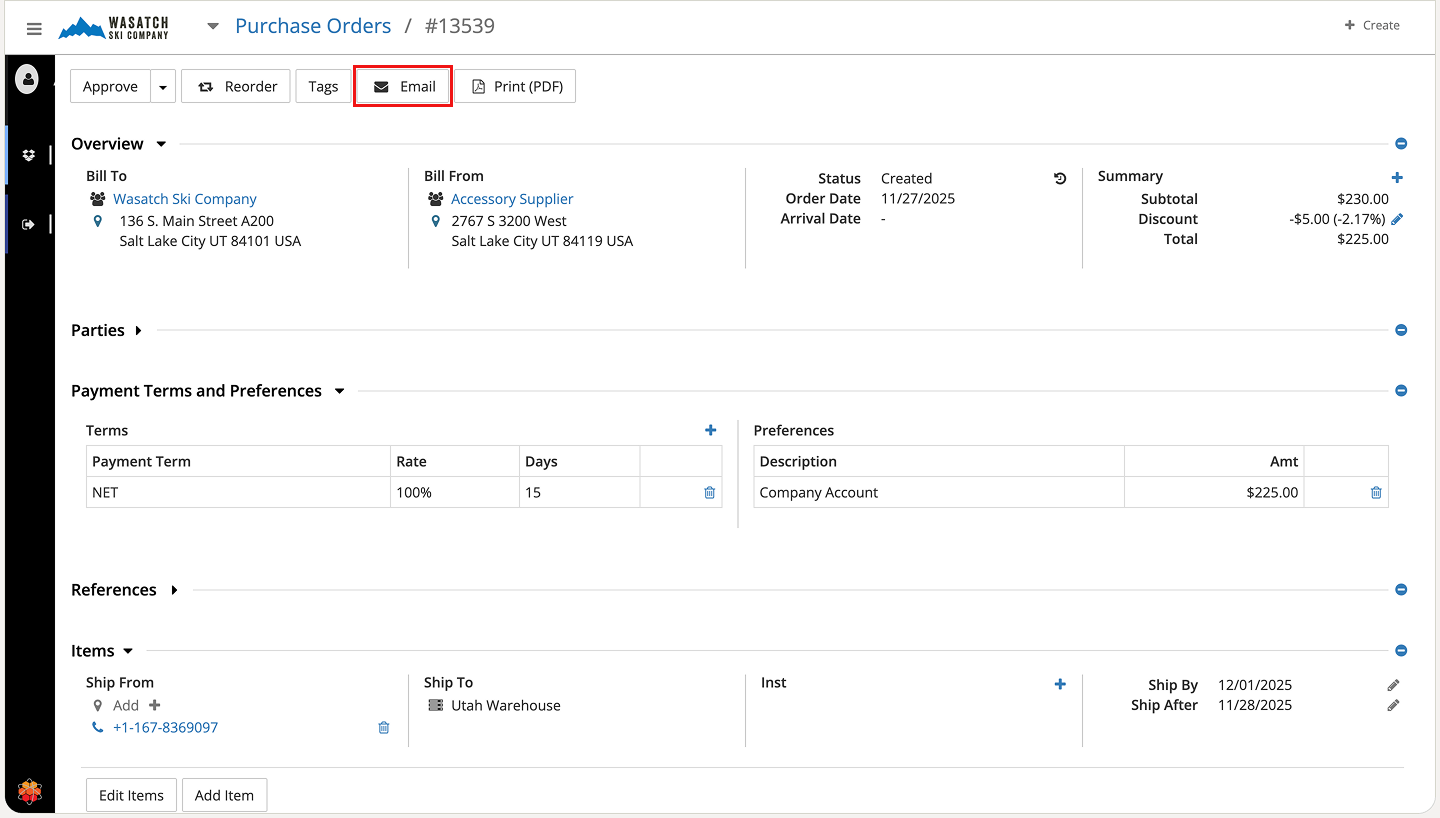
Step 15 - Click Email to send the PO to the supplier.
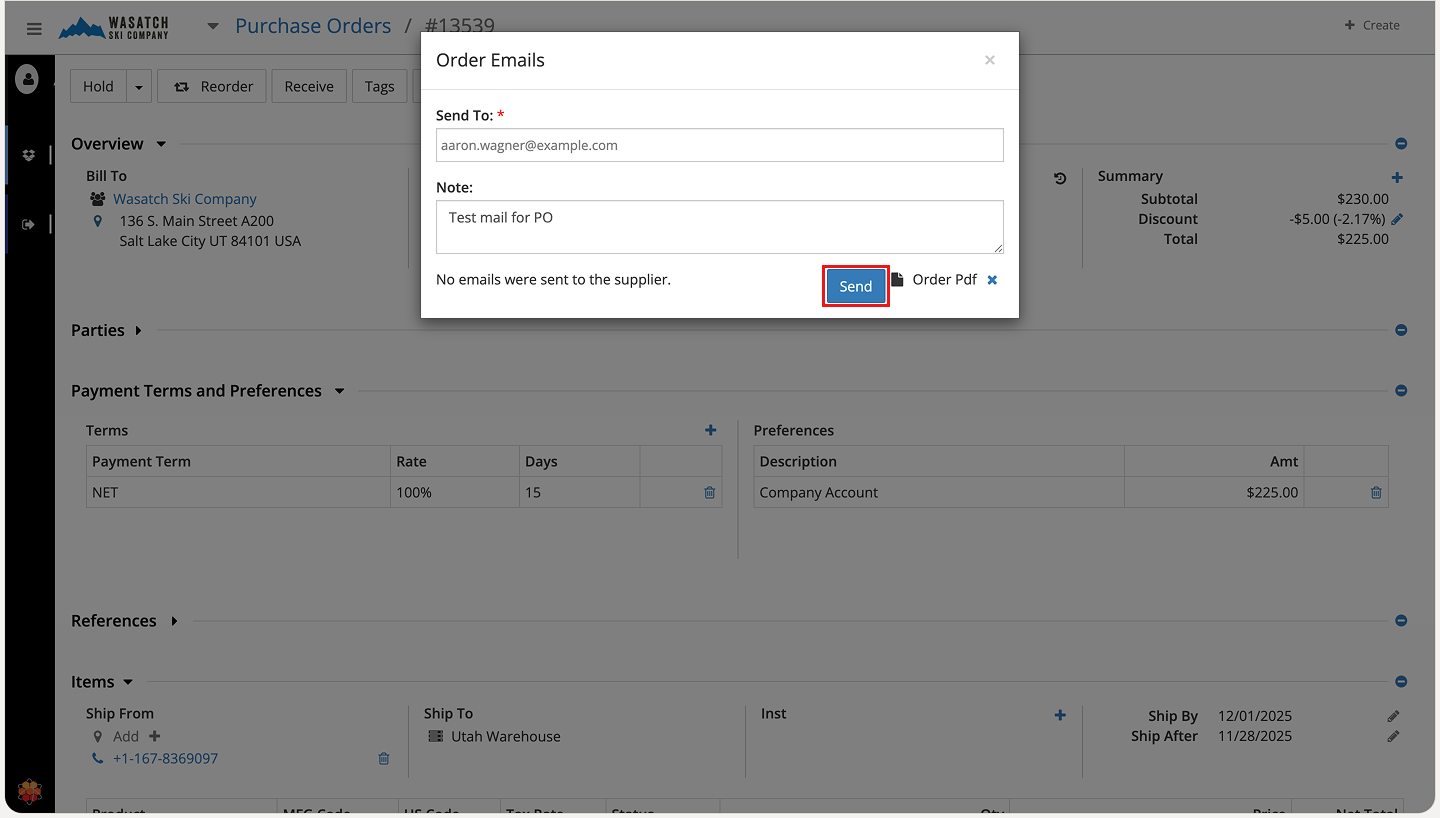
Step 16 - Enter the required email details in the popup.
Click Send.
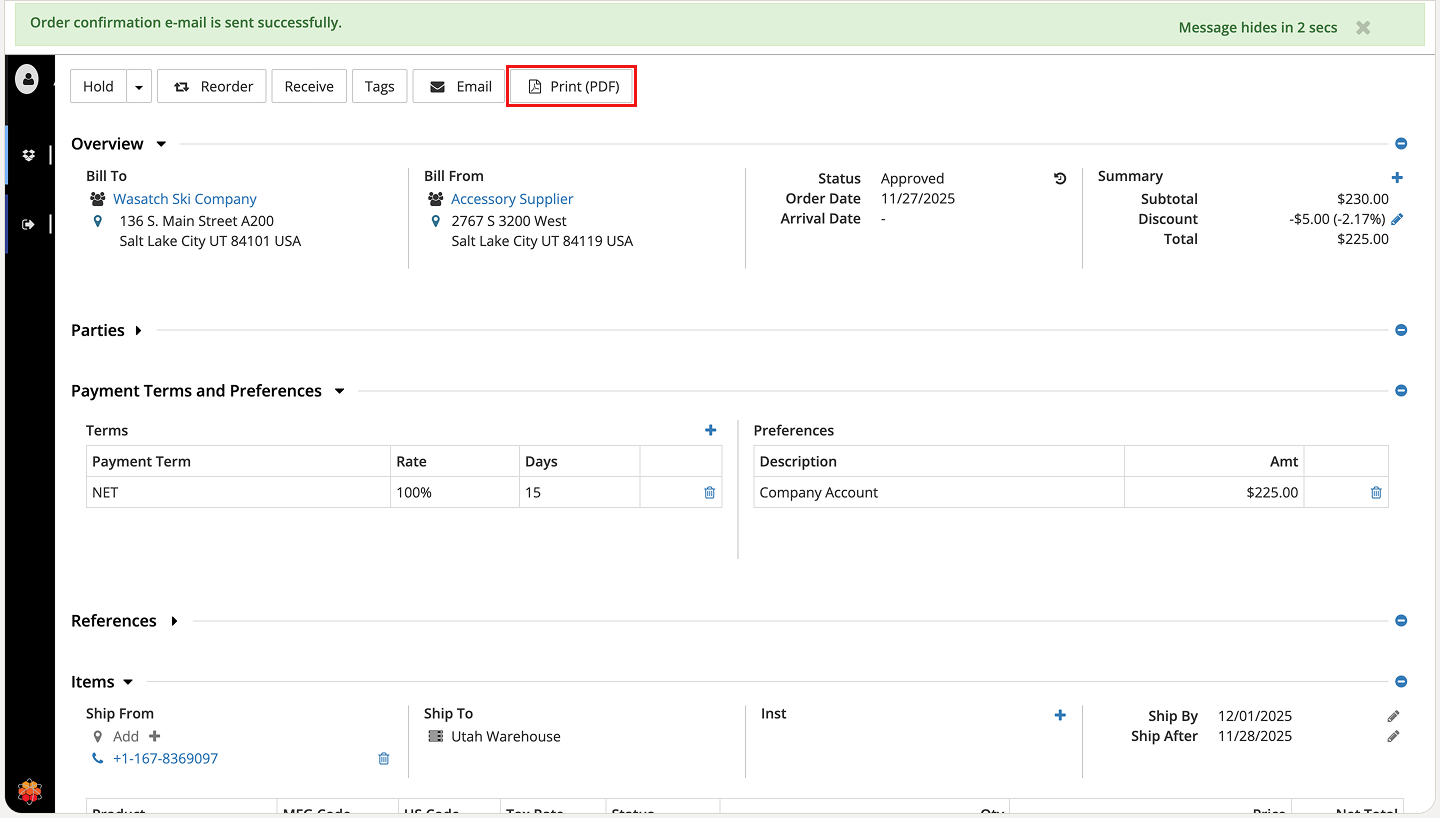
Step 17 - Verify the confirmation message at the top of the screen.
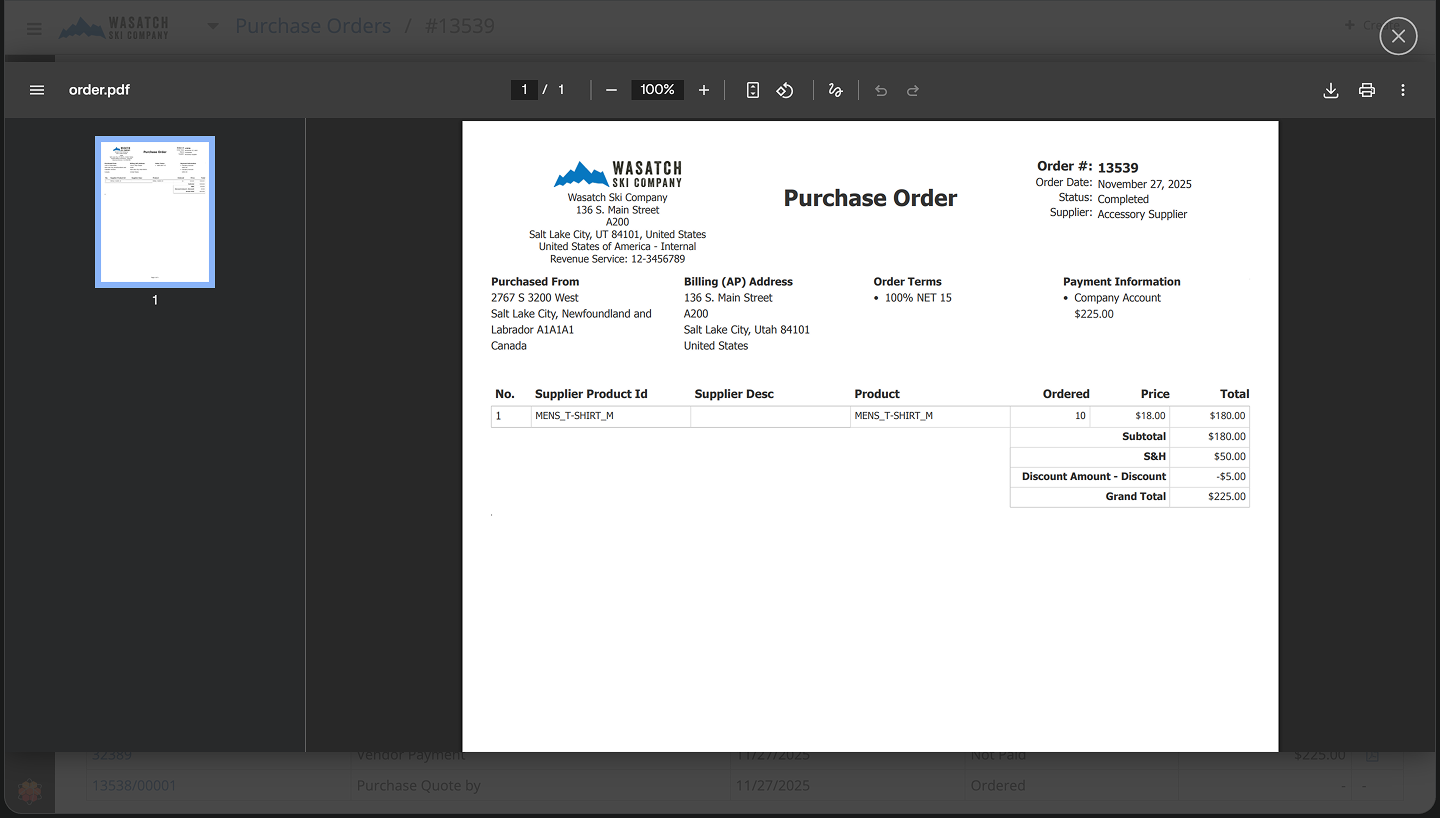
Click Print (PDF) to generate the final PO PDF.
Step 18 - Review the PDF output of the final purchase order.
You can also create a purchase order directly, without starting from a purchase quote. The steps below show how to do this.
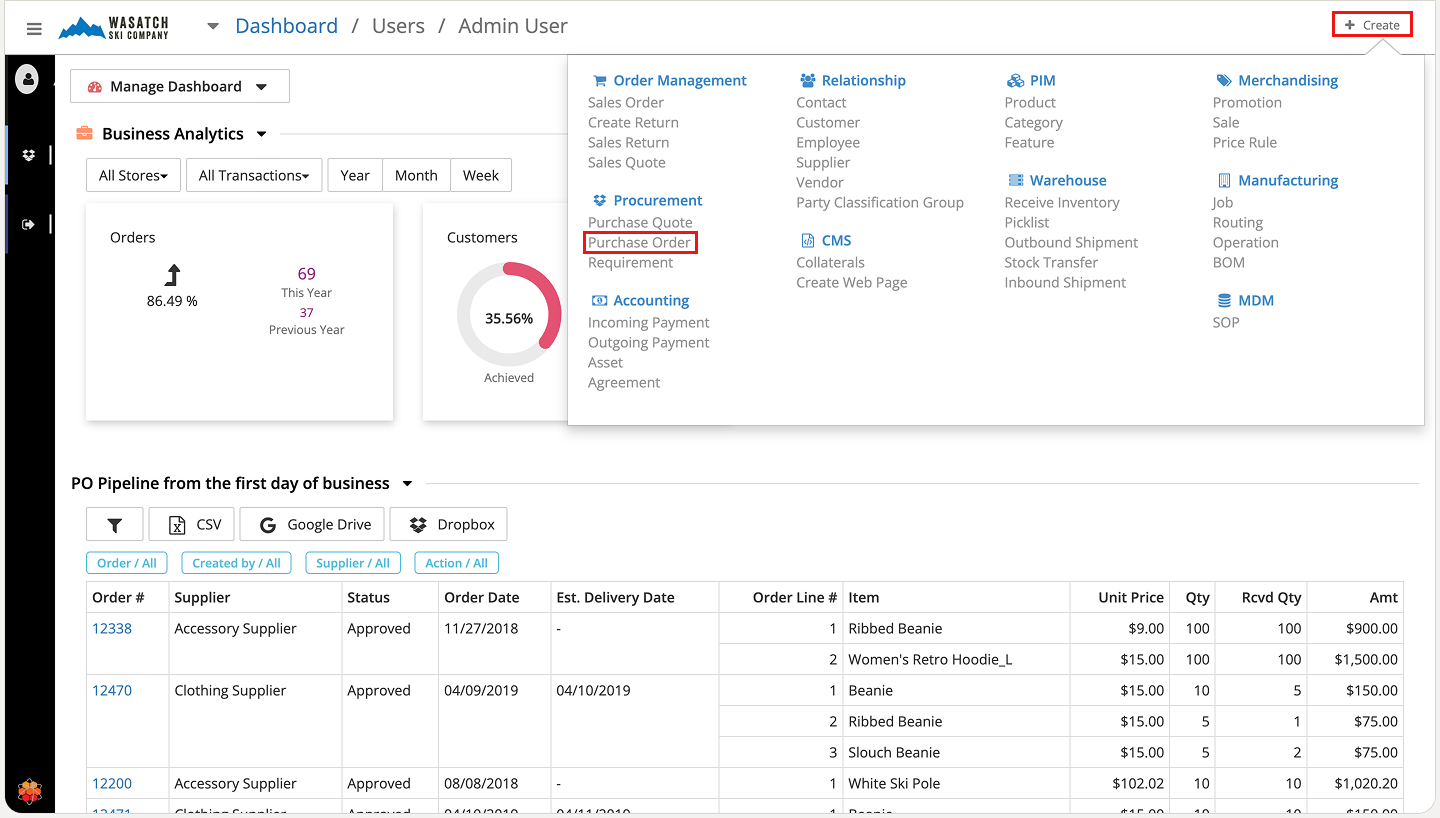
Step 1 - On the HWA dashboard, click Create.
Select Purchase Order under the Procurement section.
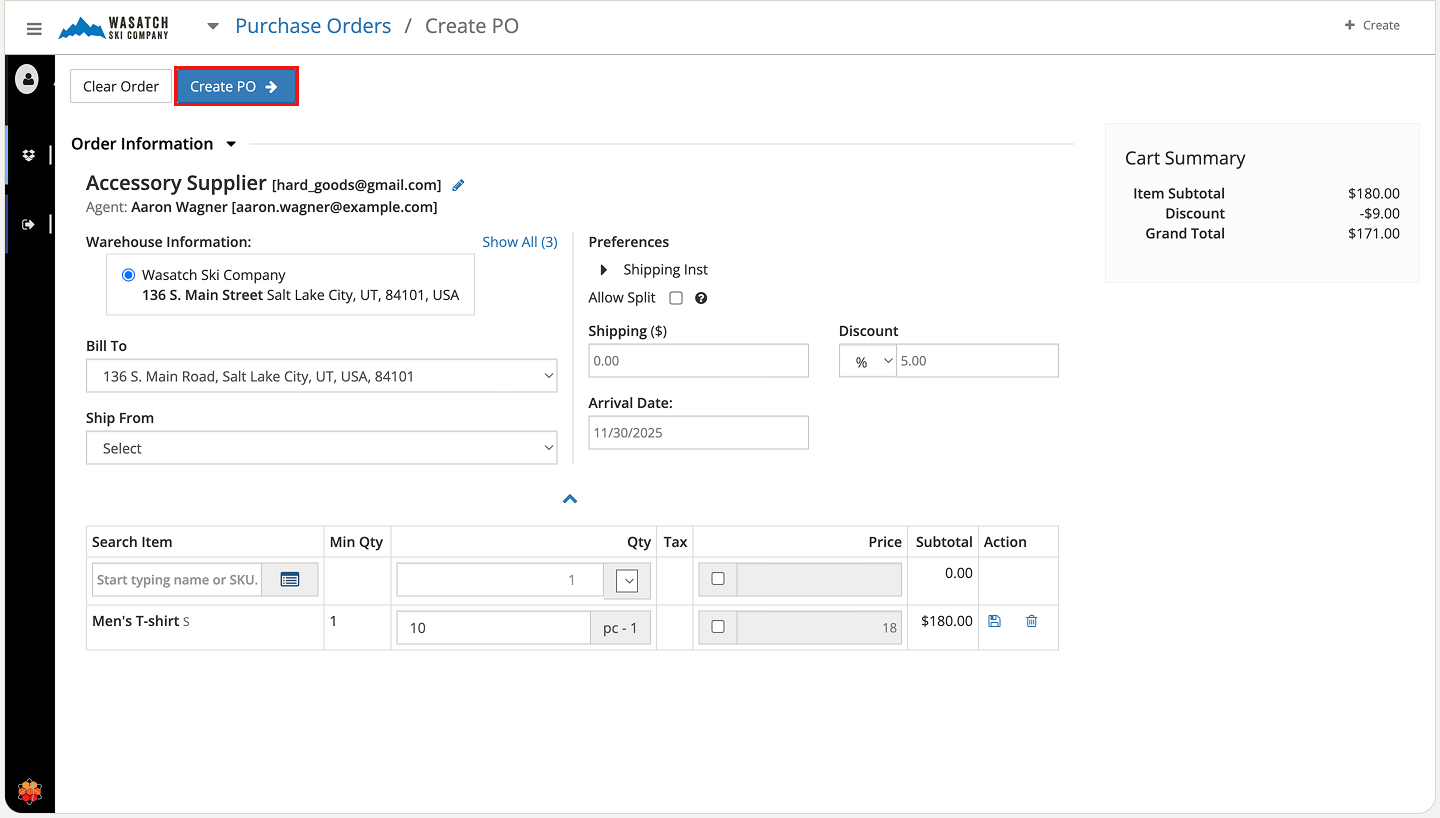
Step 2 - Fill out the PO header fields (supplier, facility, currency, etc.).
Click Create PO.
Step 3 - Click Approve in the top-left corner.
(Optional) Click Print (PDF) to download a printable version of the PO.
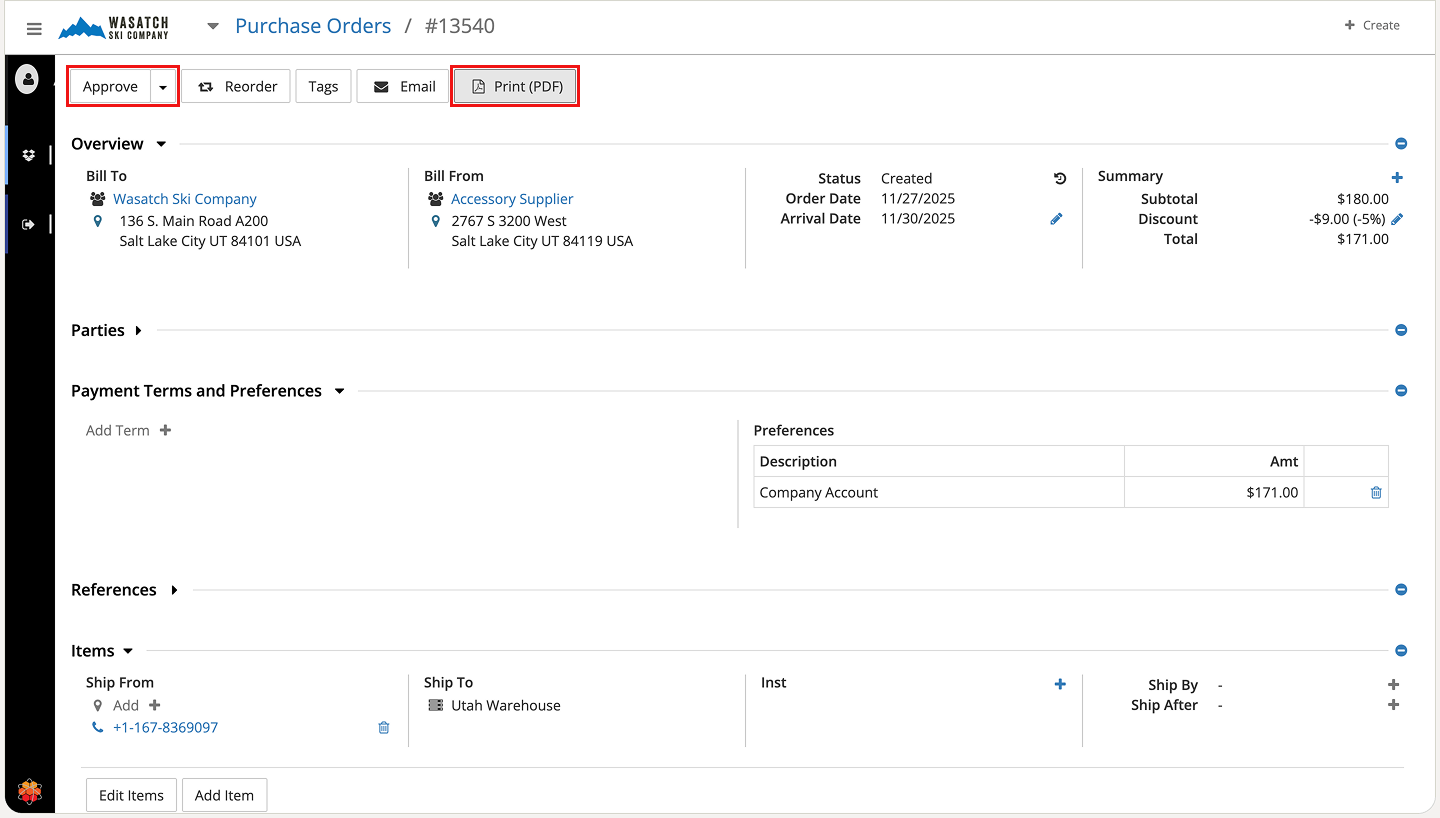
Step 4 - Review the PDF output of the purchase order.
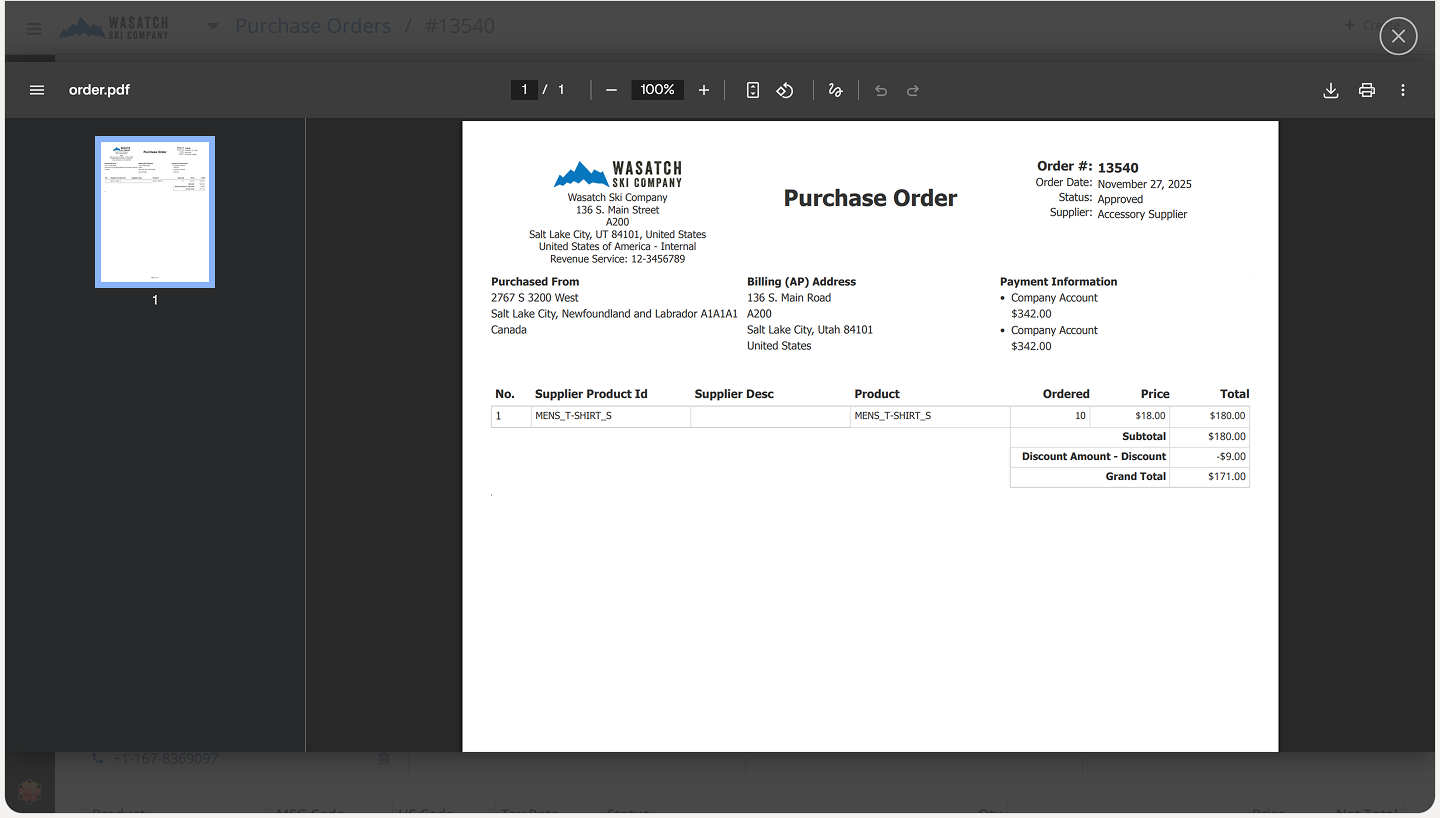
Creating a purchase order in HotWax Accelerator follows a simple, structured flow. You begin by selecting whether the PO will be created through a purchase quote or directly from the purchase order form. After choosing a supplier and adding the required items, the PO is completed with delivery details, payment preferences, and any additional notes. Once the information is reviewed, the order is approved and, if needed, shared with the supplier as a PDF or email.
This process ensures that every purchase request is documented, consistent, and tied to the correct supplier and facility. With clear steps from creation to approval, the system provides a reliable, traceable method for initiating procurement activities across the organization.
To Learn more about HotWax Accelerator, click here.
Every business is different — and so is every solution we build. If you're wondering what this could look like for you specifically, let's find out together. Get your custom solution →