/Pick%20Assembly_2.webp)
/Marketing%20Package%20Auto%20Manufacture.webp)
A Complete Guide to 'Marketing Package: Auto Manufacture' Workflow in HotWax Accelerator


HotWax Accelerator is an open-source enhancement built on Apache OFBiz by HotWax Systems. It modernises the standard Apache OFBiz experience with a clean, intuitive, and responsive user interface, while adding powerful capabilities through integrations such as Apache Solr for fast search and faceted navigation, and Apache NiFi for seamless data flows and real-time synchronisation.
These enhancements make complex inventory and fulfillment processes more accessible and efficient for business users. The platform is ideal for manufacturing, omnichannel retail, and eCommerce operations, enabling faster order processing, accurate inventory visibility, and streamlined customer-to-cash cycles.
The Marketing Package Pick-Assembly workflow (also known as "Pick" type) is designed for static bundles, gift sets, promotional kits, or accessory packs where individual components are already finished goods. Unlike the Auto-Manufacture workflow which triggers a production job for on-demand assembly, the Pick-Assembly method treats the kit as a logical grouping of separate, sellable products.
When a customer orders the kit, warehouse staff simply pick the required individual components from their respective locations and bundle them together during fulfillment (e.g., into a gift box). This approach is perfect for lightweight bundling scenarios that prioritise speed, simplicity, and minimal pre-assembly effort such as gift baskets, seasonal promo packs, or curated retail sets, while maintaining accurate component-level inventory tracking. This guide covers the setup, configuration, and real-world fulfillment impact of the Pick-Assembly workflow in the intuitive HotWax Accelerator interface.
When a customer orders the kit, no production job is created — instead, the individual components are picked from their respective locations and bundled together during the normal picking and packing process. This approach keeps inventory lean (no pre-built kits taking up space), allows components to be sold individually or in multiple bundles, and speeds up fulfillment for high-volume or frequently changing promotions. Warehouse teams simply follow the picklist that lists each component separately, then pack them together as the final "kit" for the customer.
This guide walks you through setting up the kit product, configuring its components, and shows exactly how it behaves during real-world order fulfillment.
Step 1: Create a New Product
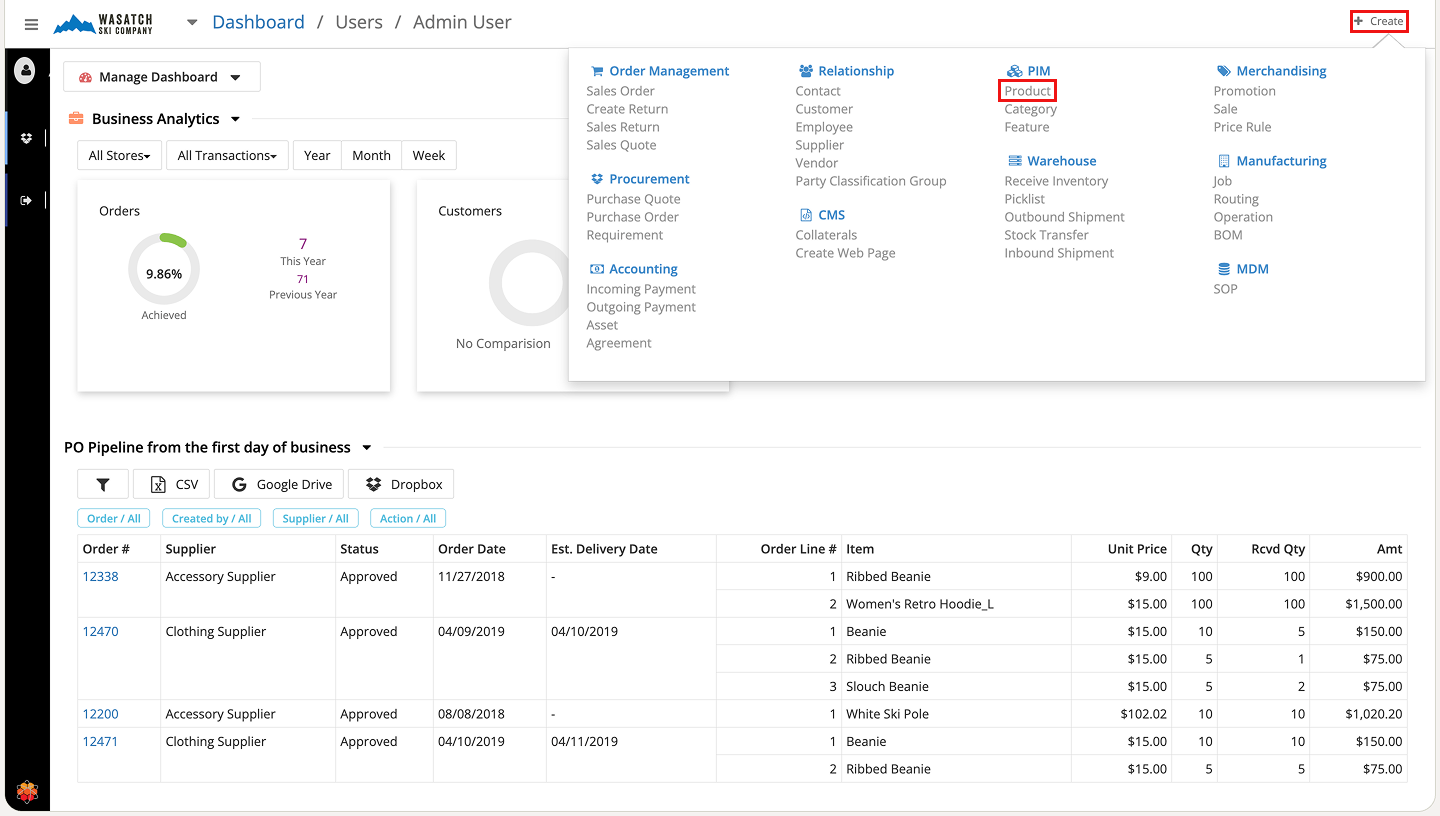
From the main menu, click + Create in the top-right corner. Under the PIM (Product Information Management) section, select Product.
Step 2: Enter Product Details and Mark as Kit
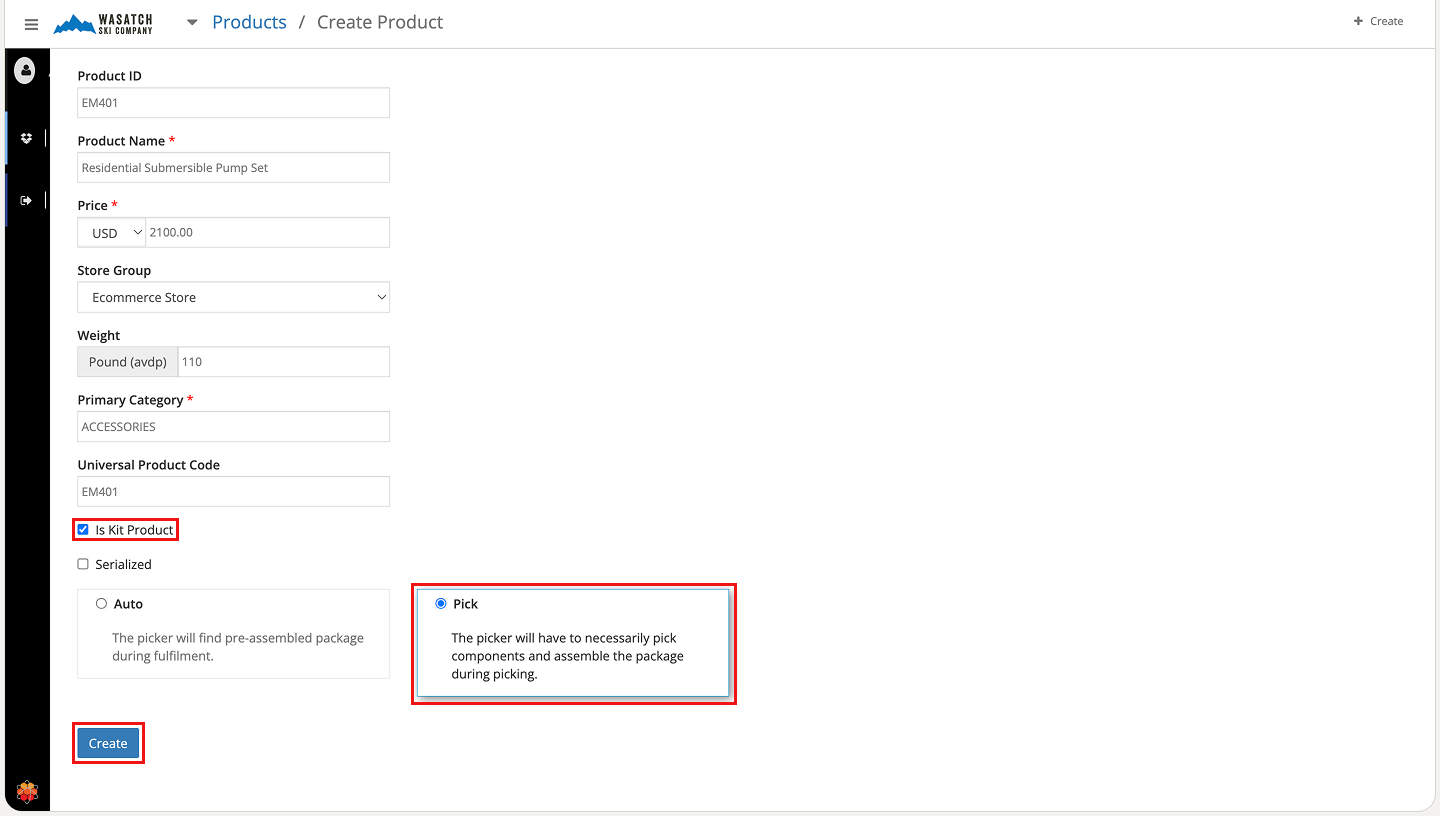
The Product creation screen opens. Fill in the basic details such as product name, store group, category, price, weight, and any other relevant information.
At the bottom of the screen, check the box for Is Kit Product, then select Pick as the kit type to designate this as a pick-assembly bundle (no manufacturing required). Click Create.
Step 3: Configure Additional Product Attributes
The full product setup screen appears with various configuration options. Complete the following to make the kit fully ready:
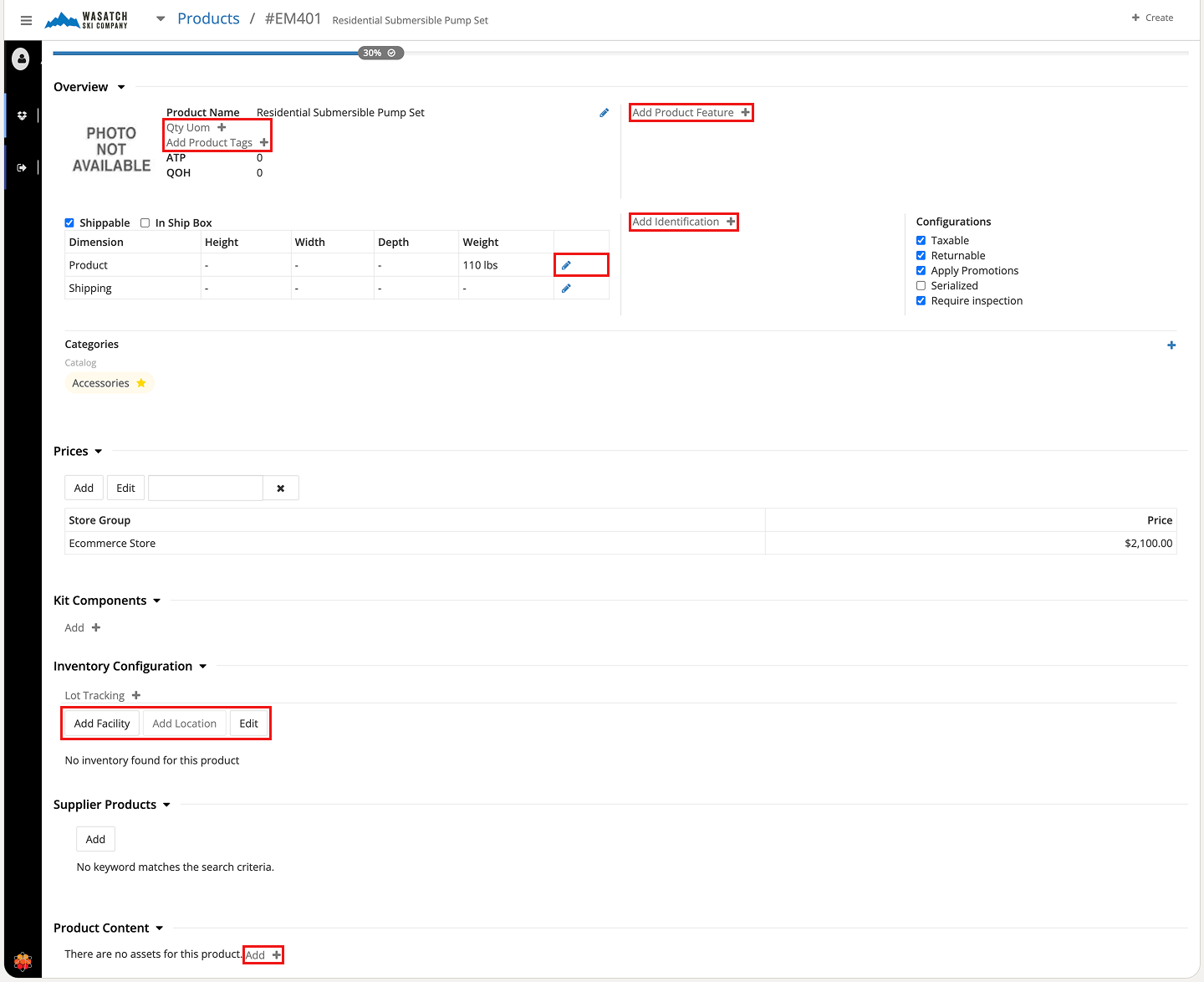
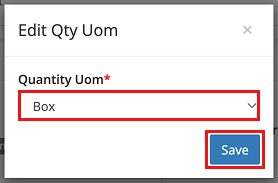
a. Click Qty UOM + to set the unit of measurement (e.g., "Each" or "Set"). In the pop-up, select the appropriate UOM from the dropdown and click Save.
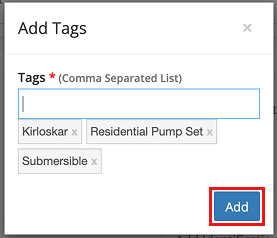
b. Click Add Product Tags + to add searchable identifiers (e.g., "gift set", "promo bundle"). In the pop-up, enter tags separated by commas or press Enter/Return after each, then click Add.
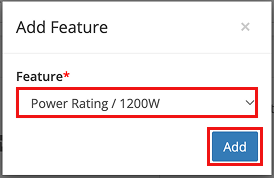
c. Click Add Product Feature + to define key attributes (e.g., "limited edition", "holiday collection"). Select the feature in the pop-up and click Add.
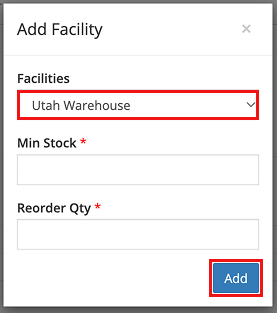
d. Click Add Facility to specify the warehouse where the bundled kit will be associated. Select the facility from the dropdown in the pop-up and click Add.
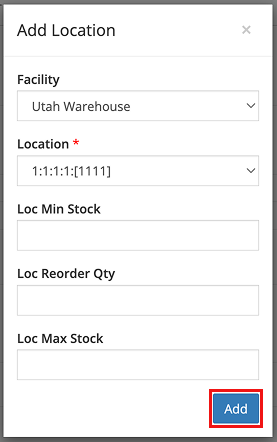
e. Once the facility is added, click Add Location to define the exact storage spot (e.g., aisle, bin, shelf) for the completed bundle after picking. Enter the location details in the pop-up and click Add.
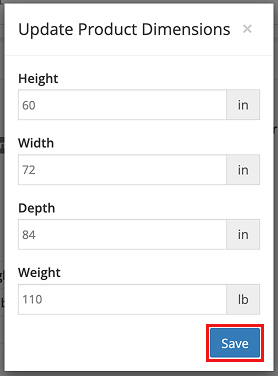
f. If selling the kit in custom packaging (e.g., a box), click the pencil icon in the Dimensions box to enter the physical size, weight, and other specs of the final sellable package, then click Save.
Step 4: Add Product Content
Scroll to the Product Content section and click Add + to enrich the kit:
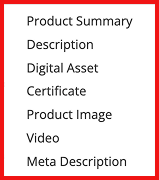
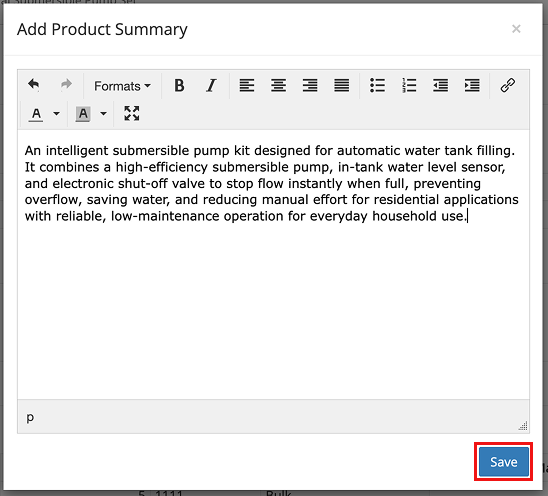
a. Select Product Summary and Description to open text editors. Write a concise summary highlighting key benefits, and a detailed description including features, usage ideas, or marketing copy. Click Save for each.
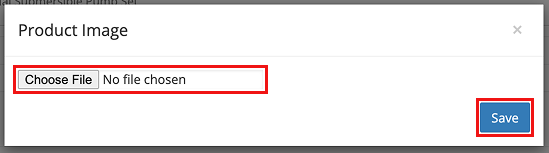
b. Select Product Image to upload a high-quality image of the finished kit (showing the bundled presentation). Choose the file and click Save.
Step 5: Configure Sales Channel Settings
Hover over or click the progress bar at the top of the screen to view the remaining required sections. Click Channel Settings to define where the kit will be sold.
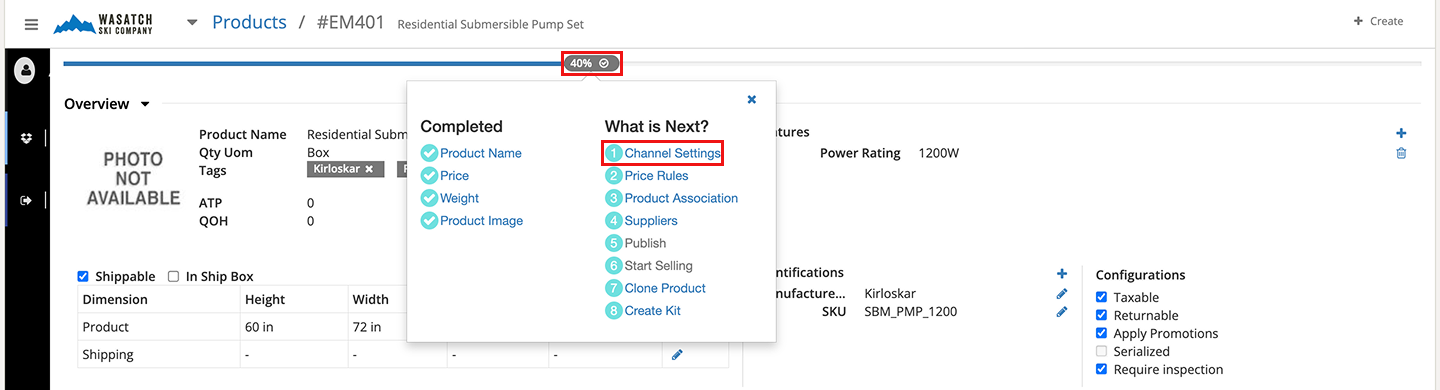
a. In the Sales Channel section, select the desired channel(s) from the available options.
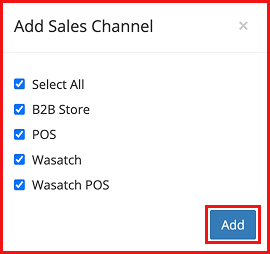
b. A new section will appear — Sales Channel. Click Set Date under the Launch column for each channel. Use the calendar pop-up to choose the publication date when the kit becomes available for purchase.

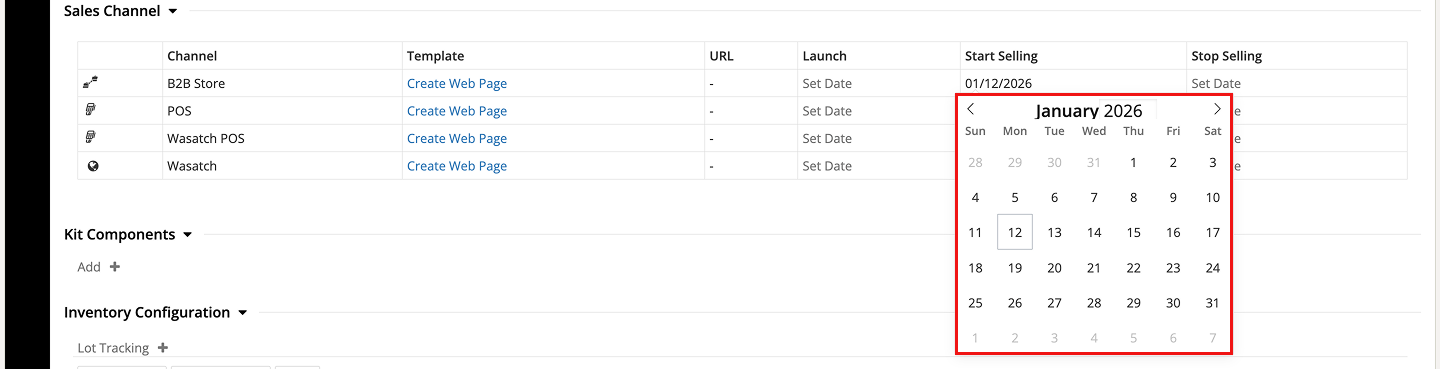
These steps fully prepare the kit product as a marketable item. The kit is now configured with all necessary details for searchability, inventory management, accurate packaging specs, compelling customer-facing content, and controlled launch timing across sales channels. With the kit product complete, you can proceed to set up and link its individual components (covered in the next sections), enabling warehouse teams to fulfill orders by picking the separate components and bundling them on demand.
Once the kit product itself is created (as a kit with pick assembly enabled), the next step is to set up each individual component that will form the kit. Components are treated as independent, purchasable products in Apache OFBiz and HotWax Accelerator. This allows the system to manage supplier procurement, inventory, and cost tracking separately for each part, while the kit assembly pulls them together on demand.
Follow the same general product setup process as the kit (from the Create > Product menu), with the following key differences:
Point 1: Set Up as an Independent Product
On the Product creation screen, do NOT check the Is Kit Product box. This ensures the component is created as a standard, buyable item (not an assembled kit). Fill in all other required fields (name, description, category, price, etc.) and click Create.
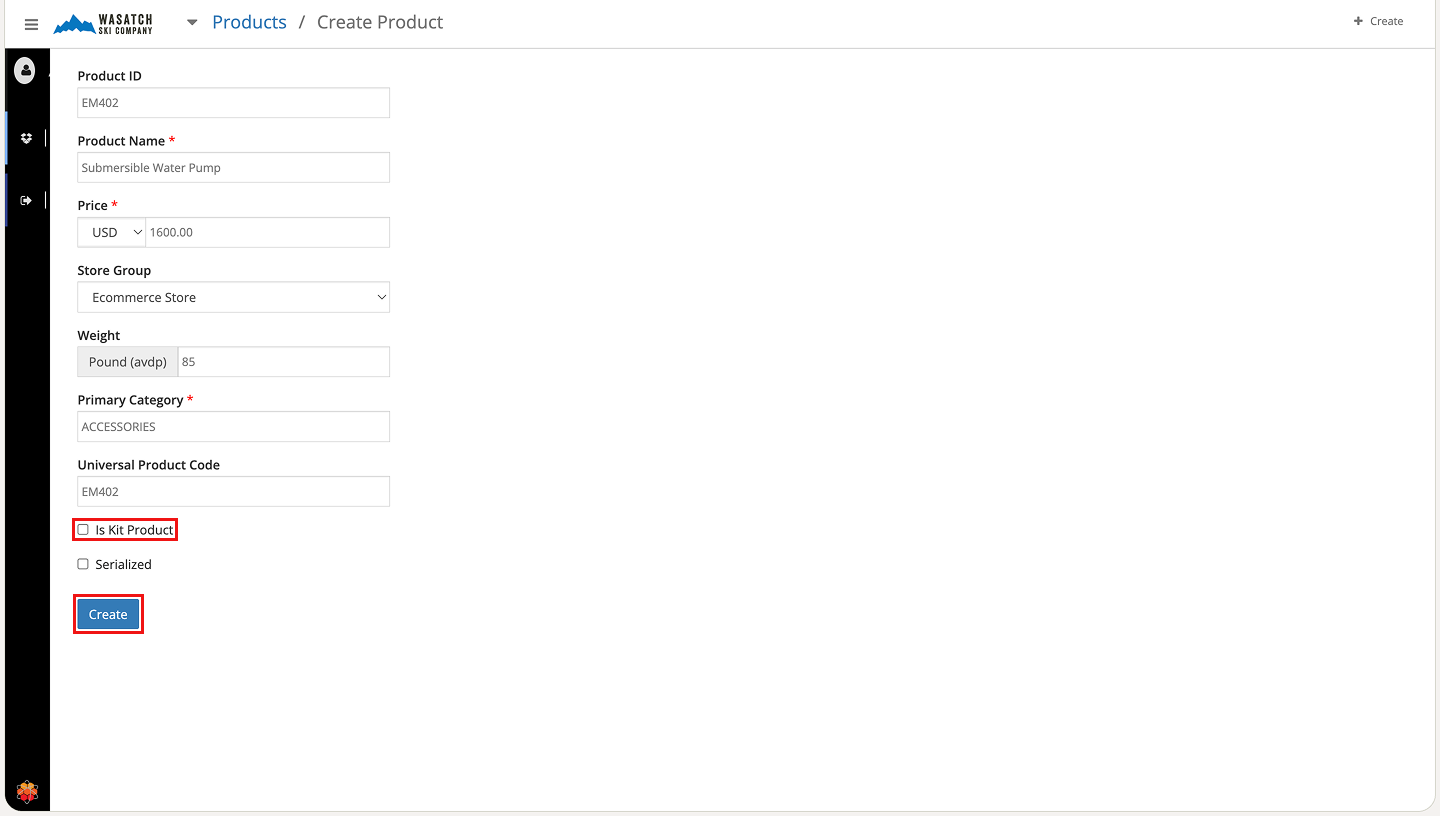
Point 2: Add Supplier Information
Step 1: Setup Supplier
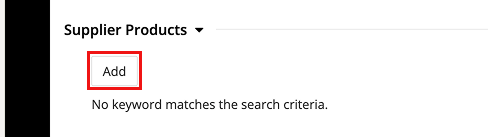
On the resulting Product setup screen, scroll to the Supplier Products section and click Add to link one or more suppliers for this component.
Step 2: Configure Supplier Details
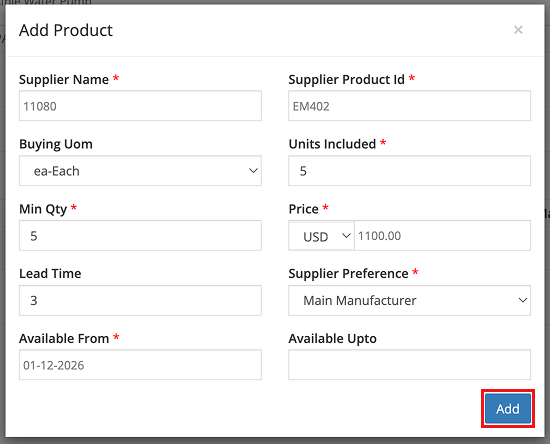
The Supplier Product pop-up opens (shown below). Fill in the required fields:
Click Add to save the linkage.
Point 3: Verify the Component Setup
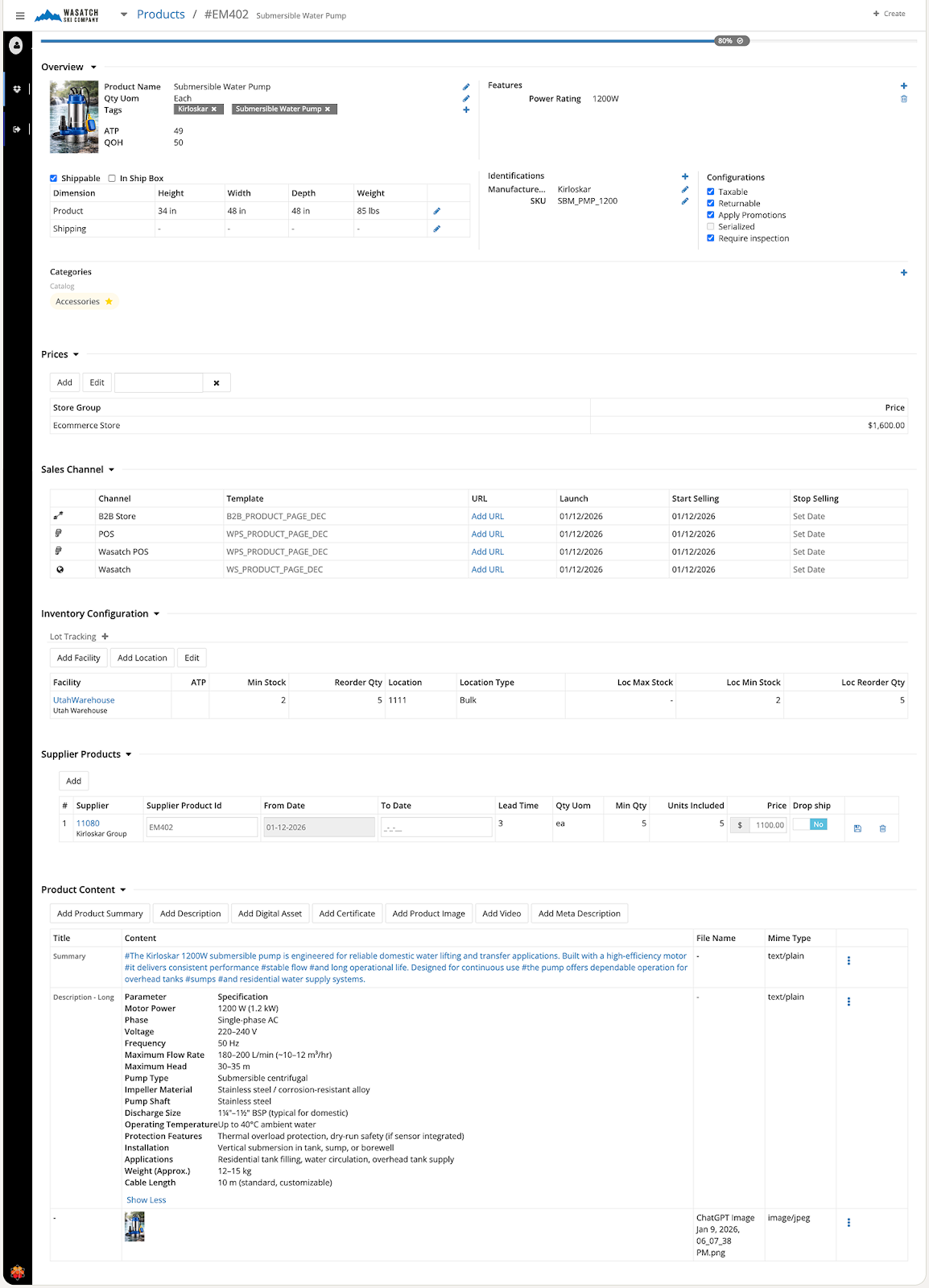
Once complete, the Product setup screen for the component should look similar to the example below — showing supplier details, inventory settings, features, tags, and other configurations.
Repeat these steps for every component required in your kit. This ensures each part is fully ready for procurement and inventory management, with accurate costing and supplier information tied directly to the finished kit.
With components set up, proceed to link them to the kit in the Kit Components section of the main kit product.
Now that the kit product and its individual components are fully set up, the final step is to link the components to the kit. Because you selected the Is Kit Product option with Pick assembly type during the kit's initial creation, an additional Kit Components section automatically appears on the kit's product setup screen. This is where you define exactly which components are required and in what quantities to assemble the finished kit.
Step 1: Access the Kit Components Section
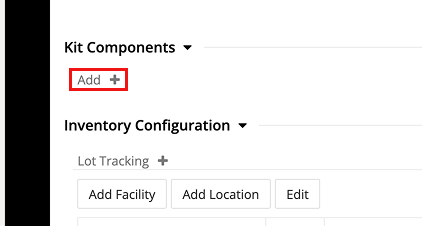
On the kit product's setup screen, scroll down to the Kit Components section (shown below). Click Add + to begin linking components.
Step 2: Add Each Component
A pop-up window appears (shown below).
Click Add to save the component to the list.
Repeat this process for every component needed in the kit.
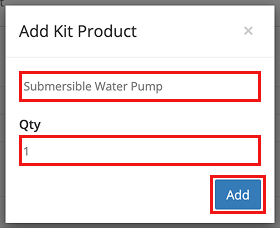
Once all components are added, the Kit Components section will display a complete list with each item, its ID, name, and required quantity (example shown below).
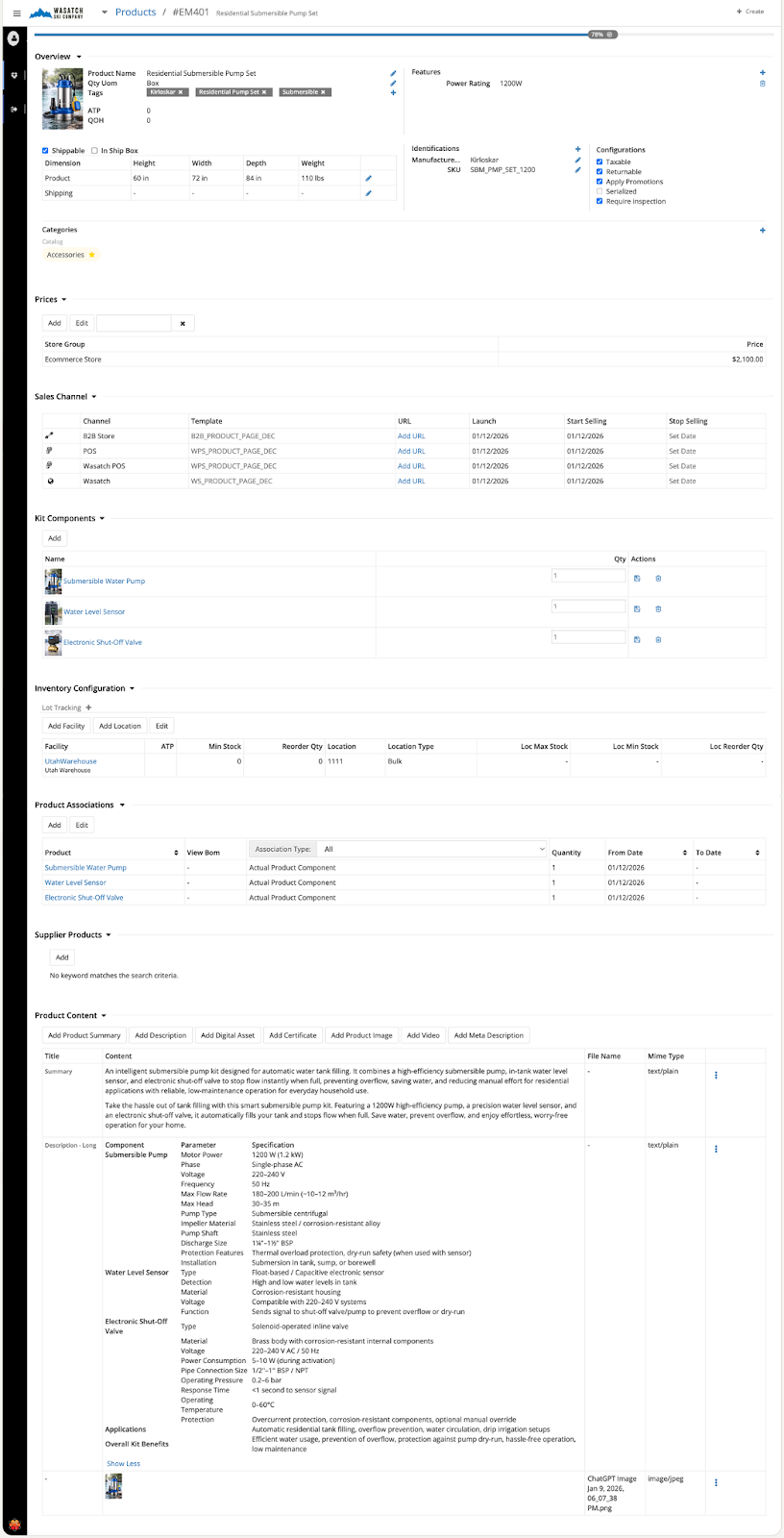
With components now linked, the kit is fully configured for the Marketing Package Pick-Assembly workflow. When a customer places an order for the kit, the system does not trigger a production job. Instead, the individual components remain in their existing inventory locations, and during fulfillment, warehouse staff are instructed to pick each required component separately and bundle them together into the final package. This ensures simple, fast assembly at the point of order processing while maintaining accurate, real-time inventory tracking at the component level.
When a customer places an order containing a Marketing Package Pick-Assembly kit (see the separate Quote-to-Cash Workflow Guide for full order processing details), HotWax Accelerator handles the kit differently from the Auto-Manufacture type. No production job is triggered, and the kit is not treated as a single manufactured item. Instead, the system exposes the individual components during fulfillment, allowing warehouse teams to pick each part separately from their existing locations and bundle them together manually or semi-automatically into the final package.
This creates a straightforward, flexible process ideal for static bundles, promotional sets, or gift collections where components are pre-finished and do not require assembly oversight or quality checks. Inventory remains tracked accurately at the component level (important for reordering and multi-use parts), while the customer sees and receives a single cohesive kit.
Here are the key behaviours observed in the fulfillment cycle:
Behaviour 1: Sales Order Screen
In the sales order, the kit appears as a single line item with quantity = 1 (e.g., "Deluxe Gift Set – Qty: 1"). The customer-facing order and invoice treat it as one complete product, maintaining a clean and professional appearance. Behind the scenes, the system knows the kit consists of multiple components, but this breakdown is hidden from the customer and sales view.

Behaviour 2: Picklist Generation
When a picklist is created for the order, the kit is broken down into its individual components. The picklist displays each component as a separate line with its required quantity. Warehouse staff pick these items from their respective bin locations, then combine them into the final package. This is the opposite of Auto-Manufacture, where the picklist shows only the finished kit as a single unit.
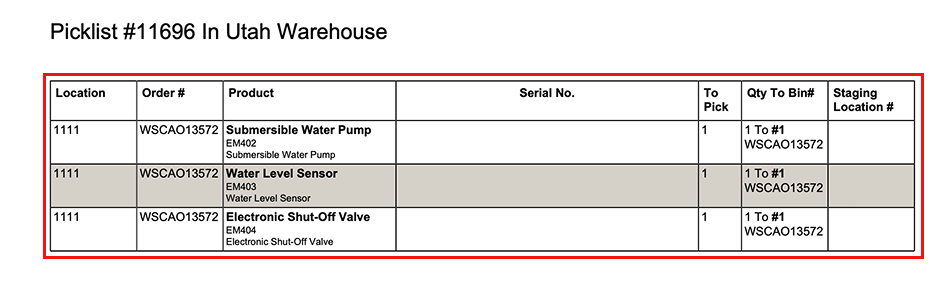
Behaviour 3: Packing and Shipment Creation
During packing, the system continues to show the individual components (quantity reflects the sum of components, e.g., 4 items to pack for a 4-component kit). Staff pack everything together into the outer packaging (gift box, bag, etc.), and the shipment record tracks the components for accurate inventory deduction.
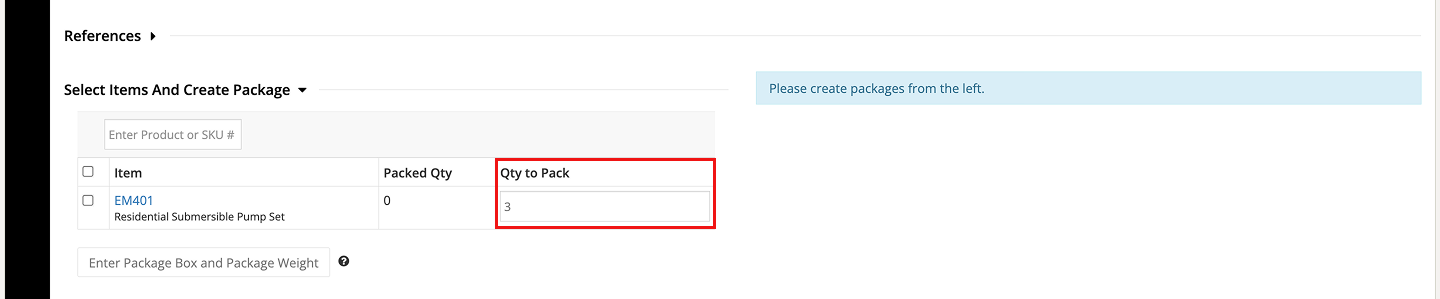
Behaviour 4: Packing Slip and Customer Documentation
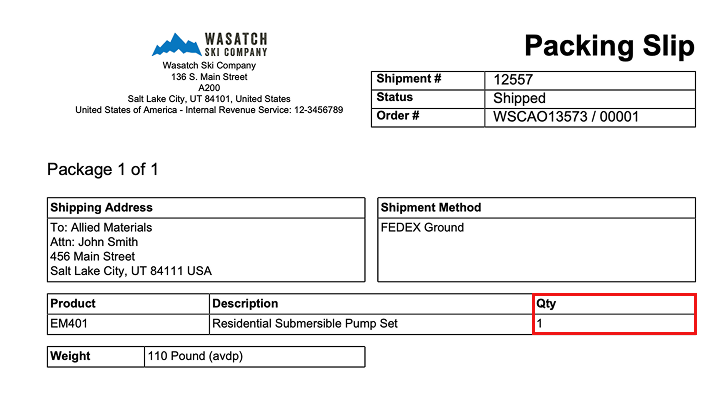
The customer-facing packing slip and invoice typically display the kit as a single item with quantity = 1 and the kit's name/description (configurable via product content settings). This keeps the delivery experience consistent and branded, while internal systems maintain precise component-level tracking for inventory, costing, and reporting.
The Marketing Package Pick-Assembly workflow in HotWax Accelerator builds on Apache OFBiz's kit functionality to enable simple, efficient bundling of static sets, empowering businesses to create marketable packages without the need for manufacturing. By breaking down kits into individual components during fulfillment, it allows warehouse teams to pick and combine pre-finished items on-demand, minimizing storage space for finished goods, reducing handling complexity, and supporting dynamic promotions with easy component swaps.
This method excels in scenarios like retail gift sets, seasonal bundles, or accessory collections (e.g., skincare routine kits or coffee sampler packs), where the value comes from curation rather than transformation. It delivers benefits such as lower inventory holding costs, faster turnaround for limited-time offers, and seamless multi-channel selling, all while keeping inventory tracking granular at the component level.
In contrast, the Marketing Package Auto-Manufacture workflow (detailed in the separate Auto-Manufacture Guide) is ideal for kits requiring just-in-time assembly or production oversight, triggering automated jobs for interdependent or customizable components.
This guide serves as a practical reference for setting up and using pick-assembly kits in HotWax Accelerator. Combined with broader Quote-to-Cash workflows, it illustrates how the platform equips manufacturers, fulfillment teams, and retailers to manage versatile product bundling, boost efficiency, and meet evolving customer demands in a competitive landscape.
To Learn more about HotWax Accelerator, click here.
Every business is different — and so is every solution we build. If you're wondering what this could look like for you specifically, let's find out together. Get your custom solution →



/Multi-level%20BOM.webp)
/Multi-level%20BOM_2.webp)